Tutorial 3- KeyScan TWAIN data source
Description
KeyScan TWAIN data source: KeyScan Imaging application is in fact a TWAIN data
source, any application which has a TWAIN interface can communicate with KeyScan
Imaging and perform the scanning functions.
Step 1:
Use Adobe Photoshop application to scan a document with KeyScan scanner through its
TWAIN interface.
1.1 Activate Adobe Photoshop application.
1.2 From Photoshop main menu select <File><Import><KS810>
1.3 KeyScan Imaging window will show and the scan interface should be displayed.
1.4 Place a document to be scanned on the scanner feeding tray.
1.5 Press [SCAN] to start scanning.
1.6 When finished scanning the KeyScan Imaging application will be removed automatically and
the scanned data transferred to Photoshop.
Step 2:
Use Microsoft Office Document Imaging application to scan a document with KeyScan
scanner through its TWAIN interface.
1.1 Activate Microsoft Office Document Imaging application.
1.2 From Microsoft Office Document Imaging main menu select <File><Scan New Document>
1.3 Microsoft Office “Scan New Document” dialog should popup.
1.4 Use the popup dialog to select scanning mode, if needed select scanner and click on the
[SCAN] button.
1.5 KeyScan Imaging window will show and the scan interface should be displayed.
1.6 Place a document to be scanned on the scanner feeding tray.
1.7 Press [SCAN] to start scanning.
1.8 When finished scanning the KeyScan Imaging application will be removed automatically and
the scanned data transferred to Microsoft Office Document Imaging.
Tutorial 4- KeyScan Scanner buttons
Description
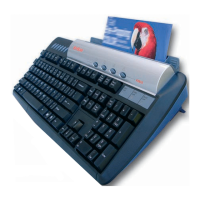
KeyScan scanner has 4 buttons located on top of the scanner top cover.
These buttons have dual functions each.
By default they serve as multimedia functions (Mute, Volume+, Volume-, Media-player).
When the KeyScan Imaging application is active, this buttons can be activated as scan
functions buttons for File, Copy, Email, Fax.
Step 1:
Enable or disable the Scanner function keys.
1.1 Activate KeyScan Imaging application.
1.2 From main menu select <File><Enable Scan Hotkeys>
1.3 This will enable the scan functions of the scanner top cover keys.



 To Next Page
 Loading...