Need help?
Do you have a question about the Kguard NS801 and is the answer not in the manual?
Details the key features and capabilities of the DVR system.
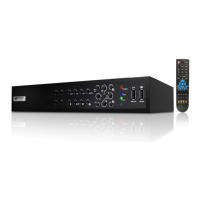
Lists the items included in the DVR package.
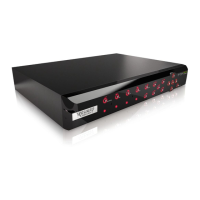
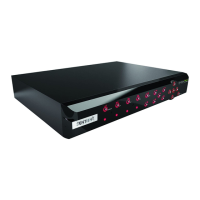
Identifies and describes the components on the DVR's front panel.
Identifies and describes the components on the DVR's front panel.
Identifies and describes the connectors on the DVR's rear panel.
Explains the operation and functionality of the included USB mouse.
Details the buttons and functions of the 4/8-channel DVR remote control.
Step-by-step guide for installing a hard disk drive into the DVR.
Instructions for connecting the DVR's power adapter to the unit and outlet.
Guide on connecting video output to monitors via BNC, VGA, or HDMI.
Details how to connect the DVR to a monitor using a VGA cable.
Details how to connect the DVR to a monitor using an HDMI cable.
Instructions for connecting cameras to the DVR via BNC or RS-485.
Guide on connecting cameras using BNC cables to the DVR video inputs.
Instructions for connecting PTZ cameras using the RS-485 connector.
Details how to connect alarm devices to the 16-channel DVR.
Guide on connecting sensor devices to the 16-channel DVR.
Instructions for connecting microphones via RCA, BNC, or parallel connections.
How to connect microphones using BNC for 16-channel DVRs.
How to connect microphones using parallel port for 16-channel DVRs.
Instructions for connecting the DVR to a network for remote monitoring.
How to connect USB devices like mouse and storage drives to the DVR.
Guide on connecting speakers via RCA or BNC connections.
How to connect speakers using RCA cables.
Steps to power on the DVR and begin initial setup.
Procedure for safely powering off the DVR to prevent data loss.
Overview of the DVR's main interface and screen icons.
Explanation of indicator icons displayed on the DVR's main screen.
Description of the on-screen virtual keyboard for data entry.
How to secure the DVR by locking the screen for system security.
Accessing common DVR features and menus via the pop-up interface.
Methods to access and navigate the DVR's On Screen Display (OSD) menu.
Viewing live camera feeds in default grid or full-screen modes.
Viewing live camera feeds in default grid or full-screen modes.
Customizing the display to show multiple camera feeds in split window layouts.
Displaying additional channels in mini-windows over the main live view.
Enabling and disabling automatic display rotation between channels.
Controlling PTZ speed dome cameras for pan, tilt, zoom, and focus.
Activating and deactivating the automated PTZ camera movement sequence.
Magnifying specific areas of the live camera feed for detailed viewing.
Starting and stopping manual video recording sessions.
Controlling the audio output volume or muting the sound for the DVR.
Configuring display settings like channel titles, position, color, and privacy zones.
Adjusting live view settings for individual channels, including titles and covert mode.
Configuring video and audio output settings for 4/8 channel models.
Configuring LIVE-OUT and SPOT-OUT for 16 channel models.
Masking specific areas within a camera's view for privacy.
Customizing recording parameters like mode, duration, and pre-record.
Setting recording mode, pack duration, and pre-record options.
Setting up timed recording schedules for different channels and days.
Configuring resolution, FPS, quality, and audio for recording.
Methods for searching and playing back recorded video files.
Methods for searching and playing back recorded video files.
Replaying videos by specifying exact recording date and time.
Searching for recorded videos based on specific event types like motion or alarm.
Process for backing up recorded video files to a USB device.
Viewing and exporting system logs from the DVR.
Configuring network connection types: DHCP, PPPoE, Static IP, DDNS, and Email.
Configuring network connection types: DHCP, PPPoE, Static IP, DDNS, and Email.
Setting up the DVR to obtain an IP address automatically via DHCP.
Configuring the DVR for PPPoE connection, including user name and password.
Configuring the DVR with a fixed IP address, subnet mask, and gateway.
Enabling or disabling video output for remote access.
Configuring Dynamic DNS service for remote access via a domain name.
Setting up email notifications for events like motion detection or HDD failure.
Setting up the DVR for remote access via mobile phones and tablets.
Configuring motion detection sensitivity, areas, and alarm notifications.
Configuring motion detection sensitivity, areas, and alarm notifications.
Configuring alarm types, buzzer, email, and recording for 16-channel DVRs.
Configuring HDD overwrite settings and formatting the HDD or USB drive.
Configuring HDD overwrite settings and formatting the HDD or USB drive.
Setting HDD overwrite intervals and other storage configurations.
Instructions for formatting a USB flash drive for use with the DVR.
Configuring PTZ camera settings like protocol, baud rate, and cruise mode.
Configuring system date, time, language, and video format.
Configuring system date, time, language, and video format.
Setting up automatic time synchronization with an NTP server.
Configuring Daylight Saving Time settings for accurate timekeeping.
Managing user accounts, passwords, and access rights for the DVR.
Procedure for changing the administrator or user account password.
Enabling and configuring user accounts with specific access privileges.
Granting specific access rights to user accounts for DVR features.
Viewing DVR device and firmware information remotely.
Performing manual reboot, power off, and auto maintenance.
Performing manual reboot, power off, and auto maintenance.
Instantly rebooting or powering off the DVR.
Scheduling automatic DVR reboots for performance optimization.
Updating the DVR firmware to the latest version.
Restoring the DVR to its original factory default settings.
Defining event types for triggering alarms and notifications.
Scheduling automatic system maintenance and reboots.
Steps to log into the KGUARD Web Client for remote access.
Overview of the KGUARD Web Client interface and its main menu options.
Changing the display layout for live camera feeds (e.g., 1-channel, grid views).
Changing the display layout for live camera feeds (e.g., 1-channel, grid views).
Managing live channels, manual recording, and capturing snapshots via web client.
Operating PTZ cameras remotely through the web client interface.
Searching for and playing back recorded videos remotely via the web client.
Searching for and playing back recorded videos remotely via the web client.
Downloading recorded video files from the DVR to a local computer.
Remotely configuring channel display settings, names, and positions.
Remotely configuring channel display settings, names, and positions.
Copying display settings from one channel to multiple other channels.
Remotely masking areas in camera views for privacy protection.
Remotely setting recording parameters, file duration, and pre-record options.
Remotely scheduling recording times for different channels and days.
Remotely configuring recording resolution, FPS, quality, and audio.
Remotely configuring Static IP network settings for the DVR.
Remotely configuring Static IP network settings for the DVR.
Remotely configuring DHCP network settings for the DVR.
Remotely configuring PPPoE network settings for the DVR.
Configuring remote stream settings for video and audio.
Configuring email settings for sending alarm notifications.
Setting up the DVR for remote access via mobile devices.
Configuring DDNS service for dynamic IP address mapping.
Configuring motion detection sensitivity, areas, and notifications.
Configuring motion detection sensitivity, areas, and notifications.
Configuring alarm notifications for 16-channel DVRs.
Remotely viewing HDD information and setting overwrite options.
Remotely viewing HDD information and setting overwrite options.
Remotely configuring PTZ camera settings.
Remotely configuring system time, language, and video format.
Remotely configuring system time, language, and video format.
Setting up the administrator account password and user name.
Setting up and authorizing user accounts with specific access rights.
Viewing DVR device and firmware information remotely.
Updating the DVR firmware to the latest version.
Updating the DVR firmware to the latest version.
Restoring the DVR to its original factory default settings.
Defining event types for triggering alarms and notifications.
Scheduling automatic system maintenance and reboots.
Setting local directories for saving downloaded videos, files, and snapshots.
Setting local directories for saving downloaded videos, files, and snapshots.
Using the KView app for real-time viewing on Android phones and iPhones.
Instructions for downloading and using KView on Android devices.
Instructions for downloading and using KView on iPhones.
Instructions for downloading and using KViewHD on Android tablets.
Instructions for downloading and using KViewHD on Android tablets.
Instructions for downloading and using KViewHD on iPads.
Step-by-step guide for installing the KView Center software on Windows OS.
Step-by-step guide for installing the KView Center software on Windows OS.
Solutions for common problems encountered while using the DVR.
Answers to common questions regarding DVR operation and features.
 General
| Hard Drive Support | 1 SATA HDD |
|---|---|
| Compression Format | H.264 |
| Power Supply | DC 12V |
| Hard Drive Capacity | Up to 6TB |
| Network Interface | RJ45 |
| Remote Access | Yes |
| Audio Output | 1 RCA |
| Mobile Support | Yes |

 To Next Page