This document describes a mobile phone, outlining its functions, usage, and maintenance.
The mobile phone is designed for general use, and its display and features may vary depending on software and network operators. Users are advised to read the manual carefully to ensure proper operation.
Road Safety: Prioritize road safety; avoid using a hand-held phone while driving. Use hands-free accessories if calls are unavoidable. In some regions, dialing or receiving calls while driving is illegal.
Aircraft Safety: Switch off the phone in aircraft as wireless devices can cause interference. Using a mobile phone in flight is illegal and risky.
Risky Areas: Turn off the mobile phone before entering areas susceptible to explosion, such as oil stations, oil tanks, chemical plants, or places where blasting is underway. Observe all relevant laws, codes, and regulations.
Special Regulations: Adhere to special regulations in hospitals and other areas where mobile phone use is forbidden or may cause interference/danger. Use the phone properly near medical apparatuses like pacemakers, hearing aids, and other electronic medical devices to avoid interference.
Interference: Radio interference can affect conversation quality. Avoid touching the antenna area (located below the microphone) during a conversation to prevent deterioration of call quality.
Qualified Service: Only qualified personnel should install or repair phone equipment. Attempting repairs independently can be dangerous and void the warranty.
Accessories and Batteries: Use only approved accessories and batteries.
Sensible Use: Use the phone in a normal and proper manner.
Emergency Calls: Ensure the phone is switched on and in service. Dial the emergency number (e.g., 112), press the Dial key, state your location and situation briefly, and do not end the call until instructed. Note that not all features, including emergency call service, may be supported by all networks or due to radio transmission problems. Consult your local network operator.
Precaution: The mobile phone is a finely designed device. Exercise special care during use.
- Keep the phone and all fittings out of children's reach.
- Keep the phone dry; protect it from rain, moisture, liquids, or corrosive substances.
- Avoid dusty environments, which can damage active parts.
- Do not store the phone in high-temperature places, as this can shorten the life of electronic circuits and damage the battery and plastic parts.
- Do not store the phone in chilly places, as moisture may form inside when moved to a warmer environment, damaging electronic circuits.
- Avoid throwing, knocking, or shocking the phone, as this can destroy internal circuits and high-precision components.
Phone Functions and Keys
The phone features several keys for various operations:
- Dial key: Dials and receives calls; views all calls in standby mode.
- Call End Key: Press and hold to turn the phone on/off; ends or rejects incoming calls; returns to idle mode.
- Left Soft Key: Enters the main menu in idle mode; press, then press
* to lock/unlock the keypad.
- Right Soft Key: Accesses the contact list in idle mode; returns to the previous menu.
- OK Key: Enters the Main menu in idle mode; confirms a selection.
- Numeric key: Enters numbers, letters, or characters.
*: Press to input *,+; enters symbols when editing text.#: Press to switch input modes when entering text; press and hold to activate/deactivate silent mode in idle mode.- Navigation Key: Accesses four functions in idle mode:
- Up: FUNCTIONS
- Down: Audio player
- Right: Profile
- Left: Write new message
- Within a menu, press Up, Down, Left, or Right to scroll through menu options.
Getting Started
Installing SIM Cards and Battery:
A SIM card contains essential information such as your mobile phone number, PIN, PIN2, PUK, PUK2, IMSI, network information, contacts, and short messages.
- Installation Procedure:
- Hold the End key to power off the mobile phone.
- Remove the back cover above the battery.
- Take out the battery.
- Insert the SIM card gently into the slot, aligning the corner cut with the notch and the gold plate facing downwards, until it is fully inserted.
- Align the metallic contacts of the battery with those in the battery slot and press the battery down until it locks.
- Important Notes:
- Wait a few seconds after powering off before removing or inserting a SIM card.
- Handle SIM cards with caution to avoid damage from friction or bending.
- Keep the mobile phone and its fittings, including SIM cards, out of children's reach.
Using Codes:
The mobile phone and SIM cards support various passwords to prevent misuse. When prompted, input the correct code and press OK. Clear and re-enter if a wrong code is input.
- Phone Lock Code: Prevents misuse of the mobile phone. The initial code is 1234. If set, it must be entered when powering on the phone.
- PIN (Personal Identification Number): A 4 to 8-digit code that prevents unauthorized use of your SIM card. Supplied by the network operator. If PIN check is enabled, it must be entered each time the phone is powered on. Three incorrect PIN inputs will lock the SIM card.
- Unlocking Methods (for locked SIM card):
- Input the correct PUK as prompted.
- Input the new PIN and press OK.
- Input the new PIN again and press OK.
- If the PUK is correct, the SIM card will be unlocked, and the PIN reset.
- PUK (Personal Unlocking Key): Required to change a blocked PIN. Supplied with the SIM card. If not, contact your network operator. Ten incorrect PUK inputs will invalidate the SIM card, requiring replacement from the network operator.
- Barring Code: Required for setting the call barring function. Obtain this code from your network operator.
Charging the Battery:
The lithium battery can be used immediately after unpacking.
- Battery Level Indication:
- The phone monitors and displays battery state via an icon in the upper right corner.
- "Battery low" prompt appears when energy is insufficient. An alert tone will sound if set.
- A charging animation appears during charging and disappears when complete.
- Using a Travel Adapter:
- Install the battery before charging.
- Connect the travel charger adapter to the charging slot, ensuring it is fully inserted.
- Insert the travel charger plug into a power outlet.
- During charging, the battery level grid in the icon flickers until fully charged.
- It is normal for the battery to become warm during charging.
- The battery icon stops flickering when charging is complete.
- Important Notes:
- Ensure the charger, earphone, and USB cable plugs are inserted in the correct direction to avoid charging failure or other problems.
- Verify that the standard voltage and frequency of the local mains supply match the rated voltage and power of the travel charger.
Using the Battery:
Battery performance is influenced by ambient temperature, network configuration, signal strength, chosen functions/settings, phone fittings, and usage mode (voice, data, etc.).
- Optimal Performance Guidelines:
- Use only batteries provided by the vendor to prevent damage or injury during charging.
- Power off the mobile phone before removing the battery.
- New batteries or those unused for long periods require longer charging times. If the battery voltage is too low to power on the phone, charge it for an extended period; the battery icon may not flicker immediately.
- Charge the battery in a room temperature environment.
- Stop using the battery immediately if it produces odor, overheats, cracks, distorts, shows other damage, or leaks electrolyte.
- Batteries wear out over time. If charging time increases and conversation duration decreases despite proper charging, purchase a standard battery from the OEM or an approved battery. Poor-quality fittings can harm the phone and pose danger.
- Environmental Protection: Do not litter batteries. Return old batteries to the manufacturer or designated reclamation areas.
Powering On/Off the Mobile Phone:
- Power On: Hold the End key until a power-on animation appears.
- If prompted, input the phone lock code (default 1234) and press OK.
- If prompted, input the PIN (provided by network operator for new SIM cards) and press OK.
- The phone will then enter the standby interface.
- Power Off: Hold the End key for a while.
Linking to the Network:
After successful SIM card and phone unlocking, the phone automatically searches for an available network. Once registered, the network operator's name is displayed, and calls can be made or received.
Dialing Calls:
From the standby interface, press the Dial-pad to enter the virtual dial pad. Input the area code and telephone number using the number keys, then press the dial key.
Using the Headset:
Inserting a headset into the slot automatically activates headset mode. Ensure it is fully inserted at the bottom of the slot for normal operation.
The mobile phone supports English input (normal and smart) and numeric input for editing phonebook entries, short messages, files, and greeting text.
Key for Input Methods:
When in an edit window, an icon indicates the current input method:
- Numeric input: "123"
- English input: "ABC, abc, Abc"
To Shift Entry Methods:
Press the # key to switch between input methods.
Numeric Input:
Press a number key to input the corresponding number.
English Input and Numeric Input:
The keyboards are defined as follows:
| Key |
Character or Function |
Remarks |
| Number key 1 |
,.-?!'@: / 1 |
|
| Number key 2 |
ABCabc2 |
|
| Number key 3 |
DEFdef3 |
|
| Number key 4 |
GHIghi4 |
|
| Number key 5 |
JKLjkl5 |
|
| Number key 6 |
MNOmno6 |
|
| Number key 7 |
PQRSpqrs7 |
|
| Number key 8 |
TUVtuv8 |
|
| Number key 9 |
WXYZwxyz9 |
|
| Number key 0 |
0 or Space |
|
# key |
Press to switch between input methods |
|
| Left direction key |
Press to move to the left |
|
| Right direction key |
Press to move to the right |
|
| Left soft key |
Equivalent to OK or Options |
|
| Right soft key |
Equivalent to Back or Clear |
|
| End key |
Press to return to the standby interface |
|
- English Input Specifics:
- Each key represents multiple characters. Quickly and continuously press a key until the desired character appears. Input the next character after the cursor moves.
- Press the
# key to switch input methods.
- To input a blank, switch to English input mode (upper or lower case) and press number key
0.
- To clear wrong inputs, press the Right soft key.
Inserting a Symbol:
Press the * key to enter the Select symbol interface, then use direction keys to select a symbol.
Phonebook:
The phone can store up to 1000 telephone numbers. The SIM card's storage capacity also contributes to the total number of contacts. The phonebook combines numbers from both the phone and SIM cards.
After selecting a number, choose "Options" for the following:
- New: Create a new contact.
- Call: Call the current number using SIM1 or SIM2.
- Write message: Send a text message to the selected number.
- Add to blacklist: Add the selected number to the blacklist.
- Add to whitelist: Add the selected number to the whitelist.
- Edit Contact: Edit the contact details.
- Delete: Delete the telephone number from the phonebook.
- Delete multiple: Delete multiple telephone numbers.
- Import/Export: Import or export contacts.
- Copy: Copy contact information.
- Move: Move contact information.
- Send vCard: Select and send contact information to other recipients via text message or Bluetooth.
- Advanced settings: View own number, speed dial, and memory status.
- Speed dial: Enter quick dial.
- Contact to display: Select the display mode of contacts.
- Groups: Enter the group list interface.
Call History:
- Dialed Calls: View the latest dialed calls. Select a call to delete, save, dial, or edit (or send a short message).
- Received Calls: View the latest received calls. Select a call to delete, save, dial, or edit (or send a short message).
- Missed Calls: View a list of the latest missed calls. When the phone indicates missed calls, select "Read" to enter the list. Navigate to a missed call and press the Dial key to call the originating number.
- Blocked Calls: View the latest rejected calls. Select a call to delete, save, dial, or edit (or send a short message).
- Delete Call: Delete all the latest call records.
- Call Timers: View the last call time, total time of all dialed calls, total time of all received calls, and total time of call history; reset all times.
- GPRS Counter: Read GPRS volume information.
Organizer:
- Calendar: A monthly-view calendar to track important appointments. Days with events are marked.
- Calculator: Performs addition, subtraction, multiplication, and division.
- E-book: Reads TXT files. Transfer files to the E-book folder on the phone or T-Flash card via a USB connecting line. After downloading, open the folder to read text directly.
- Alarm: Set up to three alarms.
- Torch: Turn the torch on/off as needed.
- World Clock: Check the time in other areas and set the displayed world time. In standby mode, enter the function list, select "World time," and press "Options" for settings:
- Set local: Set the selected location and time to local.
- Stopwatch: Measures time with the ability to register multiple results and suspend/resume measurement.
- Unit Conversion: Converts weight and length.
Multimedia:
- Image Viewer: View pictures and images.
- Sound Recorder: Supports WAV and AMR formats. AMR uses a compression algorithm, allowing longer recording times than WAV under the same memory conditions.
Messages (5.8Messages):
If short message memory is full, a blinking message icon appears. Delete existing messages to receive new ones. If the delivery report function is activated, the phone will alert you when the destination user receives your message.
- Write message: Create a text message.
- Inbox: Lists received messages.
- Outbox: Stores messages that failed to send.
- Drafts: Lists draft messages.
- Sent box: Lists sent messages.
- Security inbox: Provides crypto guard for designated messages. Enter [Security inbox] and press "Options".
- Broadcast message: This network service enables receiving various text messages (e.g., weather forecasts, road conditions). Few networks currently provide this service; consult your network operator.
- Templates: Create pre-defined messages.
- Voice mail server: Set up voice mail.
File Manager (5.9File Manager):
The phone supports memory cards of selectable capacity. Use the file manager to manage directories and files on the memory card. The root directory lists default folders, new folders, and user files. On first power-on or if the directory hasn't been changed, it contains only default folders.
Service (6.0Service):
This function allows internet access. Your phone will prompt you with existing methods. You can start viewing by initiating the corresponding method.
- Note: Consult your local network operator for related fees and specific setup.
App Zone (6.1 App Zone):
Access the App Zone.
- Mobile Tracker: Set a password to protect your cell phone.
- Game:
- Auto call record: Automatically records phone calls.
- Facebook: Access Facebook.
- Note: This function requires network operator support.
Settings (6.2Settings):
-
Call Settings:
- SIM: Set standby mode, reply by original SIM, and set SIM name.
- Call divert: Forward incoming calls to a specified number (network function).
- Call waiting: After activation, the phone contacts the network. The network responds with an acknowledgment. If activated, the network alerts you, and the screen displays the incoming call number if another person calls while you are in a conversation.
- Call barring: Bar calls as needed. Requires a network barring code from the network operator. If the code is wrong, an error message appears. To activate/deactivate, input the barring code, and the phone contacts the network for confirmation.
- Hide ID: Select to hide ID, display own ID, or display ID by network.
- Others: Set blacklist, auto call record, auto redial, call time minute reminder, vibration when connected, and reply SMS after rejection.
-
Phone Settings:
- Date & Time: Set date format, time format, and detailed location time.
- Note: If the battery is removed or exhausted, you may need to reset date and time after re-inserting the battery or powering on after recharging.
- Language settings: Select display language and writing language.
- Shortcut settings: Select preferred function as a shortcut on screen direction key.
- Auto power on/off: Set times for automatic power on/off.
- Alert: Deactivate scheduled power-on before entering forbidden areas to avoid accidents.
- Power saving mode: View remaining battery.
- Restore factory Settings: Restore factory settings. The preset password is 1234.
-
Display:
- Set Wallpaper, Idle display, Brightness, display backlight, and keypad backlight.
-
Security settings:
- PIN: Activate PIN lock. Requires correct PIN. Three wrong PIN inputs require PUK to unlock and change PIN. Obtain PUK from network operator.
- Modify PIN2: Change PIN2 code.
- Phone locked: Lock/unlock the phone. Requires password (initial 1234) to switch on/off.
- Change phone password: Change phone password.
- Privacy protection: Set password to protect privacy (initial 1234).
- Auto keypad lock: Lock/unlock keypad. Set auto locking time (5s, 15s, 30s, 1min, 5mins).
- Lock the phone by end-key: Turn this function on/off.
-
Profile:
- Multiple user profiles (Normal, Silent) to customize settings for specific events and environments.
- Press OK to activate a scenario. Select "Options" for: add, delete, settings.
-
Network settings:
- Contact network operator for services.
- Network account: Manage network account.
- GPRS Service: Turn on/off GPRS.
- Data connection settings: Default is connecting when needed.
- Network selection: Set to Automatic or Manual. Automatic is recommended; phone prefers registered network. Manual requires selecting the network operator's network.
Service (6.3Service):
Access WAP sites and WAP-based services. Requires data service subscription and phone configuration. Select website from list or input URL.
STK:
Enter the function list and select [STK]. This mobile supports STK, but the service is offered by the network operator. If your SIM card and network operator do not support it, you cannot use it. Contact your network operator for more information.
Appendix 1: Troubleshooting
If exceptions occur, restore factory settings (password 1234) or refer to the table below. If the problem persists, contact the distributor or service provider.
| Fault | Cause

 Need help?
 General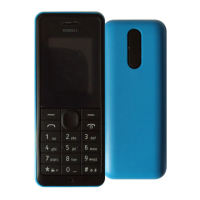

 To Next Page