EasyManua.ls Logo

Kinetik AT100 - User Manual

Kinetik AT100
16 pages
Print Icon
To Next Page IconTo Next Page
Loading...
Quick Start Guide
AG-607
Blood Glucose
Monitoring System
Quick Start Guide
WT1 & WT1/A
Wireless Tens
Pain Reliever
Quick Start Guide
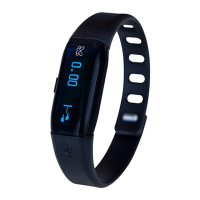
AT100
Bluetooth
Activity Tracker

Other manuals for Kinetik AT100

Questions and Answers

  • J
    Joseph AcevedoAug 2, 2025
    What to do if data transmission failed on Kinetik AT100 Heart Rate Monitor?
    • J
      Jamie SanchezAug 2, 2025
      If data transmission fails on your Kinetik Heart Rate Monitor, there are a few possible causes: * Bluetooth might be turned off. Turn it on. * The app might be off. Press the icon to turn on your app. * You might be out of range of Bluetooth transmission. Place your device, which supports Bluetooth 4.0 technology, closer to the Activity Tracker.
  • E
    Elizabeth SmithAug 9, 2025
    How to fix Kinetik AT100 pairing failure?
    • R
      robertjonesAug 9, 2025
      If your Kinetik Heart Rate Monitor fails to pair up, check the following: * Ensure Bluetooth is turned ON. * Make sure both devices are within the Bluetooth transmission distance.
  • J
    John BradfordAug 17, 2025
    Why Kinetik Heart Rate Monitor powers off?
    • D
      Danielle StarkAug 17, 2025
      The Kinetik Heart Rate Monitor may power off due to a low battery. Please charge it in time.
  • W
    Wayne ReynoldsAug 25, 2025
    What to do if there is no display on Kinetik AT100?
    • C
      Christopher CookAug 25, 2025
      If there is no display on the OLED screen of your Kinetik Heart Rate Monitor when you power it on, it could be due to two reasons: 1. The battery is drained or very low. Charge the device. 2. The device didn’t log out of shipping mode. Long press the button for 5 seconds to recover to normal mode.

Summary

Kinetik AT100 Quick Start Guide

Unpack and Charge Activity Tracker

Unpack the activity tracker and charge it fully using a laptop or any suitable USB charger.

Download MedM Health App

Download the MedM Health application from your device's app store.

Register MedM Health Account

Open the MedM Health app and register your account to enable data synchronization and backup.

Enter Registration Details

Provide your email address and create a password. You will receive an email to confirm your registration.

Access App Menu to Pair Device

After registering, access the app dashboard and select the menu to start the pairing process.

Navigate to My Devices

Within the app menu, select 'My Devices' to begin adding your activity tracker.

Initiate Device Discovery

Ensure Bluetooth is active and tap 'Add New' to start searching for your activity tracker.

Search and Identify Tracker

Hold the tracker button until blue boxes appear; the app will then search for the device.

Select Smart Activity Tracker

From the list of found devices, select your 'Smart Activity Tracker 405A0'.

Confirm and Add Device

Choose to erase data on pairing if desired, then add the activity tracker to your devices.

Pairing Activity Tracker

The device is now pairing. A 'Success' message will confirm completion of the pairing process.

Device Paired and Data Access

Your tracker is paired. Tap the steps icon to view your activity data.

Activity Tracker Ready

The device is now ready for use. You can set it to active or sleep mode as needed.

Kinetik AT100 Specifications

General IconGeneral
Device TypeHeart Rate Monitor
ModelAT100
BrandKinetik
WirelessYes
Water ResistantYes
Battery LifeUp to 1 year
Strap LengthAdjustable
CompatibilityBluetooth