
 Need help?
Do you have a question about the King Jim pomera DM250 and is the answer not in the manual?
Essential guidelines for safe operation and product care.
Information regarding Bluetooth connectivity and potential interference issues.
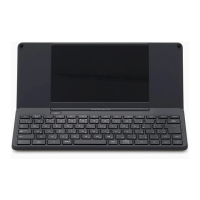
Identifies and describes the main components and features of the device.
Instructions on how to charge the device using the supplied AC adapter.
Guidance on inserting and using an SD card for storage and data exchange.
Steps for turning the device on and off, including sleep mode.
Explains the sleep function and its automatic activation due to inactivity.
Details the automatic power-off feature to conserve battery life.
Explains the primary functions of the keyboard keys for navigation and shortcuts.
How to access and navigate the device's menu system.
Overview of operations and settings available through the menu screen.
Guidance on inputting and editing text using the device's editor.
How to select text segments using cursor keys for editing operations.
Functionality for checking and correcting text input errors.
Instructions on how to search for specific strings within the text being edited.
How to find and replace text strings within a document.
Navigating directly to a specific line number within the text.
Registering and using pre-defined text snippets for quick insertion.
How to insert registered canned text at the cursor position.
Inserting notes as bookmarks to easily navigate text sections.
Inputting characters using Unicode or Shift_JIS codes.
Registering and managing frequently used words and phrases.
How to manage words learned automatically by the device.
Exporting learned words to an SD card for backup.
Importing dictionary data from an SD card into the device's memory.
Selecting additional dictionaries to aid text conversion.
Procedures for saving edited files to the unit's memory or SD card.
Organizing files by creating new folders on the unit or SD card.
Instructions for copying or moving files between memory and SD card.
How to delete files and folders from the device's storage.
Changing the names of saved files and folders.
Finding files, folders, or specific text content within them.
Automatic saving of files to a backup area when overwritten.
Moving deleted files and folders to the recycle bin for recovery.
Accessing and using the built-in electronic dictionaries.
Copying dictionary definitions into the text being edited.
Converting text data into QR codes for easy sharing or linking.
Making notes and scheduling events using the calendar function.
Adjusting the background display for editing, simulating manuscript sheets.
Connecting the device to iOS/Android apps via wireless LAN.
Sending files via email using the wireless LAN connection.
Establishing a connection between the unit and a PC via USB cable.
Accessing and opening files stored on the Pomera from a connected computer.
Transferring files between the Pomera and a computer via USB.
Safe procedures for disconnecting the unit from a PC to prevent data corruption.
Utilizing the unit as a wireless keyboard for smartphones and tablets.
How to properly disconnect the Bluetooth connection.
Hiding the status bar for an immersive full-screen editing experience.
Splitting the screen to display headings and the text editing area.
Configuring the display for scriptwriting with scene and dialogue areas.
Dividing the screen to view and edit different sections of a file simultaneously.
Creating visual frames with defined line and character limits for text entry.
Setting up ATOK input methods, character types, and expression modes.
Customizing font, size, direction, and line spacing for text display.
Defining where the cursor appears when the unit starts.
Configuring punctuation symbols and their usage rules.
Enabling automatic text conversion upon entering punctuation.
Adjusts the internal clock and date settings for accurate timekeeping.
Configures the inactivity period before the screen display turns off.
Sets the inactivity period before the unit automatically powers off.
Configures default file names, storage destinations, and auto-save options.
Establishes a password for unit startup to enhance security.
Customizes keyboard layouts, key assignments, and modifier key behavior.
Changes the display language for menus and interface elements.
Erases and formats the unit's internal memory and SD card.
Information on how to update the device's software and firmware.
Comprehensive list of shortcut key combinations for various functions.
Shortcut keys related to the MS-IME input method.
Shortcut keys specific to the ATOK input system.
Shortcut key sequences for the US keyboard layout.
Instructions on using keytop stickers to customize the keyboard layout.
Key layout guide for Thumb Shift (1) using keytop stickers.
Key layout guide for Thumb Shift (2) using keytop stickers.
Table illustrating Roman input character mappings.
Addresses issues related to the LCD screen turning off unexpectedly.
Solutions for a dark or unresponsive LCD screen, possibly backlight related.
Steps to resolve PC connection issues and device recognition problems.
Troubleshooting a completely blank screen upon attempting to power on the device.
Resolving issues where the unit unexpectedly powers off.
Guidance for battery performance issues like reduced runtime or charging problems.
Troubleshooting steps when the device fails to recognize an inserted SD card.
Information regarding the product warranty and its terms.
Procedures and considerations for sending the unit for repair services.
Contact details for customer support and inquiries.
Information on registering as a customer to receive support services.

 To Next Page
 General