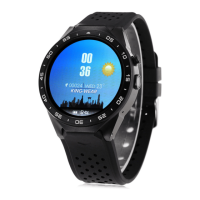
The KW17 Smart Watch is a versatile wearable device designed to enhance daily life by providing a range of smart functions and health monitoring capabilities. It is compatible with Android phones running OS 5.0 and above, and iPhones running OS 9.0 and above, ensuring broad accessibility for users.
Function Description:
The KW17 Smart Watch serves as a personal assistant on your wrist, offering features such as time display, activity tracking, sleep monitoring, heart rate measurement, blood pressure and blood oxygen monitoring, message notifications, and remote camera control. It connects to your smartphone via Bluetooth, allowing for seamless data synchronization and control through the "Da Fit" APP.
Important Technical Specifications:
- Compatibility: Android OS 5.0+ and iOS 9.0+
- Charging: Requires a configured charger (5V/1A recommended) for at least 2 hours.
- Display: Features a display zone and a touch screen for interaction.
- Controls: Includes a physical button and a touch screen for navigation.
- Sensors: Equipped with a heart rate sensor for health monitoring.
- Connectivity: Bluetooth for APP connection and data synchronization.
- Charging Port: Magnetic charging port.
Usage Features:
- Power Management:
- Power ON: Long press the side button for 5 seconds when the watch is off. Short press the side button to wake it up from standby.
- Power OFF: Long press the side button for 5 seconds when the watch is on.
- APP Connection:
- Download the "Da Fit" APP by scanning the provided QR code (browser scan recommended, WeChat scan not supported).
- Set personal information (Height, Weight, Birth Year, etc.) within the APP.
- Add the device by clicking "ADD a Device" and selecting the correct model icon.
- Ensure the APP has necessary permissions (e.g., background launch for Android) to maintain Bluetooth connection and receive notifications.
- For iPhone users, if the APP disconnects after a long standby, reopen the watch for automatic reconnection.
- Watch Faces: Customize the watch face through the "WATCH FACES" section in the APP.
- Notifications: Enable notification reminders in the APP to receive alerts from selected social applications or all information.
- Alarms: Set up to three alarms with customizable times through the "ALARMS" section.
- Shutter (Remote Camera Control):
- Android: Click the "Shutter" function in the APP; a camera icon will appear on the watch. Click the watch icon to take a photo, which saves automatically to your album.
- Apple: Click "Shutter" in the APP; you'll need to manually open the camera on your iPhone. Then, click the watch to take pictures.
- Player (Music Control): Long press to enter the music control interface. Long press the "player" icon to pause/play, or switch between previous/next songs. Short press to switch current operation. (Requires the mobile phone player to be in the foreground).
- Others Functions:
- Back: Long press to return to the previous interface.
- Stopwatch: Long press to start, short press to pause, long press to clear and exit.
- Mute: Long press to toggle mute on/off.
- Brightness: Long press to enter brightness settings, short press to adjust, long press to confirm.
- Reset: Long press to restore factory settings.
- Power Off: Long press to shut down the watch.
- Health Monitoring:
- Steps: View pedometer data on the watch and APP. Data synchronizes automatically with the APP.
- Sleep Monitor: Tracks sleep from 8:00 PM to 10:00 AM. Data synchronizes with the APP. Note that initial readings might differ until full detection is complete.
- Heart Rate Monitor: Long press the heart rate icon for over 2 seconds to start testing. Continuously measures for 30 seconds.
- Blood Pressure/Blood Oxygen: Long press the respective icons to start measurement.
- Training Modes: Includes Walking, Running, Cycling, Skipping, Badminton, Basketball, Football. Long press the corresponding icon to enter the mode and view data (steps, distance, calories, heart rate, duration). Long press to pause and exit. Activity data can only be viewed on the APP.
- Weather: After enabling the weather function in the APP, it displays on the watch. Updates every 2 hours. Requires location authority for automatic positioning.
- Message Display: Synchronizes messages from your smartphone. Up to 5 messages are stored; older messages are overwritten. Long press to clear after viewing. (Does not support voice messages or replies).
- Time Formats: Set 12-hour or 24-hour time in the APP; the watch synchronizes with the setting.
- Do Not Disturb: Default is "Closed." Set personal "do not disturb" periods in the APP to prevent information reception.
- Reminders to Move: Default is "off." Sedentary reminders are active from 10:00 AM to 10:00 PM.
- Quick View: Default is "ON." Set an effective duration for quick view.
Maintenance Features:
- Charging: Use a 5V/1A charger. Avoid charging with water (sweat) to prevent short circuits.
- Troubleshooting:
- Watch not turning on: Press display for 3+ seconds, ensure sufficient battery, try 5V/1A charger if unresponsive.
- Automatic shutdown: Battery may be too low; charge it.
- Short battery life: Ensure full charge (at least 2 hours), check charger/data cable, ensure proper connection.
- Bluetooth disconnect/unable to connect: Restart watch, turn phone's Bluetooth off and on.
- Inaccurate sleep data: Wear watch normally, ensure sleep occurs between 9:00 PM and 9:00 AM (default setting).
- APP Management (Android): Keep the "Da Fit" APP running in the background by enabling "Auto-launch, Secondary launch, Run in background" permissions in phone settings (e.g., Settings > Application > Application Launch Management > Da Fit for Huawei). This prevents the Android system from cleaning up the APP during standby.
- Heart Rate Monitoring: Ensure the watch is worn snugly on the arm (not too tight or too loose) for accurate readings.
- Physical Care: Avoid colliding with hard objects to prevent glass breakage.
- Data Accuracy: This product is an electronic monitoring device; data is for daily reference and not for medical purposes.
- Firmware Upgrade: The APP will notify you when a new watch firmware version is available for upgrade.
- Device Removal: The paired watch and phone APP can be removed. For Apple iOS, go to "Settings" > "Bluetooth" and "ignore current Bluetooth pairing" to completely unbind.

 Need help?

 To Next Page
 General