22 23
[...continued] Using the camera
6. File recall
You can view the audio files, video files and photo files on the camera. Press the
key to enter the recall
selection interface and press it again to exit. Select the “Record” menu to view the audio and video files or
select the “Capture” menu to view the photo files.
– Playing a video file
Press the
key to enter the “Record” interface. All files will appear on the screen. Select the video file by
pressing the “>” or “<” keys and press “OK” to play. Press the “–” key to enter the thumbnail preview mode.
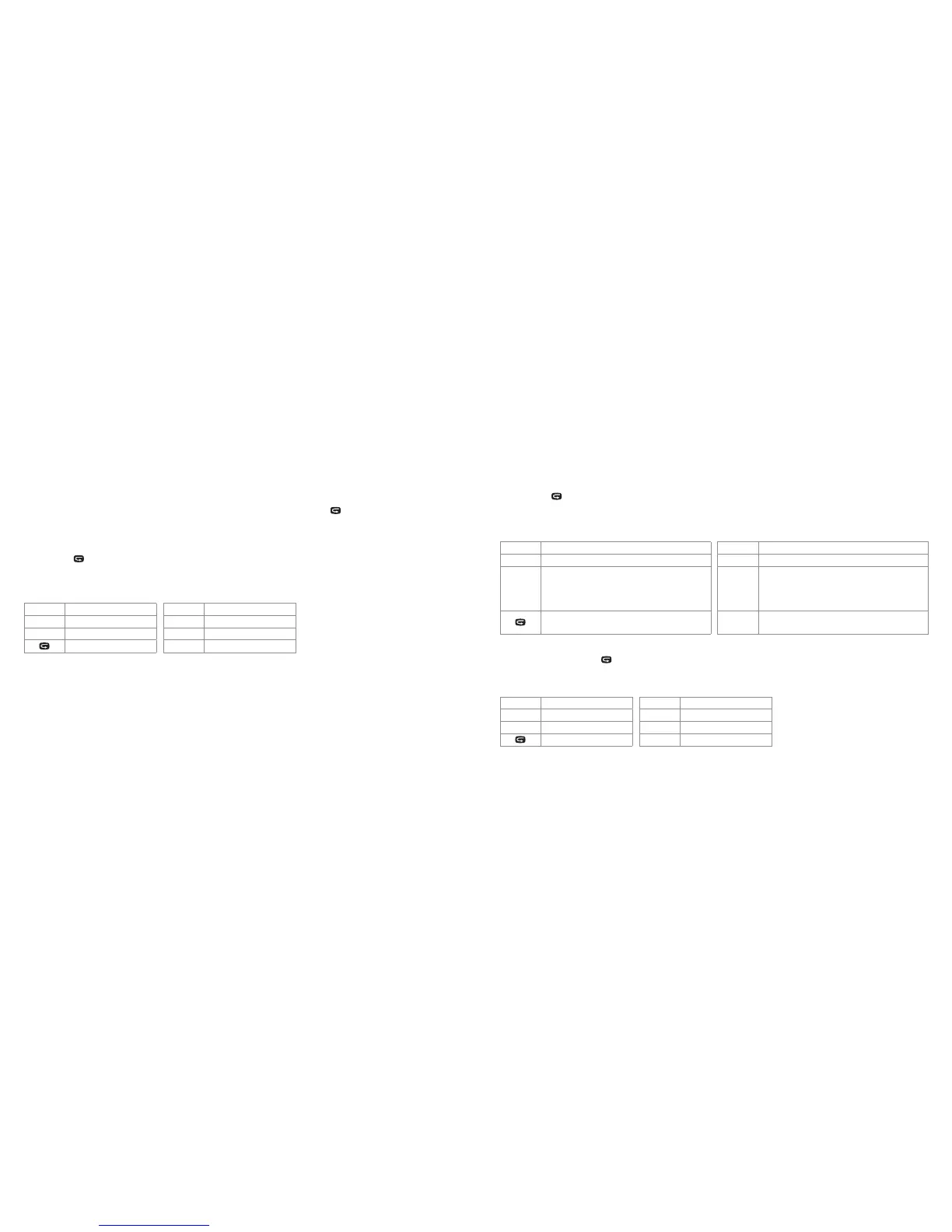
When playing video files, you can select the following functions:
Button Functions Button Functions
– Decrease volume + Increase volume
< Rewind > Fast forward
Pause/continue OK Play/end
– Browsing photo files
Press the
key and enter the “Capture” interface. All files will appear on the screen. Select the photo file
by pressing the “>” or “<” keys and press “OK” to view. Press the “–” key to enter the thumbnail preview mode.
When browsing photo files, you can select the following functions:
Button Functions Button Functions
– Zoom out + Zoom in
<
• Page up
• In zoom in mode, move the photo downward
• In zoom in mode, press “OK” to move the
photo left
>
• Page down
• In zoom in mode, move the photo upward
• In zoom in mode, press “0K” to move the
photo right
Return to recall interface OK
In zoom in mode, the photo can be zoomed
in or out by pressing “+” or ”–”
– Playing audio files
In voice mode, press the
key and enter the “Record” interface. All files will appear on the screen. Select the photo
file by pressing the “>” or “<” keys and press “OK” to view. Press the “–” key to enter the thumbnail preview mode
When playing audio files, you can select the following functions:
Button Functions Button Functions
– Decrease volume + Increase volume
< No function > No function
Pause/continue OK Play/end
[continued...]



 To Next Page