6 7
N.
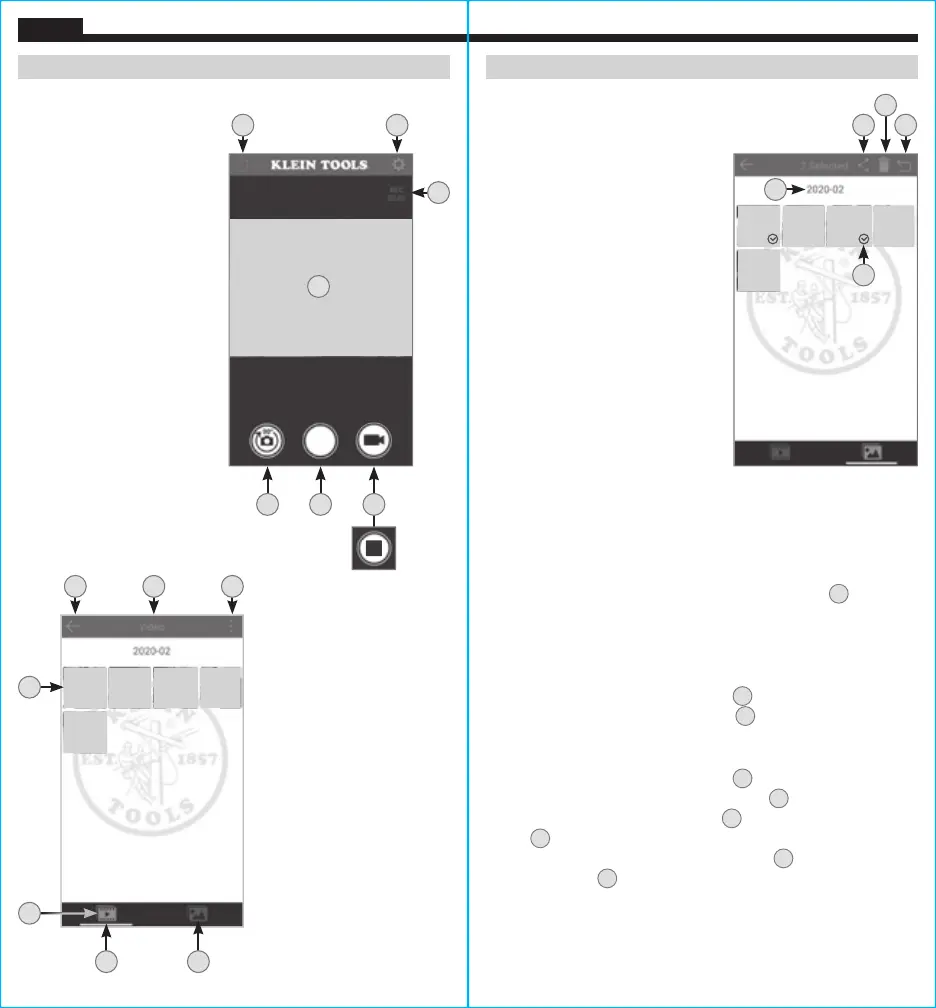
Copy or send selected file
O.
Delete selected file
P.
Exit Edit Mode (when in Edit Mode only)
Q.
File Selected Indicator
R.
Review Mode: File name
Manage Mode: Files selected
OPERATING INSTRUCTIONS OPERATING INSTRUCTIONS
A.
Photo/Video screen icon
B.
Camera image
C.
Settings icon
D.
Rotate Image button
E.
Photo button
F.
Video start/stop button
G.
Elapsed Time (Video)
ENGLISH
B
Appearance
while recording
A C
G
D E F
DISPLAY MODE
BUTTON/ICON DETAILS
H.
Previous Screen
I.
Select Items
J.
Video Menu
K.
Photo Menu
L.
Active Menu (Photo or Video)
M.
Files
H L I
M
L K
J
PHOTO/VIDEO FILE MENU
BUTTON/ICON DETAILS
FILE MANAGEMENT MODE
BUTTON/ICON DETAILS
N
O
P
Q
R
ROTATING THE CAMERA IMAGE ON THE APP SCREEN
Sometimes it may be necessary to rotate the camera image relative
to the app screen. Each tap of the Rotate Image button
D
will rotate
the image clockwise in 90° increments. This does not affect the
rotation of the entire app screen, just the camera image.
TAKING PHOTOS
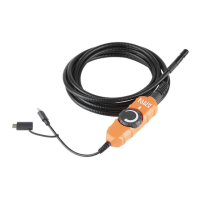
While in Display mode, aim the camera
6
at the subject to be
photographed and tap the Photo button
E
to take a photo.
CAPTURING VIDEO
While in Display mode, aim the camera
6
at the subject to be
recorded and tap the Video Start/Stop button
F
. While recording
video, the elapsed time will be shown
G
, and the Video Start/Stop
button
F
will turn red and display the square Stop symbol. To end
the recording, tap the Video Start/Stop button
F
again. The Video
Start/Stop button
F
will return to its normal appearance.


 To Next Page