2
ENGLISH
THANK YOU!
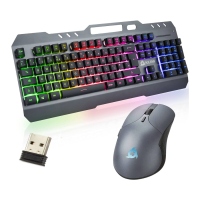
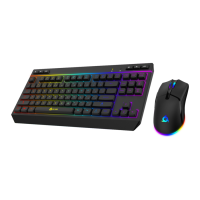
On behalf of the entire KLIM Team, we thank you for purchasing our
. We hope it meets your KLIM Thunder keyboard and mouse bundle
expectations and that you enjoy using this device.
Keyboard: the charging indicator is located near the USB-C port, it’s
red during the charge and will turn off when the keyboard is fully
charged.
When the indicator light is flashing, it indicates that the battery is
low. Use the provided cable to connect thekeyboard to your
computer or a USB charger.
Mouse: The lights will start to flash slowly in red when the battery is
low (RGB mode only). Connect the mouse to your computer or a USB
charger using the supplied charging cable.
NOTE: You may use the keyboard and mouse while they charge, but
the USB receiver must also be connected to your computer for them
to work.
CHARGING THE KEYBOARD AND MOUSE
Use FN plus the keys indicated below to select your preferred
lighting options.
FN + : Windows key lock
FN + : Swap WASD-Arrow keys
FN + : Lighting mode switch
FN + : Increase the brightness
FN + : Reduce the brightness
FN + : Turn the lighting effect ON/OFF
FN + / : Adjust the speed of the lighting effect
BACKLIGHTING CONTROLS
If you ever encounter any problems with this product, remember
that we remain at your disposal to help you with any issues. Do not
hesitate to contact us at support@klimtechnologies.com for
additional support.
TROUBLESHOOTING & CONTACT
Take the USB receiver from underneath the mouse and connect it to
your computer. Slide the switch under the keyboard to the ON
position. Slide the switch under the mouse to the ON or RGB position.
FIRST USE
THE FUNCTION KEY
NOTE: some function shortcuts are not available on MacOS.
The keyboard features a Function key (FN) which can be combined
with certain keys to change lighting effects or activate different
functions on your computer.
After 2 minutes of inactivity, the keyboard enters power saving
mode and the backlight will automatically turn off. Press any key to
wake it up.
AUTO POWER SAVING MODE


 To Next Page
 Loading...