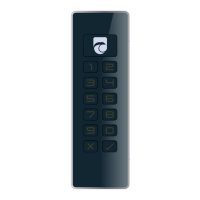
User notes
Please read the user manual carefully before using the Kobra VS storage
device: https://support.kobra.is
Change the User PIN and SO PIN on the two smartcards supplied by the
manufacturer (not required for service cards or own PKI cards) and
generate a new DEK (Crypto Key).
After generating a new DEK (Crypto Key), automatic formatting will start
after login. Depending on the storage size, this may take up to 15 minutes.
Please note: Memorize the Administrator PIN or write it down in a safe
place. The Administrator PIN is permanently blocked after 16 consecutive
failed attempts. There is no way to reset or unlock the Administrator PIN. If
the Administrator PIN is forgotten or blocked, the administrator functions
can no longer be carried out.
Login process
1. Insert the smartcard
2. Connect to the host system (main button blinks green)
3. Enter the User PIN
4. Confirm with „ “
Result:
- Main button lights up green: Access enabled (Write protection is off)
- Main button lights up purple: Access enabled (Write protection is on)
- Main button blinks dark blue: The storage device is being formatted.
Please wait until the process is complete.
- Main button flashes red
and then lights up white: Login failed
Change User PIN
1. Verify that the device is in await mode
(The main button lights up white, all other buttons are off
2. Press „Main button“ + „3“ + „ “
(the main button blinks green and all other buttons light up white)
3. Current User PIN + „ “.
4. New User PIN + „ “.
5. Repeat the new User PIN + „ “.
Result:
- The main button starts blinking green and then lights up white:
User PIN was successfully changed.
User manual, video instructions,
support and FAQ can be found at
https://support.kobra.is
Kobra Infosec GmbH
Ernst-Thälmann-Str.39
D-06179 Teutschenthal
www.kobra-infosec.de
info@kobra-infosec.de
+49 / 345 / 2317350


 To Previous Page
 Loading...