
 Need help?
Do you have a question about the Kogan Android TV SIGNATURE Series and is the answer not in the manual?
This document serves as a Quick Start Guide for the Kogan 50" Smart HDR 4K LED TV, Signature Series, XT9310 (KALED50XT9310STB), which features Android TV. It provides essential information for setting up and operating the television, including a remote control overview, assembly and installation instructions, first-time setup guidance, and basic troubleshooting tips.
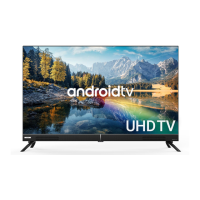
The Kogan 50" Smart HDR 4K LED TV is a high-definition television designed for home entertainment. It integrates Android TV, offering a smart TV experience with access to various streaming services, apps, and voice control capabilities. The television supports 4K resolution and HDR (High Dynamic Range) for enhanced picture quality. It can receive free-to-air digital television channels via an antenna connection and supports external input sources such as HDMI and USB for connecting other devices. The remote control provides comprehensive functionality for navigating menus, controlling playback, and accessing smart TV features.
The television offers a wide array of usage features, starting with its Android TV platform. Upon first use, a "Welcome" screen guides the user through the initial setup process. This includes pairing the Bluetooth-enabled remote control, selecting a menu language, and optionally setting up the TV quickly using an Android phone to transfer Wi-Fi network and Google account details. Users can manually select and connect to a Wi-Fi network or use an Ethernet cable for internet access. Signing in with a Google Account allows users to install new apps from the Google Play Store, receive recommendations, and access movies. The setup also involves accepting Google's Terms of Service, Privacy Policy, and Google Play Terms of Service, as well as granting location permissions and opting to send diagnostic information to Google to help improve Android.
After the initial setup, the "Auto Tuning" screen appears, which automatically searches for and saves available free-to-air TV channels, with default settings for Australia. Once tuning is complete, the user can access the "Home" page, which is the central hub for all TV functions.
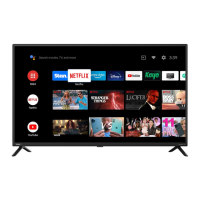
The Home page features a "Google Assistant" button, allowing users to launch the built-in virtual assistant for voice commands, such as asking for weather updates. A "Text search" option is available for manually searching TV apps. "System notifications" will appear when relevant alerts are present. The "Source" option allows users to switch between free-to-air channels ("DTV") and other input sources. An "Internet connection" icon displays the current Wi-Fi or LAN status and provides options for connectivity. "Settings" provides access to global settings for Android TV's interface, connectivity, and apps. A "Clock" displays and allows adjustment of time and date settings.
The "Apps" section provides access to the App Centre, where all installed apps are displayed, including the "Live TV" option for free-to-air channels. A "Favourites list" allows for quick access to frequently used apps. The "Play next" feature displays the current program being watched or queued, with the option to add items to this list. "Pinned channels" show a customizable list of programs, whose order can be adjusted. Finally, "Customise channels" allows users to add or remove pinned channels from the Home page.
The remote control is a key interface for these features. It includes a "Power" button for turning the TV on/off or entering standby mode, a "Mute" button for sound control, "Number buttons" for channel selection and password input, and an "INFO" button for program information. The "EPG" (Electronic Program Guide) button displays the DTV mode guide, while "Device preferences" allows adjustment of sound and picture options. The "Source" button displays a list of input source channels. "Direction buttons" (up, down, left, right) are used for navigating menus and settings, with an "OK" button to confirm selections or display the channel list in DTV mode. A "Quick Menu" button provides access to TV options with adjustable settings, and a "Back" button returns to the previous menu. Dedicated buttons for "NETFLIX" and "YouTube" provide direct access to these popular streaming platforms, along with "prime video" and "Google Play."
Additional remote control functions include "Volume" up/down, "Program" up/down for scrolling channels, and a "Home" button to access the home page. A "Teletext" button shows/hides Teletext (though not available in Australia or New Zealand). A "USB" button switches to the USB source. "Audio" selects available languages and audio channels, and "Subtitles" selects subtitle options. Media playback controls include "Start" (playback in media mode, MIX mode in teletext), "Pause" (in media/PVR mode, Timeshift function in DTV mode), "Stop" (in media/PVR mode), "Hold" (teletext page on display), "Record" (in DTV mode), and "Change size" (teletext screen). Fast forward/rewind, skip to previous/next, and reveal hidden information in teletext are also available. "Advance playback rapidly" and "Cancel" teletext functions are present. "Colour buttons" (red, green, yellow, blue) are used for navigational purposes within apps.
Global settings can be accessed via the '*' icon on the Home screen, offering options for the Android TV interface, connectivity, and apps. In DTV mode, the "Quick Menu" button also provides access to settings, including picture, aspect ratio, and speakers, with submenus for Channel and Recording/Time Shift options. The "Device preferences" button on the remote allows direct access to device options during live TV playback.
The guide provides basic troubleshooting information to address common issues. For poor picture and sound quality, users are advised to try a different channel, adjust the antenna, and check all connections. If there's no picture or sound, the recommendations include trying another channel, pressing the TV/AV button, ensuring the TV is plugged in, and checking the antenna connection. For low or no sound, users should check volume settings on external speakers, adjust TV volume, try another channel or input, and ensure MUTE is not activated.
Colour issues (no colour, wrong colour, or tints) can be addressed by ensuring the program is broadcast in colour and by adjusting colour and tint submenus in the picture menu. If the picture rolls vertically, checking all connections is recommended. Blurred or snowy pictures and distorted sound may require checking antenna direction, location, and connections, noting that an indoor antenna might cause poor signal.
Remote control malfunctions are addressed by replacing batteries, checking battery terminals, moving closer to the TV if out of range, removing obstructions between the remote and the TV's IR sensor, and ensuring the TV's power cord is plugged in and turned on. If the image is not centred, adjusting horizontal and vertical positions is suggested. For "No Signal" on an HDMI source, users should test with a different HDMI cable, plug the device into another HDMI port, try a different device with the same cable and port, or perform a factory reset on the TV. For a full troubleshooting guide and extended User Manual, users are directed to help.kogan.com.
The guide also includes instructions for physical assembly and installation. This involves attaching the stands to the TV base, ensuring 'L' and 'R' markings match, and securing them with screws using a Phillips head screwdriver (not supplied). Remote control assembly involves opening the battery compartment, inserting two 1.5V AAA batteries according to polarity markings, and replacing the cover. Connecting to an antenna requires an antenna cable (not supplied) to be connected to the 'ANT' input port on the TV and to a working antenna source (wall socket or direct connection). Turning the TV on involves plugging the power cord into an outlet and pressing the "Power" button on the remote or the power button on the TV's back panel. To turn the TV off, the "Power" button enters standby mode, and for complete power down, the power cord should be unplugged. It is recommended to unplug the TV from both the power outlet and aerial if not used for long periods.
 General
| Display Type | LED |
|---|---|
| Operating System | Android TV |
| HDMI Ports | 3 |
| USB Ports | 2 |
| Refresh Rate | 60Hz |
| Screen Size | 55 inches |
| Resolution | 3840 x 2160 |
| HDR Support | HDR |
| Wi-Fi | Yes |
| Bluetooth | Yes |
| Smart Features | Google Assistant, Chromecast |
| Ports | HDMI, USB, Ethernet, Optical Audio |
| Sound | 2 x 10W |

 To Next Page