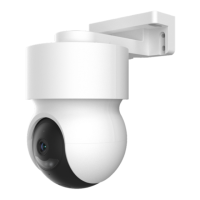
This document is a user guide for the Kogan SmarterHome™ Outdoor Pan & Tilt Smart Security Camera with Spotlight, model KAODPNTSP2C.
Function Description
The Kogan SmarterHome™ Outdoor Pan & Tilt Smart Security Camera with Spotlight is designed for outdoor security surveillance. It offers pan and tilt functionality, allowing users to remotely adjust the camera's viewing angle horizontally and vertically. The integrated spotlight enhances visibility in dark environments and can be triggered by motion. The camera captures video and audio, and supports local storage via a microSD card. It is controllable through the Kogan SmarterHome™ app, and can also be integrated with Google Home and Amazon Alexa for basic voice control and smart home automation.
Important Technical Specifications
- Power: DC12V / 1A
- Storage: Supports local microSD card storage (Max. 128GB)
- Connectivity: Wi-Fi (2.4Ghz networks only)
- Status Light Indicators:
- Solid red light: Error with device or network connection
- Blinking red light: Ready for Wi-Fi connection
- Solid blue light: Camera operating correctly
- Reset Button: Press and hold for 5 seconds to reset the device to factory defaults.
- Audio: Includes a microphone for capturing sounds and a speaker for two-way audio or alerts.
- Spotlight: Integrated for enhanced visibility in dark environments.
- Pan & Tilt: Allows for horizontal and vertical rotation of the camera.
- Motion Detection: Smart motion detection sends push notifications to a smartphone upon detecting abnormal movement.
- Night Modes:
- Smart mode: Automatically detects motion in dark environments to trigger white light for color images. Without motion detection, IR light activates for black and white images.
- Infrared mode: Uses IR light in dark environments for black and white images.
- Colour mode: Uses white light in dark environments for color images.
Usage Features
Mounting:
The camera can be mounted to a wall (masonry or timber/drywall) or a ceiling.
- Wall (masonry): Drill pilot holes, insert wall plugs, then secure the camera mount with screws.
- Wall (timber/drywall): Drill pilot holes, then secure the camera mount with screws.
- Ceiling: Drill pilot holes, then secure the camera mount with screws.
Connecting to SmarterHome™ App:
- Download the "Kogan SmarterHome" app from Google Play (Android) or App Store (iOS).
- Register or log in to your SmarterHome account.
- Add the device by tapping "Add Device" or the "+" icon.
- Select "Home Security" > "Cameras".
- Ensure the device is in pairing mode (blinking red light, prompt tone).
- Enter Wi-Fi details (2.4Ghz network only).
- Calibrate the camera by holding your smartphone 15-20cm away from the camera lens to scan a QR code displayed on the screen. A prompt sound confirms successful scanning.
- The device will pair and connect to the app.
- After successful pairing, you can rename the device and assign it to a location.
Google Home Control:
- Set up a Google Home account.
- In the Google Home app, tap "+" > "Set up device" > "Works with Google".
- Search for "Smarter Home" and select the Kogan SmarterHome™ service.
- Sign in to your SmarterHome™ account.
- Select "Kogan SmarterHome™" from the app options.
- Tap "Authorise" to grant Google permission to access your SmarterHome™ devices.
- Compatible devices will appear, allowing assignment to rooms and setting up routines. Note that Google Home controls base/core functions; full functionality requires the Kogan SmarterHome™ app.
Amazon Alexa Control:
- Set up an Alexa account.
- In the Alexa app, tap the "Skills & Games" icon.
- Search for "Smarter Home" and select the Kogan SmarterHome™ skill.
- Tap "Enable to Use".
- Sign in to your SmarterHome™ account.
- Select "Kogan SmarterHome™" from the app options.
- Tap "Authorise" to grant Alexa permission to access your SmarterHome™ devices.
- Alexa will discover linked devices, allowing control via voice commands. Note that Alexa controls base/core functions; full functionality requires the Kogan SmarterHome™ app.
Camera Functions (via SmarterHome™ app):
- Preview mode: View live feed.
- Full screen mode: Expand the live feed.
- About device: Access device information.
- Audio: Enable/disable audio.
- Signal strength: Monitor Wi-Fi signal.
- Playback: Review recorded footage.
- Gallery: Access saved images/videos.
- Theme Color: Adjust app theme.
- Night Mode: Select Smart, Infrared, or Colour mode.
- Motion Tracking: Track detected motion.
- Motion Detection: Configure motion detection settings.
- Sound Detection: Configure sound detection settings.
- Edit: Access camera settings for Pan/Tilt, Video flip, Motion detection, Record, and Night modes.
- Messages: View notifications.
- Direction: Control pan and tilt.
Maintenance Features
Resetting the Device:
If the camera is not automatically in pairing mode or if troubleshooting is required, press and hold the Reset button for 5 seconds. This will return the camera to factory defaults and initiate rapid flashing of the status light, indicating it's ready for Wi-Fi connection.
Troubleshooting:
- Device cannot be connected properly:
- Check network operation.
- Ensure camera is close to the router.
- Confirm connection to a 2.4Ghz Wi-Fi network.
- Verify indicator light is flashing rapidly for pairing.
- If issues persist, reset the device and attempt pairing again.
- Device still appearing in SmarterHome™ app after resetting: Resetting only initializes network configuration. To remove it from the app, you must manually delete the device within the app.
- How to change camera network to another router: First, remove the device from the app, then manually reset the device. It can then be paired with the new network.
- Device isn't identifying the microSD card:
- Insert the microSD card while the power is off.
- Confirm the microSD card is available and formatted as FAT32.
- Unstable internet connection can sometimes prevent microSD card identification.
- Push notifications are not appearing:
- Confirm the app is running in the background.
- Ensure the relevant reminder function is enabled in the app's settings.
- Verify message notification and app permissions are enabled on the smartphone.
Software Updates:
While not explicitly detailed, Kogan SmarterHome™ devices typically receive firmware updates through the app to improve functionality and security. Users should ensure their app and device firmware are up-to-date.


 To Next Page
 General