
 Need help?
Do you have a question about the Komplete KONTROL S-Series and is the answer not in the manual?
Outlines the availability of accessibility features for KOMPLETE KONTROL on keyboard and software.
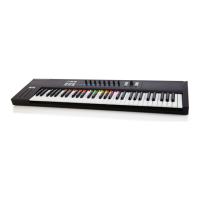
Details the five main sections of the KOMPLETE KONTROL S-SERIES keyboard.
Explains how to locate buttons and parameters without accidental actions.
Describes the KOMPLETE KONTROL Browser and the Navigate section for library access.
Explains Smart Play functions for scales, chords, and arpeggios.
Details how LEDs on the keybed visualize Smart Play parameters.
Covers automatic mapping of keyboard controls to instrument parameters.
Explains controlling host applications via the Transport section.
Instructions on how to display or conceal the KOMPLETE KONTROL Browser.
Instructions on how to display or conceal the Perform Panel.
Instructions on how to display or conceal the Plug-in Panel.
Details how to switch between Default, Additional, or Edit views.
Explains transport and navigation controls in plug-in and stand-alone modes.
Details audio and MIDI configuration in stand-alone and plug-in modes.
Discusses opening and managing multiple KOMPLETE KONTROL instances.
Provides instructions for switching between KOMPLETE KONTROL instances.
Guides on setting up your DAW for integrated use with KOMPLETE KONTROL.
Instructions for switching between KOMPLETE KONTROL and MIDI modes.
Details automatic mode switching based on host track focus.
Explains using the keyboard as a stand-alone MIDI controller.
Configures audio interface settings for stand-alone operation.
Sets up MIDI input and output ports for stand-alone use.
Manages KOMPLETE KONTROL Library file locations.
Manages VST plug-ins available within KOMPLETE KONTROL.
Customizes key response and Light Guide settings.
Covers controlling instruments and parameters via MIDI and host automation.
Details sending MIDI data and controlling the host application.
Explains using the keyboard in MIDI mode and stand-alone operation.
Guides on how to record automation data within your host application.
Lists reserved automation IDs for KOMPLETE KONTROL perform parameters.
Explains initial keyboard modes upon startup.
Guides on initial setup, starting with the Browser.
Tutorial on navigating and loading instrument presets from the Library.
How to control loaded instrument parameters using keyboard knobs.
Explains how to navigate and remap knobs across parameter pages.
Instructions for accessing and editing scale parameters.
Guides on how to create and play chords using Smart Play.
Explains how to play chords as arpeggiated note sequences.
Describes the initial view upon loading an instrument.
Details the secondary view for more instrument controls.
Enables access to full instrument controls for KONTAKT/REAKTOR.
Instructions for switching between KOMPLETE KONTROL and MIDI modes.
Details automatic mode switching based on host track focus.
Explains using the keyboard as a stand-alone MIDI controller.
Details the functions of the TRANSPORT section buttons.
Explains track navigation and automatic mode switching.
Guides on switching between KOMPLETE KONTROL instances.
Overview of the controls within the Control Section.
Explains the automatic parameter mapping protocol.
How to control instrument parameters using the Control Section.
Guides on editing Smart Play parameters via the Control Section.
How to edit Touch Strip settings using the Control Section.
Details the functionality and settings of the Pitch Strip.
Explains the behavior and modes of the Modulation Strip.
Shows how the Light Guide visualizes instrument mappings.
Explains how the Light Guide reflects Smart Play settings.
Describes the Library's role in organizing and accessing files.
Explains the NKS format for third-party integration.
Details the elements within the Library pane.
Guides on selecting factory or user content in the Browser.
Instructions for selecting instruments and banks.
Explains how to filter files using Type and Mode tags.
How to use the search field to find files.
Details how to navigate and interact with search results.
Guides on managing and activating Favorites.
Details the elements within the Files pane.
Explains how to use Favorites for quick file system navigation.
Guides on navigating and modifying the selected path.
How to access and jump to recently visited locations.
Details how to navigate and interact with files in the Files pane.
Instructions for importing files into the KOMPLETE KONTROL Library.
How to view file properties using the Information button.
Guides on assigning and editing file tags and properties.
Explains the basic usage of the Attribute Editor.
Details the BANK page attributes in the Attribute Editor.
Explains how to modify Type and Mode tags in the Attribute Editor.
Details the Manufacturer, Author, and Comment attributes.
Explains the two browse modes: on-screen overlay and hardware-only.
Guides on using hardware controls for browsing without the computer screen.
Details features accessible via BROWSE button in different modes.
How to switch between factory and user content on the overlay.
Guides on selecting instruments from the overlay.
Instructions for selecting a bank from the overlay.
Explains filtering by instrument types on the overlay.
Explains filtering by sound characteristics using modes.
Details how to navigate and interact with search results on overlay.
Guides on activating and using Favorites filter on the overlay.
Instructions for managing presets in Favorites.
Details how to use the SCALE button for scale engine control.
Details how to use the ARP button for arpeggiator control.
Explains the basic concepts of musical scales.
Explains the basic concepts of musical chords.
Explains the basic concepts of musical arpeggios.
Details Root Note, Bank, and Type parameters for scales.
Explains the three modes for scale mapping: Guide, Mapped, Easy.
Details the Off, Harm, and Chd Set modes for chord generation.
Explains how to define chord intervals based on Harm or Chd Set.
Details the Root, +/- values, and Auto settings for chord inversion.
Controls Arp/Note Repeat mode and playback direction.
Allows creation of rhythms for arpeggiated notes.
Adjusts note range, velocity, and length for arpeggios.
Explores alternative versions of the Arp sequence.
Changes the range of keys that trigger the Arp sequence.
Allows latching notes played by the arpeggiator.
Configures MIDI output for the stand-alone application.
Enables MIDI output for VST/AAX plug-in versions.
Solutions for when the KOMPLETE KONTROL software fails to launch.
Troubleshoots audio output issues with loaded instruments.
Tips for optimizing performance and reducing audio latency.
Guidance on reporting software crashes to support.
Recommendations for installing software updates.
Information on accessing the online knowledge base.
Information on accessing the Native Instruments User Forum.
Guidance on contacting Technical Support for assistance.
Information on contacting Registration Support.
 General
| Velocity Sensitivity | Yes |
|---|---|
| Aftertouch | Yes |
| Control Knobs | 8 |
| MIDI I/O | Yes |
| Pitch and Mod Wheels | Yes |
| Connectivity | USB |
| DAW Integration | Yes (with supported DAWs) |
| Software Included | Komplete Select |
| Light Guide | Yes |
| Power Supply | USB bus powered |
| Number of Keys | 49 or 61 |

 To Next Page