5. Click the default crop box shown in the edit area, adjust the crop box to fit the
desired pattern area.
6. Click ‘Print’ to send the pattern to the printer.
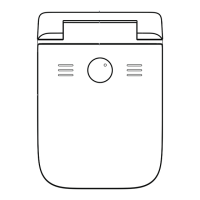
5 seconds after power-on, it enters the ready state, followed by one beep, and
the white lights in the middle and both sides are on;
In the ready state, click the button to enter the print state. The white lights on
both sides turn to green. Sliding the printer to complete the printing (The
continuous prompt tone will be sounded if the sliding is too fast). It will
automatically return to the ready state when the printing is completed;
In the ready state, press and hold the button to enter the cleaning state, the white
lights on both sides turn to green. Keep the printer still, wait for a while and it will
automatically return to the ready state;
In the print state, click the button to return to the ready state. If it is in the middle
of multiple-line printing, the next line will be printed when you re-press the button
again (return to first line if press and hold the button instead);
Press and hold the button, then turn on the power switch to enter the
programming mode;
After turning on the power switch, press and hold the button within 5 seconds
until the white lights on both sides flash, which will restore the factory settings;
When the battery is low, the middle white light flashes;
The charging indicator is next to the USB port (Type-C). Charging: Yellow | Fully
Charged: Green
Button Operation and Status Indication
Advanced Operation
Multiple-line Printing


 To Next Page
 Loading...