EasyManua.ls Logo

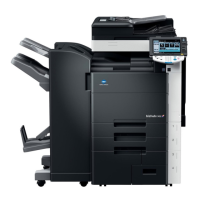
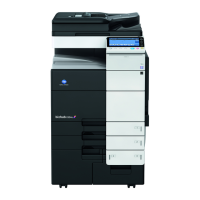
Konica Minolta bizhub C652 - Service Manual

Konica Minolta bizhub C652
17 pages
Print Icon
To Next Page IconTo Next Page
Loading...
CMS REPLACEMENT INSTRUCTIONS
(Customer Maintenance Support)
CMS REPLACEMENT INSTRUCTIONS
1. Drum unit/K, Ozone filter, Toner filter

Other manuals for Konica Minolta bizhub C652

Questions and Answers

  • S
    Stephanie BrownSep 2, 2025
    How to lighten the print on my Konica Minolta bizhub C652 All in One Printer?
    • B
      bmillerSep 3, 2025
      If the printed output from your Konica Minolta All in One Printer is too dark, check if the copy density is set to [Dark]. If so, press [Light] in the Density screen to copy at the desired copy density. Also, ensure the original is pressed closely against the original glass.
  • A
    Amanda BlakeSep 22, 2025
    What to do if jobs saved in User Box disappeared from Konica Minolta All in One Printer?
    • K
      katherineparkerSep 22, 2025
      Jobs saved in a User Box might disappear from your Konica Minolta All in One Printer because of the settings on the machine. Check the User Box settings for the machine.
  • S
    Sarah TuckerSep 18, 2025
    Why is printing in user authentication not available for Konica Minolta All in One Printer?
    • B
      Brittany RobinsonSep 18, 2025
      Printing in user authentication or account track mode may not be available on your Konica Minolta All in One Printer due to: * An incorrect user name, account name, or password. Enter the correct credentials. * User authentication or account track being disabled on the printer driver. Enable it in the printer driver settings. * Different encryption passphrases specified for the printer driver and the machine. Ensure the same passphrase is used on both. * The entered user name or account name not being authorized. Check with the administrator to confirm authorization for printing.
  • M
    Mr. Robert CookSep 16, 2025
    Why is secure print not available on my Konica Minolta All in One Printer?
    • E
      Elizabeth SinghSep 16, 2025
      Secure print might not be available on your Konica Minolta All in One Printer because: * The password rules may be enabled on the machine. Specify a password according to the password rules. * Different encryption passphrases may be specified for the printer driver and the machine. Specify the same encryption passphrase for the machine and the printer driver.
  • S
    Scott GriffithSep 10, 2025
    What to do if the message 'Trouble' appears on Konica Minolta All in One Printer?
    • P
      paula77Sep 10, 2025
      When the message "Trouble" appears on your Konica Minolta All in One Printer, perform the operation described in the message. If the problem persists, contact your service representative.
  • K
    Kaitlyn RileySep 8, 2025
    Why is the edge of the printed image dirty on my Konica Minolta bizhub C652 All in One Printer?
    • R
      Robert GallagherSep 8, 2025
      If the edge of the printed image is dirty when using your Konica Minolta All in One Printer, start by cleaning the document pad with a soft cloth dampened with a mild detergent. Also, if your Zoom setting is at "Full Size" (100.0%), verify that the selected paper size isn't larger than the original. If it is, select a paper size that matches the original or choose the Auto setting to enlarge the copy to fit the selected paper size.
  • M
    Michael GrossSep 7, 2025
    Why is the printed page curled on my Konica Minolta bizhub C652 All in One Printer?
    • J
      Justin PhillipsSep 7, 2025
      If the printed page is curled when using your Konica Minolta All in One Printer, and you're using paper that curls easily (like recycled paper), remove the paper from the paper tray, turn it over, and then load it again. If this doesn't solve the issue, replace the paper with new dry paper.
  • K
    kevinsmithSep 5, 2025
    Why is the printed image blurry on my Konica Minolta bizhub C652 All in One Printer?
    • D
      David OwensSep 5, 2025
      If the printed image from your Konica Minolta All in One Printer is blurry, check if the paper is damp and replace it with new paper. Also, ensure the original is pressed closely against the original glass.
  • D
    daniel02Sep 4, 2025
    How to darken the print on my Konica Minolta bizhub C652 All in One Printer?
    • J
      Jessica MoralesSep 4, 2025
      If the printed output from your Konica Minolta All in One Printer is too light, check if the copy density is set to [Light]. If so, press [Dark] in the Density screen to copy at the desired copy density. Also, check if the paper is damp and replace it with new paper if necessary.
  • S
    Shannon MurphyAug 21, 2025
    How to fix 'Cannot connect to the network' on Konica Minolta All in One Printer?
    • J
      Justin BauerAug 21, 2025
      If your Konica Minolta All in One Printer cannot connect to the network, ensure that the network cable is correctly connected. Also, verify that 'Network Settings' in 'Administrator Settings' have been correctly configured.

Summary

Introduction and Safety Information

Introduction to Customer Maintenance Support (CMS)

Explains the Customer Maintenance Support (CMS) system for self-maintenance.

General Safety Guidelines

Covers essential safety rules and the importance of following manual instructions.

Electrical Safety Precautions

Warnings and procedures for safe handling of power plugs, cords, and electrical components.

Operational Safety and Toner Handling

Guidelines for abnormal conditions, toner handling, and environmental safety.

Caution Labels and Symbols

Explanation of graphic symbols and caution notices for safe operation.

Parts Replacement Instructions

Drum Unit;K Replacement

Detailed steps for removing and reinstalling the Drum unit/K.

Ozone Filter Replacement

Instructions for removing and replacing the Ozone filter.

Toner Filter Replacement

Instructions for removing and replacing the Toner filter.

Konica Minolta bizhub C652 Specifications

General IconGeneral
Duplex printingYes
Print technologyLaser
Maximum resolution1800 x 600 DPI
Duplex printing modeAuto
Time to first page (black, normal)3.8 s
Time to first page (color, normal)5.5 s
Print speed (black, normal quality, A3)33 ppm
Print speed (color, normal quality, A3)25 ppm
Print speed (black, normal quality, A4/US Letter)65 ppm
Print speed (color, normal quality, A4/US Letter)50 ppm
Internal memory2048 MB
Processor modelMC7448
Processor familyNXP
Card reader integratedNo
Maximum internal memory3072 MB
Internal storage capacity250 GB
Email protocolsPOP3, SMTP
Cabling technology10/100/1000Base-T(X)
Security algorithms128-bit AES, 802.1x RADIUS, IPSEC, SSL/TLS
Ethernet LAN data rates10, 100, 1000 Mbit/s
Supported network protocols (IPv4)TCP/IP; IPX/SPX; NetBEUI; AppleTalk (EtherTalk); SMB; LPD; IPP; SNMP; HTTP
Supported network protocols (IPv6)TCP/IP
Copier resize25 - 400 %
Maximum copy resolution600 x 600 DPI
Maximum number of copies9999 copies
Copy speed (black, normal quality, A3)33 cpm
Copy speed (black, normal quality, A4)65 cpm
Copy speed (color, normal quality, A3)25 cpm
Copy speed (color, normal quality, A4)50 cpm
DisplayLCD
Control typeTouch
Product colorBlack, White
Display diagonal8.5 \
Display resolution800 x 480 pixels
Market positioningBusiness
PCL fonts80
Printer fontsPCL, PostScript
Digital sender-
Stapling capacity1000 sheets
Maximum duty cycle- pages per month
Number of PostScript fonts137
Page description languagesXML, PCL 6C, PostScript 3
Mac operating systems supportedMac OS 9.0, Mac OS 9.1, Mac OS 9.2, Mac OS X 10.0 Cheetah, Mac OS X 10.1 Puma, Mac OS X 10.10 Yosemite, Mac OS X 10.11 El Capitan, Mac OS X 10.2 Jaguar, Mac OS X 10.3 Panther, Mac OS X 10.4 Tiger, Mac OS X 10.5 Leopard, Mac OS X 10.6 Snow Leopard, Mac OS X 10.7 Lion, Mac OS X 10.8 Mountain Lion, Mac OS X 10.9 Mavericks
Server operating systems supportedWindows 2000 Server, Windows Server 2003, Windows Server 2003 x64, Windows Server 2008, Windows Server 2008 x64
Windows operating systems supportedWindows 2000, Windows 2000 Professional, Windows 7 Enterprise, Windows 7 Enterprise x64, Windows 7 Home Basic, Windows 7 Home Basic x64, Windows 7 Home Premium, Windows 7 Home Premium x64, Windows 7 Professional, Windows 7 Professional x64, Windows 7 Starter, Windows 7 Starter x64, Windows 7 Ultimate, Windows 7 Ultimate x64, Windows Vista Business, Windows Vista Business x64, Windows Vista Enterprise, Windows Vista Enterprise x64, Windows Vista Home Basic, Windows Vista Home Basic x64, Windows Vista Home Premium, Windows Vista Home Premium x64, Windows Vista Ultimate, Windows Vista Ultimate x64, Windows XP Home, Windows XP Home x64, Windows XP Professional, Windows XP Professional x64
Standard interfacesEthernet, USB 2.0
Scan toE-mail, FTP, SMB, USB
Scan driversTWAIN
Grayscale levels256
Maximum scan areaA3 (297 x 420) mm
Scan speed (color)78 ppm
Image formats supportedJPG, TIF
Document formats supportedPDF, XPS
FaxingColor faxing
Modem speed33.6 Kbit/s
Fax coding methodsJBIG, MH, MMR (Fax coding method), MR
Paper tray media typesPlain paper, Thick paper
Paper tray media weight64 - 256 g/m²
Non-ISO print media sizesLetter
ISO A-series sizes (A0...A9)A3, A3+, A4, A5, A6
ISO B-series sizes (B0...B9)B6
Maximum ISO A-series paper sizeA3+
Auto Document Feeder (ADF) media weight35 - 210 g/m²
Paper input typePaper tray
Total input capacity3650 sheets
Total output capacity250 sheets
Maximum input capacity6650 sheets
Total number of input trays5
AC input voltage220 - 240 V
AC input frequency50 - 60 Hz
Power consumption (average operating)2100 W
Bundled softwarePageScope Net Care Device Manager PageScope Data Administrator PageScope Box Operator PageScope Workware PageScope Direct Print Print Status Notifier Driver Packaging Utility Log Management Utility
Weight and Dimensions IconWeight and Dimensions
Depth879 mm
Width650 mm
Height1155 mm

Related product manuals