EasyManua.ls Logo

Konig CMP-FILMSCAN10 - User Manual

Konig CMP-FILMSCAN10
66 pages
Print Icon
To Next Page IconTo Next Page
Loading...
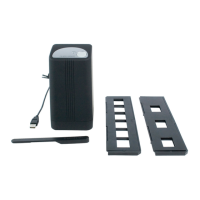
CMP-FILMSCAN10
USB lm and slide
scanner
Question and Answer IconNeed help?

Do you have a question about the Konig CMP-FILMSCAN10 and is the answer not in the manual?

Summary

Introduction

Installation

Install Software and Driver

Install the driver and ArcSoft PhotoImpression 6 software before connecting the scanner. Follow on-screen instructions.

Connect the Scanner

Connect the scanner via USB 2.0 after software installation. Follow the hardware wizard instructions.

Using the Trays

Prepare and Insert Slide

Open the slide holder, insert a slide into the slot, and close the holder.

Getting Started with Scanning Software

Launch and Navigate Software

Open PhotoImpression 6 and select 'Acquire from Film Scanner'.

Configure Scan Settings and Acquire

Set save location, format, quality, calibrate if needed, and start scanning.

Cleaning and Editing

Clean the Scanner Lens

Use the cleaning brush to wipe dust from the scanner lens when the software is open.

Access Photo Editing Tools

Select a picture and go to Edit > Photo editing tools for various editing options.

Declaration of Conformity

Safety, Maintenance, and Disposal

Electrical Safety Warning

Do not open the product. Disconnect from mains if a problem occurs. Avoid water or moisture.

Cleaning and Maintenance

Clean with a dry cloth only. Do not use solvents or abrasives.

General Information and Disposal

Specifications may change. Proper disposal of electronic waste is required.
Summary

Introduction

Installation

Install Software and Driver

Install the driver and ArcSoft PhotoImpression 6 software before connecting the scanner. Follow on-screen instructions.

Connect the Scanner

Connect the scanner via USB 2.0 after software installation. Follow the hardware wizard instructions.

Using the Trays

Prepare and Insert Slide

Open the slide holder, insert a slide into the slot, and close the holder.

Getting Started with Scanning Software

Launch and Navigate Software

Open PhotoImpression 6 and select 'Acquire from Film Scanner'.

Configure Scan Settings and Acquire

Set save location, format, quality, calibrate if needed, and start scanning.

Cleaning and Editing

Clean the Scanner Lens

Use the cleaning brush to wipe dust from the scanner lens when the software is open.

Access Photo Editing Tools

Select a picture and go to Edit > Photo editing tools for various editing options.

Declaration of Conformity

Safety, Maintenance, and Disposal

Electrical Safety Warning

Do not open the product. Disconnect from mains if a problem occurs. Avoid water or moisture.

Cleaning and Maintenance

Clean with a dry cloth only. Do not use solvents or abrasives.

General Information and Disposal

Specifications may change. Proper disposal of electronic waste is required.

Konig CMP-FILMSCAN10 Specifications

General IconGeneral
BrandKonig
ModelCMP-FILMSCAN10
CategoryScanner
LanguageEnglish

Related product manuals