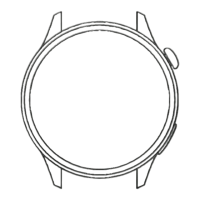
This document serves as the operating guide for the KUMI GW5 Smart Watch, version 1.1. It provides a comprehensive understanding of the device's functions, connectivity, and usage, with a focus on its integration with mobile phones via Bluetooth for various practical applications, including human sports and health tracking.
Function Description
The KUMI GW5 Smart Watch is designed to connect with a mobile phone via Bluetooth, offering a range of functions and services. It features a user-friendly interface with both physical buttons and a touch screen for navigation.
Watch Keys:
- Upper Button:
- Short press: Enters the function menu or returns to the dial interface.
- Double-click: In the function menu interface, quickly switches the menu style.
- Long press:
- When turned off: Powers on the watch (press and hold for 5 seconds to start).
- When turned on: Initiates shutdown/restart options.
- Lower Button:
- On the dial interface, sliding down opens the "Settings" interface in the control center.
- Its click and long press functions can be customized in the "Down key settings."
Touch Interface:
The watch features a touch screen for intuitive navigation:
- Swipe down: Accesses the Control Center.
- Swipe up: Displays message notifications.
- Swipe right: Navigates to shortcut keys.
- Swipe left: Shows movement data.
- Long press on screen: Enters the dial selection interface, allowing users to swipe left or right to switch dials and confirm their selection with a single click.
Core Functions:
- Dial Switch: Long pressing the home screen for 2 seconds enters the dial switch interface. Users can slide left and right to browse and select different dials.
- Control Center: Provides quick access to settings such as brightness adjustment, finding the phone, system information, flashlight, audio mode, do not disturb mode, and power saving mode.
- Movement Data: Displays daily steps, distance, and calories burned. Users can set activity goals via the accompanying app.
- Sports Modes: Offers various sport patterns including walking, running, cycling, mountain climbing, rope skipping, football, badminton, and basketball. Additional sports modes can be added through the app.
- Exercise Record: Stores the last 10 historical sport records, allowing users to review duration, heart rate, and calories burned for each activity.
- Heart Rate Measurement: Initiates measurement when the green light at the bottom of the watch is on. Measurement completes within 40 seconds with a vibration reminder. If prompted, users should ensure the watch is worn properly.
- Call Function: Requires Bluetooth connection to the app. Users can dial phone numbers directly from the watch. Long pressing '7' and '9' on the keyboard for 2 seconds enters '*' and '#' respectively.
- Frequent Contacts: Allows users to add up to 10 frequently used contacts via the app, which are then synced to the watch for quick access.
- Call Records: Saves the last 10 call records on the watch.
- Sleep Monitoring: Displays sleep monitoring results for the current day. Data is updated daily and can be uploaded and saved synchronously with the app.
- Blood Pressure Measurement: Starts when the green light at the bottom is on, completing within 30-60 seconds with a vibration reminder. This measurement is based on PPG technology.
- Blood Oxygen Measurement: Similar to blood pressure, measurement starts when the green light is on, completing within 30-60 seconds with a vibration reminder. This measurement is also based on PPG technology.
- Female Health: When connected to the app, users can enable female health reminders and view relevant information on the watch. This function is only displayed if the user's gender information is set to "female."
- Music Control: Allows users to control their mobile phone's music player (pause, start, volume adjustment, song switching) when connected to the app.
- Weather Display: After connecting to the app and granting location permission, the watch displays real-time temperature and weather type.
- Alarm Clock: Supports setting up to 5 single or cyclic alarm clocks via the app.
- Stopwatch: Features start, pause, and reset functions. It can save up to 99 pieces of data.
- Timer: Offers quick timing options through preset times or user-defined settings. Includes start, pause, and reset functions.
- Messages: Displays messages received on the phone when Information Push is enabled on the app. It can store up to the latest 15 messages.
- Find My Phone: When connected to the app, clicking "Find my phone" on the watch will make the mobile phone ring, indicating it has been found. If not connected, the watch will indicate so.
- Settings: Includes options for display (dial switching, brightness, screen brightening duration), language, vibration strength, menu style switch, battery information, QR code, and system settings.
- Breath Training: Offers 1-minute and 2-minute training options. Users follow on-screen icon movements to inhale, hold, and exhale.
- Drinking Reminder: Configurable via the app, allowing users to set start time, end time, and reminder intervals.
- Sedentary Reminder: Configurable via the app, allowing users to modify start time, end time, and "Do not Disturb" periods.
- Voice Assistant: After successfully connecting with voice Bluetooth, users can interact with the voice assistant in the watch menu by inputting voice commands to control their phone.
- Collection Code: Allows saving QR codes for third-party payment tools (QQ, WeChat, Alipay, Paypal) to the watch via the app, displaying the corresponding code for collection.
- Business Card: Enables saving QR codes for social media platforms (QQ, WeChat, Facebook, WhatsApp, Twitter, Skype, Line, Instagram) to the watch via the app, displaying the corresponding code for adding friends.
Important Technical Specifications
- Charging Input: 5V - 1A. It is crucial not to use a power adapter exceeding 5V for charging.
- Device Structure: The device is an all-in-one machine; the back shell and battery are not removable.
- Connectivity: Primarily connects to mobile phones via Bluetooth.
- FCC ID: 2A2L4-GW5. Complies with Part 15 of FCC Rules, ensuring it does not cause harmful interference and accepts received interference.
Usage Features
- APP Download: Users can download the "KUMIWear" app from their mobile APP store or by scanning the provided QR code.
- APP Binding:
- Method 1: Open APP > Device > Add Device > Start Search > Select "KUMI GW5."
- Method 2: Scan the QR code displayed on the watch during initial setup or found by sliding down the dial interface, opening "Settings" in the control center, and entering the QR code page.
- Call Audio & Media Audio: Accessible by sliding down on the dial interface and clicking the icon in the control center.
- Call Audio: Enabled by default after binding to the app, used for answering and making calls.
- Media Audio: Used for playing music and video sounds from the phone.
- Safety Precautions:
- Ensure the watch is not bound to other mobile phones before binding to a new one.
- Charge the watch when the battery is low.
- Avoid using power adapters higher than 5V.
- The device is not a medical device; measurement data is for reference only.
- Back up important data regularly.
- Avoid storing the equipment in overheated or overcooled environments (recommended between -5°C and 40°C).
- Do not store near heaters, microwave ovens, cooking equipment, or pressure vessels.
- Avoid dropping, squeezing, impacting, or scratching the equipment.
- Do not use in thunderstorm weather.
- Keep the equipment dry and clean.
- Observe safety warnings and regulations for mobile devices while driving.
- Do not wear or use the product while charging.
- Not suitable for children under 14 to use alone.
- Keep packaging materials and small parts away from children under 3 years old to prevent suffocation.
Maintenance Features
- Charging: Align the magnetic charging cable with the metal contact until charging confirmation appears.
- Troubleshooting (Watch does not turn on):
- Check for sufficient power and charge with the correct voltage (not higher than 5V).
- Inspect for physical damage to the screen.
- Check for water ingress or dampness causing internal short circuits.
- Troubleshooting (Bluetooth not connected/unable to connect):
- Slide down the dial interface to the control center and check if the Bluetooth icon is red (not connected).
- Verify mobile phone Bluetooth is enabled and the app has location permission.
- Try restarting the device or performing a factory reset.
- Troubleshooting (Android phones disconnect easily):
- Android's memory management may force the app to close. Manually disable the phone's power saving mode or add the app to the system management green background. Refer to the phone's manual or KUMI customer service for specific steps.
- General Care: Keep the equipment dry and clean.
- Software Updates: Due to continuous improvement and optimization, there may be slight differences between the actual product and the manual. The company reserves the right to modify content without prior notice.

 Need help?

 To Next Page

 General