
 To Next Page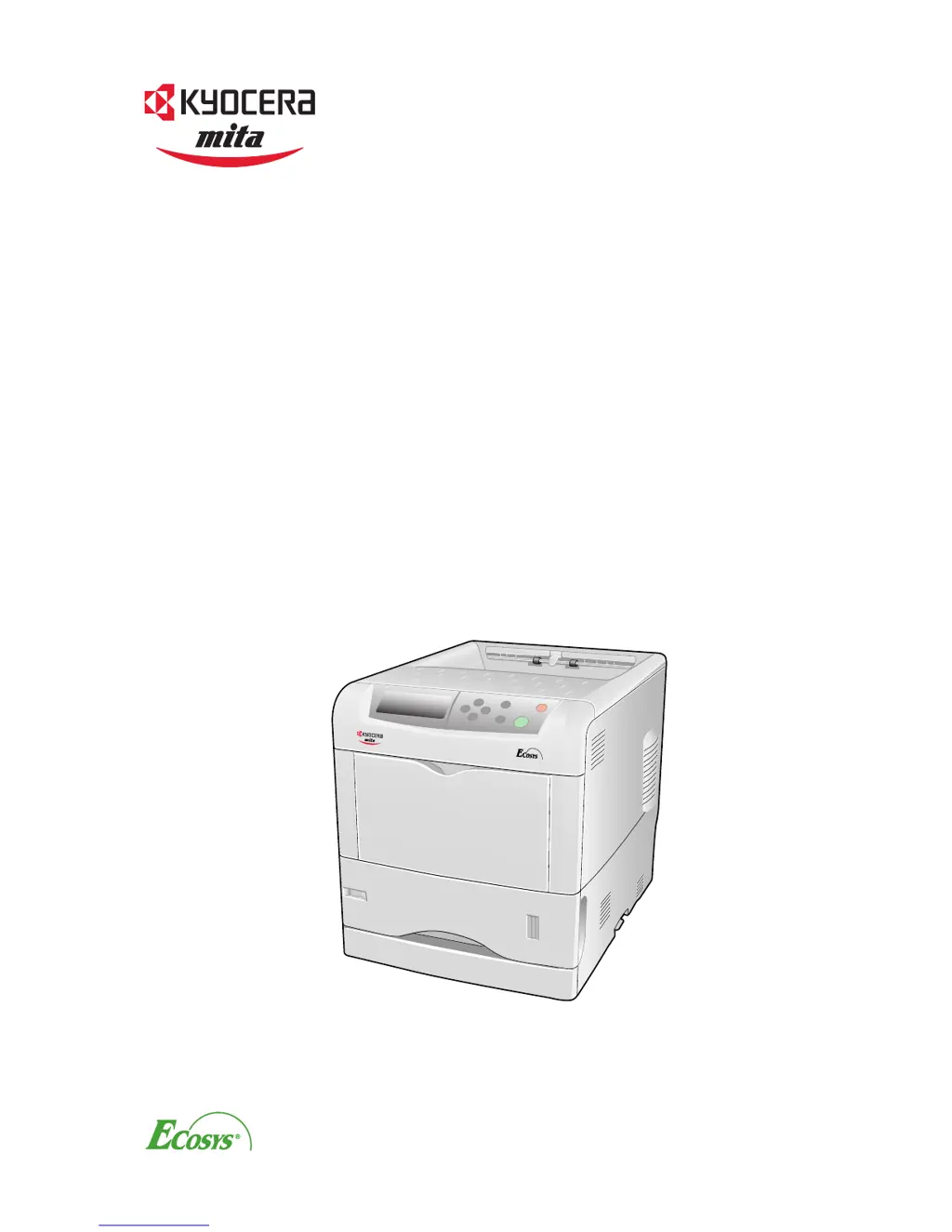


J
John MendezSep 23, 2025
How to fix skewed-color printouts on my Kyocera Mita FS-C5016N?
- WWarren JamesSep 23, 2025
To fix skewed-color printouts on your Kyocera Mita Printer, conduct color registration using the printer operator panel.

How to fix skewed-color printouts on my Kyocera Mita FS-C5016N?
To fix skewed-color printouts on your Kyocera Mita Printer, conduct color registration using the printer operator panel.
What to do if my Kyocera Mita Printer prints a status page but not computer jobs?
If your Kyocera Mita Printer prints a status page but not jobs from the computer, it might be due to a poorly connected printer cable or incorrect application software setup. Ensure both ends of the printer cable are securely connected, and consider replacing the cable. Also, try printing another file or using a different print command to check the application software.
What to do if my Kyocera Mita FS-C5016N Printer shows 'Add paper MPTray' message?
If your Kyocera Mita Printer displays the 'Add paper MPTray' message, it means the paper has run out. Supply paper according to the paper source displayed, such as paper cassettes, MP tray, optional paper feeders, or optional envelope feeder.
What to do if my Kyocera Mita FS-C5016N Printer shows 'Cassette # not loaded' message?
If your Kyocera Mita Printer displays the message 'Cassette # not loaded', it means that the corresponding paper cassette is not installed. Install the cassette.
What to do if my Kyocera Mita FS-C5016N is printing completely blank pages?
If your Kyocera Mita Printer is producing completely blank printouts, the toner containers might not be properly installed, or the application software may not be operating correctly. Open the printer top cover and check that the toner containers are correctly installed in the printer. Also, verify that the application software is correctly operated.
What to do if my Kyocera Mita FS-C5016N shows 'Format error Memory card' message?
If your Kyocera Mita Printer displays 'Format error Memory card', it means the memory card is not formatted. To format a memory card, follow the procedure in Chapter 3 Using the Operator Panel, section Formatting a Memory Card on page 3-63.
What to do if my Kyocera Mita Printer shows 'File not found Press GO' message?
If your Kyocera Mita Printer displays 'File not found Press GO', the specified virtual mailbox is not found. Check the ID error user ID that you specified on the printer driver.
What to do if my Kyocera Mita FS-C5016N shows 'Format error Hard disk' message?
If your Kyocera Mita Printer displays 'Format error Hard disk', it means the hard disk is not formatted. To format the hard disk, follow the procedure in the Installation Guide of the hard disk.
What to do if my Kyocera Mita FS-C5016N Printer shows 'Memory overflow' message?
If your Kyocera Mita Printer displays the 'Memory overflow Press GO.' message, it indicates that the total amount of data exceeds the printer’s internal memory. Try adding more memory.
What to do if my Kyocera Mita FS-C5016N shows 'Close left cover' message?
If your Kyocera Mita Printer displays the 'Close left cover' message, it means the left cover of the printer is open. Close the left cover.
Outlines the common major printer features.
Explains printer parts and their functions with illustrations.
Discusses paper types, specifications, and general handling guidelines.
Provides considerations for selecting appropriate printing paper.
Details procedures for loading paper into the cassette and MP tray.
Lists and describes various types of special paper compatible with the printer.
Explains how to set paper types for optimum printing.
Explains the operator panel layout, messages, indicators, and keys.
Guides on navigating the printer's menu system for settings and configurations.
Describes how to print menu maps and status pages for printer information.
Details the enhanced-Multiple Printing System functions like Job Retention and Storage.
Covers configuration of parallel, USB, and serial/network interface parameters.
Explains how to set default printer options like emulation, fonts, and pitch.
Covers settings related to page copies, orientation, and print job protection.
Allows adjustment of print quality settings like gloss mode.
Explains operations for memory cards, hard disks, and RAM disks.
Details paper handling settings for MP tray, cassettes, duplexing, and custom paper types.
Allows selection between monochrome and color printing modes.
Covers displaying total pages printed and resetting toner counters.
Explains various other printer modes like language, sleep timer, and calibration.
Provides basic solutions for common printer problems.
Details print quality issues and their corrective actions.
Lists error messages and their corresponding corrective actions.
Explains how to identify and clear paper jams from various locations.
Guides on replacing toner containers, including frequency and messages.
Details the procedure for replacing the waste toner box.
Covers cleaning procedures for main charger units, paper transfer unit, and lenses.
Lists available printer options and where to find installation instructions.
Explains how to install, remove, and test expansion memory modules.
Provides details on memory cards, paper feeders, duplex units, and other accessories.
Details communication modes and interface signals for parallel connections.
Outlines USB interface specifications and connector pin assignments.
Explains serial interface signals, voltage levels, and its use.
Defines RS-232C protocol parameters like baud rate, parity, and data bits.
Guides on preparing an RS-232C cable and connecting it to the computer.
Lists detailed technical specifications of the printer.
Details the printer's printing speeds for different modes and paper sizes.
 General
| Brand | Kyocera Mita |
|---|---|
| Model | FS-C5016N |
| Category | Printer |
| Language | English |