EasyManua.ls Logo

L3Harris OpenSky XG-25M - User Manual

L3Harris OpenSky XG-25M
9 pages
Print Icon
To Next Page IconTo Next Page
Loading...
Quick Guide
14221-1510-1010
Rev. B, June 2020
OpenSky® XG-25M
Mobile Radios
Radio Controls User Interface
Change Operating Mode
1. Scroll through the menu untilApp Mode” appears in the
bottom line of the display.
2. Use the Menu Navigation Control to choose an available
mode. Press MENU and confirm (Y/N) with the Menu
Navigation Control and press MENU again.
or
Preset button C can be programmed to reboot the radio into a
particular application mode.
Radio Controls
Power On/Off
Volume
Control
Twist clockwise to power on radio and
increase volume.
Twist counter-
clockwise to decrease
volume and power off radio.
Connect hand-held, hands-free speaker-
mic, or headset.
Emergency
Pre-
programmed to declare an
emergency.
Group
Selection
or
Menu
Navigation
Knob
While in the dwell display, scrolls
through available talk groups.
Scrolls through selections within the
active menu
(available talk groups,
pre-
programmed speed dial numbers,
canned alert messages, etc.).
Scrolls through top-level menu.
OPT
CLR
Scrolls through selections within the
active menu (available talk groups,
pre-programmed speed dial numbers,
canned alert messages, etc.).
Activate current selection.
CLR
Used with the Emergency button to
clear an emergency.
SCAN
Toggles the Scan Mode ON/OFF.
Pre-Set
Buttons
A/B/C
These buttons are used to store and
recall user-selectable parameters.
Preset button C can be configured via
programming to reboot the radio into a
particular application mode.
Radio Display and Status Icons
Steady Radio is data registered.
Steady Received Signal Strength Indicator
(RSSI).
Steady Stealth mode is enabled (all tones and
display backlight disabled; voice is still heard).
Steady - Radio is transmitting or receiving a
manual or OTAR (Network) encrypted call.
Steady - Indicates Voice Scan mode is Normal or
Fixed; not displayed when Voice Scan mode is No
Scan.
Steady - Indicates Selective Call mode.
Flashing Bluetooth
®
enabled, but no accessory
connected.
Steady Radio is connected to a Bluetooth
accessory.
Alert Tones
Call Queued
1 low tone/2 high tones. Call queued for
processing.
Call Denied
3 short tones. Radio is out of coverage area or
requested voice group is active.
Grant (or
Go-Ahead)
Single short beep. Resources have become
available for a call request placed in the queue (if
enabled) upon channel access.
Call
Removed
Single long low-pitched tone. Notifies the user
that access to the channel has been lost.
Selective
Alert
4 short tones. Played once to indicate a selective
alert has been received.
Emergency
Alert
3 long beeps. Sounds when an emergency alert
is declared.
Emergency
Cleared
Single long low-
pitched tone. Sounds when an
emergency is cleared.
Selective
Call
Ringing tone. Repeated every 4 seconds until the
call is accepted or rejected by the radio being
called, or until the network drops the call if
unanswered after one minute.
Out-of-
Range
Configurable. Typical: 3 brief tones that repeat
every 15 seconds when the radio does not have
consistent sync.
Roam
2 short tones: 1 highpitched and 1 low-pitched.
Sounds when the radio transitions from one radio
base station site to a
nother while transmitting
voice.
Priority
Bump
Single medium tone. Current received call
preempted by higher priority call.
Site Found
3 short high pitched tones. Sounds when selected
Site is found or using Site Lock menu.
Site Not
Found
3 short high pitched tones. Sounds when selected
Site is not found using Site Lock menu.
Quick Guide
14221-1510-1010
Rev. B, June 2020
OpenSky® XG-25M
Mobile Radios
Radio Controls User Interface
Change Operating Mode
1. Scroll through the menu untilApp Mode” appears in the
bottom line of the display.
2. Use the Menu Navigation Control to choose an available
mode. Press MENU and confirm (Y/N) with the Menu
Navigation Control and press MENU again.
or
Preset button C can be programmed to reboot the radio into a
particular application mod
Radio Controls
Power On/Off
Volume
Control
Twist clockwise to power on radio and
increase volume.
Twist counter-
clockwise to decrease
volume and power off radio.
Connect hand-held, hands-free speaker-
mic, or headset.
Pre-programmed to declare an
emergency.
Group
Selection
or
Menu
Navigation
Knob
While in the dwell display, scrolls
through available talk groups.
Scrolls through selections within the
active menu (available talk groups,
pre-
programmed speed dial numbers,
canned alert messages, etc.).
Scrolls through top-level menu.
OPT
CLR
Scrolls through selections within the
active menu (available talk groups,
pre-programmed speed dial numbers,
canned alert messages, etc.).
Activate current selection.
CLR
Used with the Emergency button to
clear an emergency.
SCAN
Toggles the Scan Mode ON/OFF.
Pre-Set
Buttons
A/B/C
These buttons are used to store and
recall user-selectable parameters.
Preset button C can be configured via
programming to reboot the radio into a
particular application mode.
Radio Display and Status Icons
Steady Radio is data registered.
Steady Received Signal Strength Indicator
(RSSI).
Steady Stealth mode is enabled (all tones and
display backlight disabled; voice is still heard).
Steady - Radio is transmitting or receiving a
manual or OTAR (Network) encrypted call.
Steady - Indicates Voice Scan mode is Normal or
Fixed; not displayed when Voice Scan mode is No
Scan.
Steady - Indicates Selective Call mode.
Flashing Bluetooth
®
enabled, but no accessory
connected.
Steady Radio is connected to a Bluetooth
accessory.
Alert Tones
Call Queued
1 low tone/2 high tones. Call queued for
processing.
Call Denied
3 short tones. Radio is out of coverage area or
requested voice group is active.
Grant (or
Go-Ahead)
Single short beep. Resources have become
available for a call request placed in the queue (if
enabled) upon channel access.
Call
Removed
Single long low-pitched tone. Notifies the user
that access to the channel has been lost.
Selective
Alert
4 short tones. Played once to indicate a selective
alert has been received.
Emergency
Alert
3 long beeps. Sounds when an emergency alert
is declared.
Emergency
Cleared
Single long low-pitched tone. Sounds when an
emergency is cleared.
Selective
Call
Ringing tone. Repeated every 4 seconds until the
call is accepted or rejected by the radio b
eing
called, or until the network drops the call if
unanswered after one minute.
Out-of-
Range
Configurable. Typical: 3 brief tones that repeat
every 15 seconds when the radio does not have
consistent sync.
Roam
2 short tones: 1 highpitched and 1 low-pitched.
Sounds when the radio transitions from one radio
base station site to another while transmitting
voice.
Priority
Bump
Single medium tone. Current received call
preempted by higher priority call.
Site Found
3 short high pitched tones. Sounds when selected
Site is found or using Site Lock menu.
Site Not
Found
3 short high pitched tones. Sounds when selected
Site is not found using Site Lock menu.
Copyright ©
2015, 2016, 2020, L3Harris Technologies.
Copyright ©
2015, 2016, 2020, L3Harris Technologies.

Question and Answer IconNeed help?

Do you have a question about the L3Harris OpenSky XG-25M and is the answer not in the manual?

Overview

The document is a Quick Guide for the OpenSky® XG-25M Mobile Radios, identified by part number 14221-1510-1010, Revision B, dated June 2020. This guide provides an overview of the radio's controls, user interface, operating modes, display icons, alert tones, scan modes, and basic operational procedures.

Function Description:

The OpenSky® XG-25M is a mobile radio designed for communication within the OpenSky® network. It facilitates voice transmissions and receptions, supports various talk groups, and includes emergency communication features. The radio is capable of storing multiple user profiles, each containing a set of talk groups, and offers different scan modes to manage communication channels effectively. Its primary function is to provide reliable and secure mobile communication for users within a configured network environment.

Important Technical Specifications (Inferred from the document):

  • Profiles: The radio can store up to sixteen (16) standard profiles.
  • Talk Groups per Profile: Each profile can contain up to sixteen (16) talk groups.
  • Emergency Raise Delay: Default is one (1) second.
  • Bluetooth®: Enabled for accessory connection.
  • Power: On/Off and volume control are integrated into a single knob.
  • Display: Features a monochrome display showing talk group, caller ID, and various status icons.
  • Audio Output: Includes a speaker and a microphone connector for external accessories.

Usage Features:

Radio Controls and User Interface:

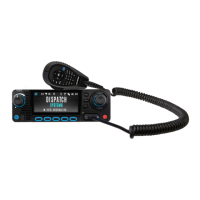
The radio features a front panel with several controls:

  • Power On/Off Volume Control: A knob to power on/off the radio and adjust volume. Turning clockwise powers on and increases volume; counter-clockwise powers off and decreases volume.
  • TX/BUSY Indicator: An LED indicator for transmit/busy status.
  • Microphone Connector: For connecting a hand-held, hands-free speaker-mic, or headset.
  • Display: Shows operational information like "Talk Group," "Caller ID," and status icons.
  • Group Selection or Menu Navigation Knob: Used for scrolling through available talk groups in dwell display and navigating selections within active menus.
  • Speaker: For audio output.
  • Emergency Button: A red button to declare an emergency.
  • Menu Control, Scan, and Preset Buttons (A/B/C):
    • OPT (Option): Scrolls through selections within the active menu.
    • CLR (Clear): Used with the Emergency button to clear an emergency. Also scrolls through selections within the active menu.
    • MENU: Activates current selection and scrolls through top-level menus.
    • SCAN: Toggles Scan Mode ON/OFF.
    • Pre-Set Buttons A/B/C: Used to store and recall user-selectable parameters. Button C can be configured to reboot the radio into a particular application mode.

Changing Operating Mode:

  1. Scroll through the menu until "App Mode" appears on the bottom line of the display.
  2. Use the Menu Navigation Control to select a mode, press MENU, confirm (Y/N) with the Menu Navigation Control, and press MENU again.
  3. Preset button C can be programmed to reboot the radio into a specific application mode.

Radio Display and Status Icons:

  • Steady Downward Triangle: Radio is data registered.
  • Steady Bar Graph: Received Signal Strength Indicator (RSSI).
  • Steady Musical Note: Stealth mode enabled (all tones and display backlight disabled; voice still heard).
  • Steady Antenna Icon: Radio is transmitting or receiving a manual or OTAR (Network) encrypted call.
  • Steady Pyramid: Indicates Voice Scan mode is Normal or Fixed; not displayed when Voice Scan mode is No Scan.
  • Steady Square Bracket: Indicates Selective Call mode.
  • Flashing Bluetooth® Symbol: Bluetooth® enabled, but no accessory connected.
  • Steady Bluetooth® Symbol: Radio is connected to a Bluetooth accessory.

Alert Tones:

The radio provides various alert tones for different events:

  • Call Queued: 1 low tone/2 high tones.
  • Call Denied: 3 short tones.
  • Grant (or Go-Ahead): Single short beep.
  • Call Removed: Single long low-pitched tone.
  • Selective Alert: 4 short tones.
  • Emergency Alert: 3 long beeps.
  • Emergency Cleared: Single long low-pitched tone.
  • Selective Call (Ringing): Repeated every 4 seconds until accepted/rejected or network drops.
  • Out-of-Range: Configurable, typically 3 brief tones repeating every 15 seconds when no consistent sync.
  • Roam: 2 short tones (1 high-pitched, 1 low-pitched) when transitioning between base station sites during voice transmission.
  • Priority Bump: Single medium tone when current call is preempted.
  • Site Found: 3 short high-pitched tones.
  • Site Not Found: 3 short high-pitched tones.

Radio Scan Modes:

  • No Scan: Eliminates distractions; full communication on selected talk group; no calls from other talk groups.
  • Normal (Default): Scans all talk groups in the active profile not locked out (if demand on site); P1, P2, P3 groups are user selectable. Receives calls from multiple talk groups. Allows dragging of selected, P1, P2, P3, and default emergency talk groups to the registered site. Default emergency talk group is dragged only in emergency mode.
  • Fixed: Functions like Normal Scan, but priority groups are fixed to the profile's pre-defined P1 and P2 groups (configured via UAS).

Stealth Mode:

  1. Scroll through the menu until "StealthMenu" appears.
  2. Use the Menu Navigation knob to turn Stealth Mode on.
  3. To turn Stealth Mode off, press the MENU button on the radio's front panel.

Checking or Changing the Active Profile:

  1. Using + or -, scroll until "Profile Menu" appears (bottom line of display). The current active profile name appears on the top line.
  2. Use the Menu Navigation knob to choose the desired profile.
  3. The profile becomes active when selected for >2 seconds, when MENU is pressed, or when the menu is changed.

Checking or Changing the Selected Talk Group:

  • First Method: From the dwell display, use the Talk Group Selection knob to scroll through the available list of talk groups.
  • Second Method:
    1. Using + or -, scroll until "TalkGrpMenu" is displayed.
    2. Use the Menu Navigation knob to scroll through the available list of talk groups.

Receiving a Voice Call:

No action is required.

Transmitting a Voice Call:

  1. Power up the radio (if not already on).
  2. Select the desired talk group.
  3. Depress and hold the Push-To-Talk (PTT) button on the microphone, pause, and speak normally. Hold the microphone ~2 inches from the mouth; do not shout or whisper. If the call is queued, wait for the grant tone before speaking.
  4. Release the PTT button when finished.

Adjusting Side Tone Audio Level:

  1. Use + or – to cycle through the menu until "Side Menu" appears (bottom line of display).
  2. Use the Menu Navigation knob to change the level (Off, Low, Medium, High). Select "Off" to turn side tones completely off.

Declaring an Emergency:

  1. Press the red emergency button to enter emergency mode. The emergency is raised after the emergency raise delay (default 1 second).
    • If configured for Emergency Alert, an alert signal is sent to registered alert servers (e.g., dispatcher console).
    • If configured for Emergency Call, the talkgroup enters emergency status, notifying other radios, and an alert signal is sent to the dispatcher console.
    • If emergency behavior is "Current," the active voice group becomes the default emergency voice group.
    • If emergency behavior is "Default," the radio moves to the default emergency voice group of the profile, and this becomes the selected talk group.
  2. The display will alternate between the emergency voice group name, "EMERGENCY," and User ID.

Maintenance Features (Inferred from the document):

Clearing an Emergency:

  1. Check with the system administrator to ensure the radio is programmed to allow an emergency to be cleared.
  2. Press and hold the CLR button and simultaneously press the emergency button.
  3. Release both buttons after the emergency cleared tone sounds.

The document emphasizes user-selectable parameters and configurations, suggesting that some aspects of the radio's operation can be customized by the user or through programming (e.g., Preset button C, Fixed Scan Mode P1/P2 groups via UAS). The mention of "L3HARRIS™ FAST. FORWARD." indicates the manufacturer and a commitment to advanced technology.

L3Harris OpenSky XG-25M Specifications

General IconGeneral
BrandL3Harris
ModelOpenSky XG-25M
CategoryRadio
LanguageEnglish

Related product manuals