Add Your Sensors to the App
LA CROSSE VIEW
05
123456-ABC
* This step is only required if you do not receive the Add Device notification within the app.
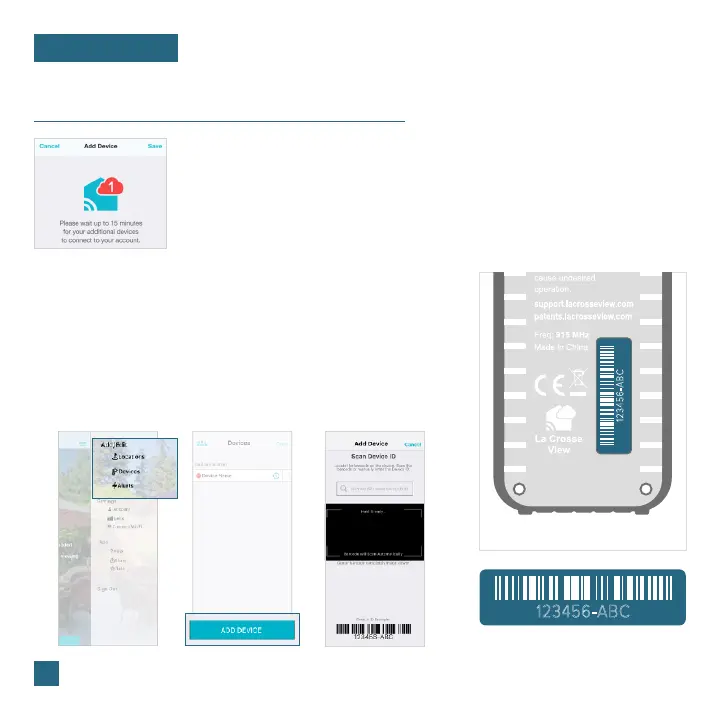
Prior to mounting/positioning your sensor, make sure your station is receiving sensor data.
Upon getting the station connected to your Wi-Fi network, the app will
explain how your connected sensor should be brought in. Within the
next 15 minutes, you should receive an Add Device notification in your
app. This is indicated by the Red Cloud and the numbers inside of it.
Tap this icon to begin adding your sensor into the app.
1.
Manually Add Your Sensor to the App*
3.
4.
2.
Open your La Crosse View app. On the Main Menu, scroll to
ADD/EDIT and select DEVICES.
Scan the Barcode on your Sensor or type in the Device ID
manually.
Confirm the sensor image and Device ID and add a Device
Name and Location Name. Select DONE.
On the Devices page, select the ADD DEVICE or PLUS (+) button.
123456-ABC
Back of Sensor



 To Next Page