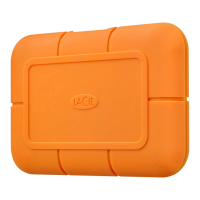
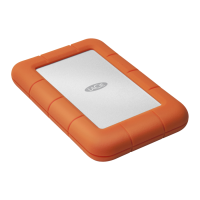
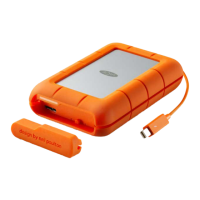
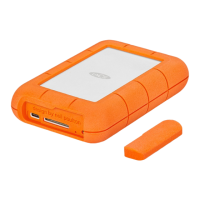
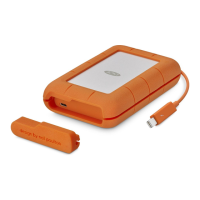
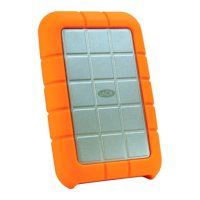
LaCie Rugged Hard Disk • Design by neil Poulton Table of Contents
User Manual page 1
Table of Contents
1. Introduction .................................................................................................................. 4
1.1. Box Content .................................................................................................................................... 5
1.2. Minimum System Requirements ......................................................................................................... 6
1.3. Views of the Rugged Hard Disk ......................................................................................................... 7
1.4. Cables and Connectors .................................................................................................................... 8
1.4.1. USB Cables and Connectors ................................................................................................... 8
1.4.2. FireWire 400 Cables and Connectors (Rugged Triple Interface only) ........................................... 9
2. Getting Connected ...................................................................................................... 10
2.1. Connecting the Interface Cable ...................................................................................................... 11
2.2. LaCie Setup Assistant ..................................................................................................................... 12
2.3. Launching LaCie Setup Assistant (A) ................................................................................................ 14
2.4. Launching LaCie Setup Assistant (B) ................................................................................................ 15
2.5. Connecting Multiple Devices ........................................................................................................... 22
2.6. Disconnecting Your LaCie Hard Disk ............................................................................................... 23
2.7. Switching Interfaces ........................................................................................................................ 23
3. Optional Formatting and Partitioning ......................................................................... 24
3.1. Finding the File System Format ........................................................................................................ 25
3.2. Formatting for Windows Users......................................................................................................... 26
3.2.1. Formatting from FAT32 to NTFS ............................................................................................ 26
3.2.2. Formatting from HFS+ (Apple File System) to NTFS ................................................................. 28
3.3. Formatting for Mac Users ............................................................................................................... 30
4. Troubleshooting ......................................................................................................... 31
4.1. Mac Troubleshooting ..................................................................................................................... 31
4.2. Windows Troubleshooting ............................................................................................................... 33
5. Contacting Customer Support ..................................................................................... 35
5.1. LaCie Technical Support Contacts ................................................................................................... 36
6. Warranty Information ................................................................................................. 37


 To Next Page
 General