EasyManua.ls Logo

LaCie Rugged USB-C - User Manual

LaCie Rugged USB-C
17 pages
Print Icon
To Next Page IconTo Next Page
Loading...
LaCie Rugged USB-C User Manual
© 2016 Seagate Technology LLC. All rights reserved. Seagate, Seagate Technology,
the Wave logo, and FreeAgent are trademarks or registered trademarks of Seagate
Technology LLC, or one of its affiliates. All other trademarks or registered
trademarks are the property of their respective owners. When referring to hard
drive capacity, one gigabyte, or GB, equals one billion bytes and one terabyte, or
TB, equals one thousand billion bytes when referring to hard drive capacity. In
addition, some of the listed capacity is used for formatting and other functions, and
thus will not be available for data storage. Quantitative usage examples for various
applications are for illustrative purposes. Actual quantities will vary based on
various factors including file size, file format, features, and application software.
Seagate reserves the right to change, without notice, product offerings or
specifications.
Seagate Technology LLC
47488 Kato Road
Fremont, CA 94538
USA
Seagate Technology NL B.V.
Koolhovenlaan 1
1119 NB Schiphol-Rijk
The Netherlands
Seagate Technology NL B.V. (UK Branch)
Jubilee House, Globe Park, 3rd Ave,
Marlow SL7 1EY
UK
Seagate Singapore International Headquarters Pte. Ltd.
90 Woodlands Avenue 7
Singapore 737911
Click here to access an up-to-date online version
of this document. You will also find the most recent content as well as expandable illustrations, easier
navigation, and search capability.
Model:
Question and Answer IconNeed help?

Do you have a question about the LaCie Rugged USB-C and is the answer not in the manual?

Summary

Getting Connected

Connect the USB Cable

Instructions for physically connecting the device to the computer.

Launch LaCie Setup Assistant

Guide to initiating the setup assistant for formatting and registration.

Launch LaCie Setup Assistant - Windows

Instructions for launching the setup assistant on Windows systems.

LaCie Setup Assistant Steps

Details the process of formatting, registering, and installing utilities.

Optional Formatting and Partitioning

Formatting Instructions

Provides detailed steps for formatting and partitioning on Windows and Mac.

Safely Remove Rugged USB-C From Your Computer

Frequently Asked Questions

Summary

Getting Connected

Connect the USB Cable

Instructions for physically connecting the device to the computer.

Launch LaCie Setup Assistant

Guide to initiating the setup assistant for formatting and registration.

Launch LaCie Setup Assistant - Windows

Instructions for launching the setup assistant on Windows systems.

LaCie Setup Assistant Steps

Details the process of formatting, registering, and installing utilities.

Optional Formatting and Partitioning

Formatting Instructions

Provides detailed steps for formatting and partitioning on Windows and Mac.

Safely Remove Rugged USB-C From Your Computer

Frequently Asked Questions

Overview

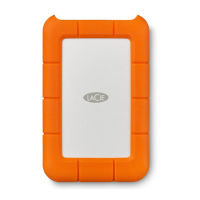
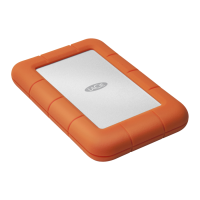
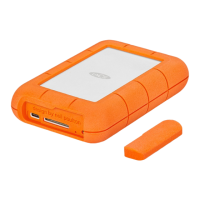
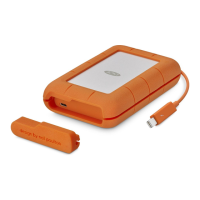
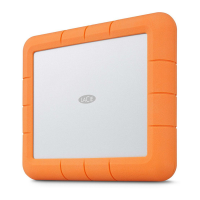
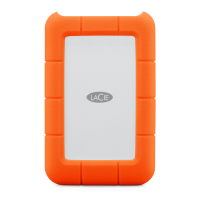
The LaCie Rugged USB-C is a portable hard drive designed for professionals and enthusiasts who require durable and high-performance external storage. This device is part of LaCie's field-tested Rugged hard drive range, known for its robust construction and reliability in various environments. The Rugged USB-C offers USB 3.1 Gen 1 transfer rates, ensuring efficient data movement. Its casing is designed to be small and lightweight, making it ideal for easy travel, and it is built to withstand bumps and drops from heights of up to 1.2 meters, providing peace of mind for users on the go. When connected to a computer with a compatible USB 3.1 Gen 1 port, users can expect high-end performance.

Function Description

The primary function of the LaCie Rugged USB-C is to provide external data storage and facilitate high-speed data transfer between the device and a computer. It serves as a reliable solution for backing up important files, expanding storage capacity, and transporting large datasets. The device connects to a computer via a USB-C port, utilizing the USB 3.1 Gen 1 standard for data transfer. This standard offers transfer rates of up to 5Gb/s, which is suitable for a wide range of applications, including transferring large media files, documents, and other digital content. The USB-C port on the LaCie Rugged USB-C is compatible with various USB-C protocols, including Thunderbolt 3 (up to 40Gb/s), USB 3.1 Gen 2 (up to 10Gb/s), SuperSpeed USB 3.0 (up to 5Gb/s), and Hi-Speed USB 2.0 (up to 480Mb/s), ensuring broad compatibility with modern computers.

The device is designed to be user-friendly, with a straightforward setup process guided by the LaCie Setup Assistant. This assistant helps users format the hard drive according to their specific needs, register the LaCie device, copy the user manual to the hard drive for easy access, and install additional software utilities that enhance its functionality. The setup assistant ensures that the drive is properly configured for either Mac or Windows operating systems, or for cross-platform compatibility if desired.

Beyond basic storage, the LaCie Rugged USB-C can also be integrated into more advanced workflows, particularly with higher-end iPads equipped with USB-C ports. This capability transforms the device into a versatile tool for mobile editing stations, allowing users to move files between computers, cloud services, and external storage, as well as import media directly into imaging and video applications on their iPad. This feature extends the utility of the drive beyond traditional desktop use, catering to creative professionals who require portable and flexible storage solutions.

Usage Features

The LaCie Rugged USB-C offers several features that enhance its usability and performance:

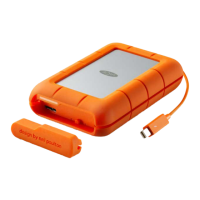
  • Easy Connectivity: The device uses a USB 3.1 Gen 2 (USB-C) cable, which is reversible, meaning it can be plugged into the port in any orientation. This simplifies the connection process, eliminating the frustration of trying to insert the cable correctly. The USB-C ports on both the hard drive and the computer are designed to accept the cable end seamlessly.
  • Guided Setup with LaCie Setup Assistant: Upon initial connection, the LaCie Setup Assistant guides users through the necessary steps to prepare the drive for use. This includes formatting the drive, which can be configured for single or multiple partitions. Users can choose between a "LaCie Share" partition (FAT32 for Mac and Windows compatibility) and a "LaCie" partition (NTFS for Windows or HFS+ for Mac), or a single partition formatted for their specific operating system. The assistant also facilitates device registration and the installation of optional software utilities.
  • Cross-Platform Compatibility: The LaCie Rugged USB-C supports various file system formats, allowing it to be used with both Mac and Windows computers. Users can choose to format the drive as NTFS (for Windows), HFS+ (for Mac), exFAT (for shared use between Mac and Windows), or FAT32 (for older operating systems). This flexibility ensures that the drive can be seamlessly integrated into diverse computing environments.
  • iPad Integration: For users with higher-end iPads featuring USB-C ports, the LaCie Rugged USB-C offers advanced functionality. It allows for direct connection to the iPad, enabling file transfers, access to storage devices within apps, and support for various external storage devices and USB hubs. This makes it an excellent option for on-the-go media editing and content management.
  • Data Transfer Optimization: To ensure optimal performance, it is recommended to connect the LaCie Rugged USB-C directly to a computer's USB-C port. While it can be used with USB hubs, direct connection helps prevent potential issues such as slower transfer rates, random disconnections, or detection problems that can arise from less efficient power management in some hubs.
  • Password Protection and Encryption (Third-Party): While LaCie does not provide built-in password protection or encryption software, the device can be secured using third-party solutions or operating system utilities like Bitlocker on Windows. This allows users to protect their data with passwords and encryption, enhancing data security.

Maintenance Features

Maintaining the LaCie Rugged USB-C primarily involves proper handling and software management to ensure its longevity and data integrity:

  • Safe Removal Procedures: It is crucial to always eject the storage drive from the computer's operating system before physically disconnecting it. This allows the computer to complete any pending filing and housekeeping operations on the drive, preventing data corruption or damage. Both Mac and Windows operating systems provide specific procedures for safely ejecting external drives, such as using the "Eject" option in Finder (Mac), dragging the drive icon to the Trash (Mac), or using the "Safely Remove Hardware" icon in the System Tray (Windows).
  • Regular Software Updates: Keeping the LaCie Setup Assistant and any installed software utilities up to date is important for optimal performance and compatibility. Users can re-run the LaCie Setup Assistant at any time to install or update software utilities. In cases where the setup assistant was aborted or not fully completed, the user manual and utilities can be downloaded from LaCie customer support.
  • File System Management: Users can reformat or re-partition the drive using either the LaCie Setup Assistant or their system's native disk utility program (Disk Management on Windows, Disk Utility on Mac). This allows for reconfiguring the drive's file system or partition layout as needs change. However, it is essential to back up all data before formatting, as this process erases everything on the storage device.
  • Troubleshooting Guidance: The user manual provides a comprehensive "Frequently Asked Questions" section to assist with common issues. This includes troubleshooting slow file transfers (checking cable connections, disconnecting other USB devices), compatibility with older USB ports, issues with USB hubs, and file transfer error messages (e.g., "Error -50" due to incompatible characters in file names for FAT32 volumes). It also addresses problems like the hard drive icon not appearing on the desktop (Mac) or in "Computer" (Windows), guiding users to check Finder preferences, Disk Utility, or Device Manager.
  • Cable Management: While longer USB cables can be used, LaCie recommends using the original cable shipped with the hard drive for the best results. If detection, transfer rates, or disconnection problems occur with a longer cable, reverting to the original cable is advised to ensure stable performance.
  • Power Management Awareness: The device is designed to conserve power by spinning down when the computer enters sleep mode. While this is a beneficial feature, users might occasionally encounter a "drive disconnected" error message upon waking the computer from sleep. This message can typically be ignored as the drive usually remounts on the desktop, indicating that the drive simply needed time to spin up.

By following these usage and maintenance guidelines, users can ensure the reliable and efficient operation of their LaCie Rugged USB-C hard drive, protecting their valuable data and maximizing the device's lifespan.

LaCie Rugged USB-C Specifications

General IconGeneral
TypeHDD
HDD size2.5 \
HDD speed- RPM
Read speed130 MB/s
HDD capacity4000 GB
Connectivity technologyWired
USB version3.2 Gen 1 (3.1 Gen 1)
USB connectorUSB Type-C
USB data transfer rates5000 Mbit/s
Maximum data transfer rate- Mbit/s
Product colorOrange, Silver
Housing materialRubber
Windows operating systems supportedYes
Bus poweredUSB
Protection featuresCrash proof, Shock resistant, Splash proof
Weight and Dimensions IconWeight and Dimensions
Depth135.1 mm
Width86 mm
Height26 mm
Weight400 g

Related product manuals