EasyManua.ls Logo

Laser DVD-HD012 - User Manual

Laser DVD-HD012
18 pages
Print Icon
To Next Page IconTo Next Page
Loading...
QUICK USER GUIDE DVD-HD011
5.1
Channel
Instruction Manual
Laser DVD Player
DVD-HD012
Question and Answer IconNeed help?

Do you have a question about the Laser DVD-HD012 and is the answer not in the manual?

Summary

Front and Rear Panel Overview

Front Panel Controls

Identifies and describes the buttons and ports on the front of the DVD player.

Rear Panel Ports

Details the various output and input ports located on the back of the DVD player.

Remote Control Operation

Remote Control Button Guide

Explains the function of each button on the remote control for operating the DVD player.

External Connection Options

Suggested Connection Types

Outlines the primary connection methods: HDMI, Component, and Composite.

HDMI to Home Theatre Setup

Provides instructions for connecting the player to a home theatre system via HDMI.

Connection Examples

Illustrates common connection scenarios for various display devices.

HDMI Connectivity Guide

HDMI Audio;Video Transmission

Explains how HDMI transmits both audio and video signals simultaneously.

HDMI Compatibility and Requirements

Details necessary receiver compatibility and potential issues with HDMI standards.

High-Resolution Audio via HDMI

Discusses limitations for high-res audio over coaxial and benefits of HDMI.

Menu Operation: System Setup

TV System Settings

Configures video output standards like NTSC, PAL60, PAL, or AUTO based on TV compatibility.

Resume Functionality

Enables the player to remember and resume playback from the last stopped point.

Menu Operation: Resolution and TV Type

Video Output Resolution Settings

Selects desired video output resolutions (e.g., 720P, 1080P) for HDMI connections.

TV Type Aspect Ratio Selection

Adjusts the display aspect ratio (e.g., 4:3, 16:9) for optimal picture formatting.

Menu Operation: Aspect Ratio and Password

Aspect Ratio Display Examples

Provides visual examples of how aspect ratio settings affect picture display.

Password Setup

Sets a personal 4-digit password for security, with a default of "0000".

Menu Operation: Parental Control and Defaults

Parental Control Ratings

Restricts content viewing based on film ratings for child safety.

Restore Default Settings

Resets all player settings to their original factory default values.

Language Configuration

On-screen Display Language

Selects the language for on-screen menus and setup displays.

Subtitle Language Options

Chooses the desired language for subtitles or turns them off.

Language Settings Details

OSD Language Configuration

Configures the language used for the On-Screen Display.

Audio Language Selection

Sets the preferred audio (dubbing) language for playback.

Subtitle Language Configuration

Selects the language for subtitles displayed during playback.

Menu Operation: Menu Language and Audio

Film Menu Language Selection

Sets the language for the interactive menus within movie discs.

Audio Output Settings

Configures the audio output mode, such as SPDIF settings.

Audio Key Adjustment

Allows adjustment of the audio key using the UP/DOWN arrows.

Menu Operation: Video Adjustments

Brightness Adjustment

Controls the overall lightness or darkness of the video output.

Contrast Adjustment

Modifies the difference between the lightest and darkest areas of the image.

Hue Adjustment

Fine-tunes the color balance or tint of the video image.

Menu Operation: Video and Speaker Setup

Saturation Adjustment

Controls the intensity or richness of colors in the video image.

Sharpness Adjustment

Enhances or softens the edge detail and clarity of the video image.

Downmix Options

Configures audio downmixing for systems requiring stereo output.

Menu Operation: Digital Setup

OP Mode Settings

Adjusts output modes for nighttime (LINE OUT) or daytime (RF REMOD) playing.

Dynamic Range Adjustment

Modifies the line out ratio for different audio effects.

Menu Operation: Dual Mono and File Playback

Dual Mono Output Modes

Configures left (L) and right (R) mono audio output options.

Supported File Formats

Lists the video, audio, and image file types compatible with disc and USB playback.

Troubleshooting and FAQs

Playback and Display Issues

Addresses common problems related to video/audio playback, disc, and file compatibility.

Player and Remote Issues

Covers troubleshooting for player unresponsiveness and remote control problems.

Supported File Types Recap

Reiterates the list of video, audio, and image files supported by the player.

Product Specifications

Technical Details Summary

Provides key technical specifications including dimensions, power, and supported files.

Warranty Information

Warranty Against Defects

Outlines the 12-month warranty period and terms against material defects.

How to Make a Warranty Claim

Details the process for submitting a warranty claim, including contact information.

Summary

Front and Rear Panel Overview

Front Panel Controls

Identifies and describes the buttons and ports on the front of the DVD player.

Rear Panel Ports

Details the various output and input ports located on the back of the DVD player.

Remote Control Operation

Remote Control Button Guide

Explains the function of each button on the remote control for operating the DVD player.

External Connection Options

Suggested Connection Types

Outlines the primary connection methods: HDMI, Component, and Composite.

HDMI to Home Theatre Setup

Provides instructions for connecting the player to a home theatre system via HDMI.

Connection Examples

Illustrates common connection scenarios for various display devices.

HDMI Connectivity Guide

HDMI Audio;Video Transmission

Explains how HDMI transmits both audio and video signals simultaneously.

HDMI Compatibility and Requirements

Details necessary receiver compatibility and potential issues with HDMI standards.

High-Resolution Audio via HDMI

Discusses limitations for high-res audio over coaxial and benefits of HDMI.

Menu Operation: System Setup

TV System Settings

Configures video output standards like NTSC, PAL60, PAL, or AUTO based on TV compatibility.

Resume Functionality

Enables the player to remember and resume playback from the last stopped point.

Menu Operation: Resolution and TV Type

Video Output Resolution Settings

Selects desired video output resolutions (e.g., 720P, 1080P) for HDMI connections.

TV Type Aspect Ratio Selection

Adjusts the display aspect ratio (e.g., 4:3, 16:9) for optimal picture formatting.

Menu Operation: Aspect Ratio and Password

Aspect Ratio Display Examples

Provides visual examples of how aspect ratio settings affect picture display.

Password Setup

Sets a personal 4-digit password for security, with a default of "0000".

Menu Operation: Parental Control and Defaults

Parental Control Ratings

Restricts content viewing based on film ratings for child safety.

Restore Default Settings

Resets all player settings to their original factory default values.

Language Configuration

On-screen Display Language

Selects the language for on-screen menus and setup displays.

Subtitle Language Options

Chooses the desired language for subtitles or turns them off.

Language Settings Details

OSD Language Configuration

Configures the language used for the On-Screen Display.

Audio Language Selection

Sets the preferred audio (dubbing) language for playback.

Subtitle Language Configuration

Selects the language for subtitles displayed during playback.

Menu Operation: Menu Language and Audio

Film Menu Language Selection

Sets the language for the interactive menus within movie discs.

Audio Output Settings

Configures the audio output mode, such as SPDIF settings.

Audio Key Adjustment

Allows adjustment of the audio key using the UP/DOWN arrows.

Menu Operation: Video Adjustments

Brightness Adjustment

Controls the overall lightness or darkness of the video output.

Contrast Adjustment

Modifies the difference between the lightest and darkest areas of the image.

Hue Adjustment

Fine-tunes the color balance or tint of the video image.

Menu Operation: Video and Speaker Setup

Saturation Adjustment

Controls the intensity or richness of colors in the video image.

Sharpness Adjustment

Enhances or softens the edge detail and clarity of the video image.

Downmix Options

Configures audio downmixing for systems requiring stereo output.

Menu Operation: Digital Setup

OP Mode Settings

Adjusts output modes for nighttime (LINE OUT) or daytime (RF REMOD) playing.

Dynamic Range Adjustment

Modifies the line out ratio for different audio effects.

Menu Operation: Dual Mono and File Playback

Dual Mono Output Modes

Configures left (L) and right (R) mono audio output options.

Supported File Formats

Lists the video, audio, and image file types compatible with disc and USB playback.

Troubleshooting and FAQs

Playback and Display Issues

Addresses common problems related to video/audio playback, disc, and file compatibility.

Player and Remote Issues

Covers troubleshooting for player unresponsiveness and remote control problems.

Supported File Types Recap

Reiterates the list of video, audio, and image files supported by the player.

Product Specifications

Technical Details Summary

Provides key technical specifications including dimensions, power, and supported files.

Warranty Information

Warranty Against Defects

Outlines the 12-month warranty period and terms against material defects.

How to Make a Warranty Claim

Details the process for submitting a warranty claim, including contact information.

Overview

This document serves as an instruction manual for the Laser DVD Player, model DVD-HD012, providing comprehensive guidance on its features, connections, operation, and troubleshooting.

Function Description

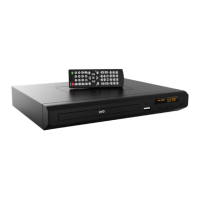
The Laser DVD Player DVD-HD012 is a versatile multimedia device designed for playing various disc formats and files from USB storage. Its primary function is to play DVDs, allowing users to enjoy movies and other video content. Beyond standard DVDs, it supports a range of digital audio and video formats, making it a central component for a home entertainment system. The player is equipped with multiple output options to ensure compatibility with different display devices and audio systems, from older analog TVs to modern HDMI-enabled displays and home theatre setups.

Usage Features

Front Panel Controls:

The front panel of the DVD player features essential controls for basic operation. It includes a disc tray for loading discs, a USB port for connecting external storage devices, and a remote control sensor for infrared commands. Physical buttons are provided for common functions such as OPEN/CLOSE (to open or close the disc tray), PLAY/PAUSE (to start or temporarily stop playback), STOP (to end playback), and POWER (to turn the player on or off). These controls offer convenient access for immediate interaction with the device.

Rear Panel Connections:

The rear panel offers a comprehensive array of connectivity options to integrate the DVD player into various home entertainment configurations.

  • HDMI Out: This is the easiest and most recommended connection for modern setups, transmitting both high-definition audio and video signals through a single cable to an HDMI-capable TV or home theatre system.
  • Component Out (Green, Blue, Red): These outputs provide high-quality analog video signals, separating the video into three components for improved picture clarity, suitable for TVs with component video inputs.
  • Composite Out (Red, White, Yellow): These are standard analog audio (red and white for stereo) and video (yellow) outputs, compatible with most older TVs and audio receivers.
  • Mains Power Input: For connecting the player to an electrical power source.

Remote Control Functions:

The included remote control provides extensive functionality for operating the DVD player from a distance.

  • OPEN/CLOSE & POWER: Dedicated buttons to open/close the disc tray and turn the player on/off.
  • AUDIO & SUBTITLE: Allows selection of different audio languages and toggling subtitles on/off, provided the disc or file supports these features.
  • MENU & SETUP: Accesses the player's settings menus for configuration.
  • MUTE & VOLUME: Controls the audio output level and mutes the sound.
  • NUMBER KEYS: Used for selecting specific files, chapters, or inputting numerical values (e.g., for passwords).
  • DISPLAY: Shows information such as playback time, title, and chapter.
  • COPY/DELETE: Manages files on USB storage.
  • DIRECTION KEY & ENTER: Navigates through menus and confirms selections.
  • PLAY/PAUSE, STOP, FAST FORWARD, REWIND, PREVIOUS/NEXT: Standard playback controls.
  • SLOW: Reduces video playback speed.
  • SEARCH: Allows searching by video chapter or time.
  • A-B: Selects a segment of video or music for repeated playback.
  • STEP: Advances playback one frame at a time.
  • CLEAR: Clears previously selected data or search information.
  • ZOOM: Zooms in/out on an image.
  • MARK & Q-PLAY: Creates a playback point and enables quick/direct play.
  • REPEAT: Repeats the current track.
  • CHANNEL: Switches between 2.1 and 5.1 sound output.
  • USB: Switches between USB and disc playback.
  • PROG: Programs the title and chapter order of playback.
  • VIDEO: Selects video output mode.
  • TITLE: Returns to the title screen.

The player's on-screen display (OSD) menus allow for detailed customization of settings.

  • TV System: Users can select NTSC, PAL60, PAL, or AUTO based on their TV hardware.
  • Resume: When enabled, the player remembers the last stopped point and resumes playback from there after being powered off and on again.
  • Resolution: For HDMI output, users can choose video resolutions such as OFF, 720P, 1080i, or 1080P.
  • TV Type (Aspect Ratio): Allows selection of aspect ratios like 4:3 PS (Pan Scan), 4:3 LB (Letterbox), or 16:9, which adjusts how the picture is displayed based on the video content and TV type.
  • Password: A 4-digit password can be set (default "0000") for parental control.
  • Parental Control: Restricts viewing based on film ratings (e.g., KID SAFE, G, PG, ADULT).
  • Default: Restores factory settings.
  • Language Setup: Configures OSD language, audio language (dubbing), and subtitle language (or turns subtitles off).
  • Audio Setup:
    • Audio Out: Selects digital audio output options (SPDIF/OFF, SPDIF/RAW, SPDIF/PCM).
    • Key: Adjusts the audio key using UP/DOWN arrows.
  • Video Setup: Adjusts image output parameters.
    • Brightness, Contrast, Hue, Saturation, Sharpness: These settings can be fine-tuned using UP/DOWN arrows to optimize picture quality.
  • Speaker Setup: Configures audio output for home theatre systems.
    • Downmix: For two-channel output, "Stereo" can be selected.
    • Center Delay, Rear Delay, VSS: Adjusts delays for center and rear speakers, and Virtual Surround Sound (VSS).
  • Digital Setup:
    • OP Mode: Selects "LINE OUT" for lower volume (nighttime) or "RF REMOD" for higher volume (daytime).
    • Dynamic Range: Adjusts the line out ratio when "LINE OUT" is selected.
    • Dual Mono: Configures left (L) and right (R) mono output with four modes (Stereo, Mono L, Mono R, Mix Mono).

File Playback from Disc or USB:

The player supports various file formats for playback from discs or USB thumb drives.

  • Video: AVI (Xvid), VOB.
  • Music: MP3.
  • Image: JPG. Users simply insert a disc or connect a USB drive and press the USB button to switch playback sources.

Maintenance Features

Troubleshooting:

The manual provides a dedicated FAQ section to address common issues and guide users through basic troubleshooting steps.

  • No Video Displayed on TV: Checks include ensuring the TV is on, verifying cable connections, and confirming correct input selection on the TV (e.g., HDMI1, AV1).
  • Player Does Not Respond to Remote: Suggestions include clearing obstacles, reducing distance/angle, checking/replacing remote batteries, and cleaning the remote sensor.
  • No Audio During DVD/File Playback: Users are advised to check audio output settings, ensure external amplifier/speakers are correctly connected and powered, verify TV/monitor input, and confirm the audio track format is supported.
  • Disc Playback Is Jerky: Recommends checking the disc for damage (scratches) and replacing if necessary.
  • Video File Playback Is Jerky and Stops: Advises checking file compatibility, resolution, and bit rate, suggesting reduction of resolution/bit rate for smoother playback of high-definition files.
  • Abnormal Player Operations: Recommends a power cycle (unplugging, waiting 1-2 minutes, then plugging back in) to reset the player.
  • Disc Is Locked in Player: Instructs users to power off and on the player, then immediately press the OPEN/CLOSE button to eject the disc.
  • Unsupported Files: Clarifies the supported file types for video, audio, and images.

The manual emphasizes that continuous improvements are made to the product, and users should visit the manufacturer's website for the most up-to-date user manual to account for any slight operational differences.

Laser DVD-HD012 Specifications

General IconGeneral
Progressive scan output-
Audio formats supportedMP3
Image formats supportedJPG
Video formats supportedAVI, VOB, XVID
USB 2.0 ports quantityUSB 2.0 ports have a data transmission speed of 480 Mbps, and are backwards compatible with USB 1.1 ports. You can connect all kinds of peripheral devices to them.
Playback disc typesCD, CD-R, CD-RW, DVD, DVD+R, DVD+RW, DVD-R, DVD-RW
Playback disc formatsCD audio, DVD-Video, SVCD, VCD
Device typeDVD player
Plug and PlayYes
Product colorBlack
Connectivity technologyWired
Built-in HDDNo
AC input voltage110 - 240 V
AC input frequency50 - 60 Hz
Power consumption (typical)15 W
Operating temperature (T-T)0 - 40 °C
Weight and Dimensions IconWeight and Dimensions
Depth188 mm
Width225 mm
Height45 mm
Weight742 g

Related product manuals