EasyManua.ls Logo

Laser DVD-PORTABLE-10 - User Manual

Laser DVD-PORTABLE-10
21 pages
Print Icon
To Next Page IconTo Next Page
Loading...
DVD-PORTABLE-10 USER MANUAL
1
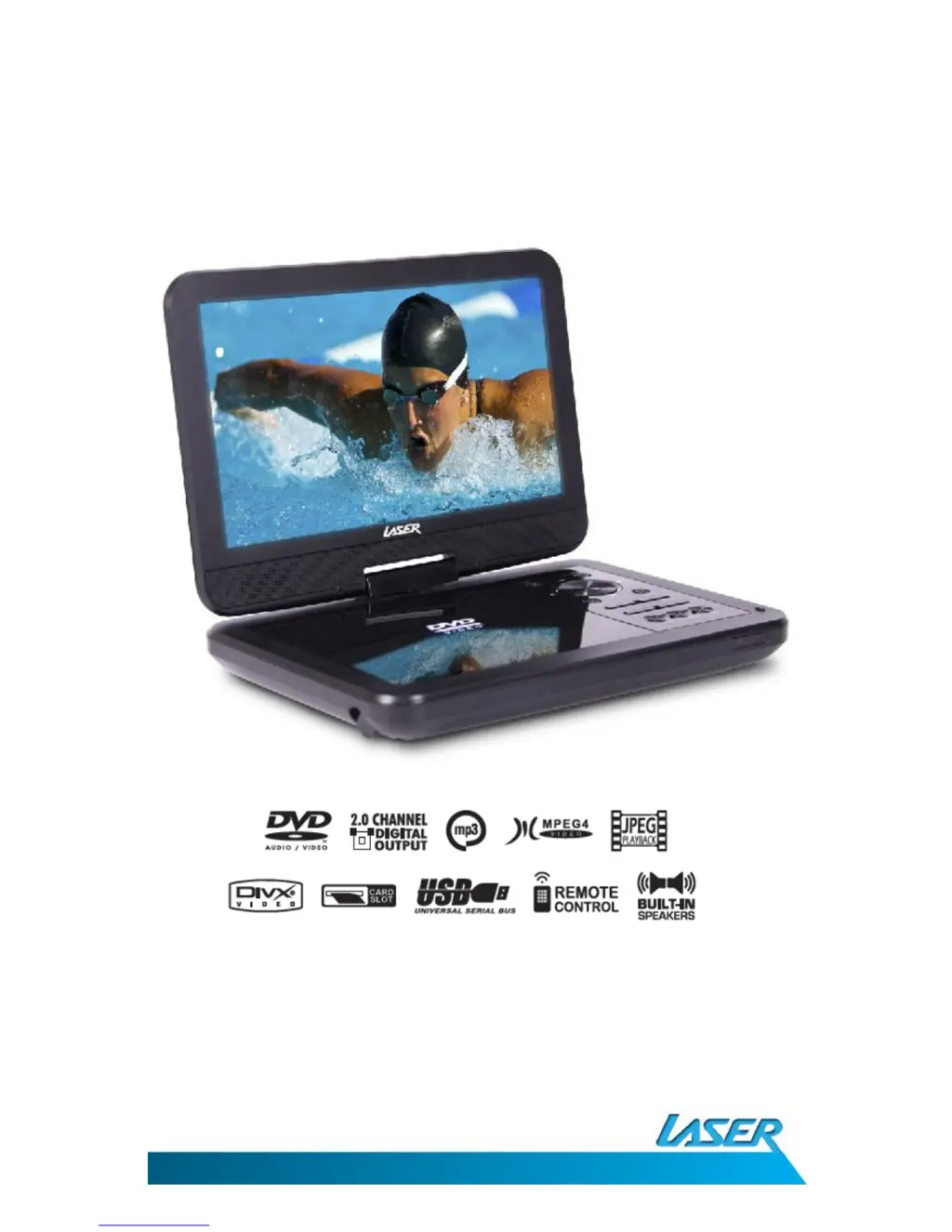
Laser 10” Screen Portable DVD Player
Please read carefully before use

Questions and Answers

  • L
    Larry GallegosJul 30, 2025
    What to do if my Laser DVD-PORTABLE-10 won't play a disc?
    • J
      John GonzalezJul 31, 2025
      If your Laser Portable DVD Player isn't playing discs, make sure you've inserted the disc with the label side facing up. Also, verify that the disc type is compatible. This DVD player only supports digital video discs, audio CDs, and MP3s.
  • J
    Jason RodriguezAug 4, 2025
    Why is there no sound or distorted sound on my Laser Portable DVD Player?
    • C
      Christopher HannaAug 4, 2025
      If you're experiencing sound issues with your Laser Portable DVD Player, ensure all cables are securely inserted into the appropriate jacks. Also, verify that the audio is not muted.
  • P
    Patricia BrownAug 8, 2025
    What to do if my Laser Portable DVD Player has no power?
    • C
      Christopher MartinAug 8, 2025
      If your Laser Portable DVD Player isn't turning on, ensure that the power connection is firmly seated in the plug and that the power supply is receiving power.
  • D
    David VangAug 12, 2025
    Why does my Laser Portable DVD Player play then stop immediately?
    • B
      barry49Aug 12, 2025
      If your Laser Portable DVD Player starts playing but stops immediately, the disc may be dirty, so try cleaning it. Alternatively, condensation may have formed inside the player; allow it to dry out.
  • J
    Jeffrey ArroyoAug 16, 2025
    Why is the picture distorted on my Laser Portable DVD Player?
    • W
      Wanda PageAug 16, 2025
      If the picture on your Laser Portable DVD Player is distorted, the disc might be damaged, so try another disc. Some distortion is normal during forward or reverse scan.
  • S
    Samantha MccarthyAug 21, 2025
    How to fix an inoperative IR sensor on Laser DVD-PORTABLE-10 Portable DVD Player?
    • K
      Kelly TaylorAug 21, 2025
      To troubleshoot an inoperative IR sensor on your Laser Portable DVD Player: * Ensure that the batteries in the remote are fresh. * Ensure that the remote sensor eye is not obstructed. * Ensure that the infrared transmitter is affixed over the sensor eye of the component to be controlled.
  • J
    jacob06Aug 26, 2025
    What does the icon ( ) mean on my Laser DVD-PORTABLE-10 Portable DVD Player?
    • D
      Deborah TownsendAug 26, 2025
      The feature or action cannot be completed at this time because: 1. The disc’s software restricts it. 2. The disc’s software doesn’t support the feature (e.g., angles). 3. The feature is not available at the moment. 4. You’ve requested a title or chapter number that is out of range.

Summary

Important Safety Instructions and Precautions

Care of Discs

Whats in the Box

The Player Overview

Installation Guide

Indoor Use

Instructions for connecting the DVD player to a mains outlet for indoor use.

In-car Use

Guidance on connecting the DVD player to a vehicle's power outlet.

Playback Operations

Remote Control Functions

Overview and identification of buttons on the DVD player's remote control.

Key Remote Functions

Explanation of the primary functions of each button on the remote control.

Loading and Playing a Disc

Step-by-step guide on how to insert and start playing a disc.

Display Information

How to view playing time, chapter, and title information on screen.

Angle Selection

How to switch between different camera angles on supported discs.

Subtitle Settings

How to select subtitle languages or turn them off during playback.

Audio Language and Channels

How to choose audio tracks and manage audio channel output.

Zoom Function

How to enlarge the picture during playback by 2X, 3X, or 4X.

A-B Repeat Function

How to set start and end points for repeating a specific segment.

ALL Repeat Mode

Options for repeating the current chapter, title, or all content.

MP3;MPEG-4 Disc Playback

Instructions for playing audio and video files from MP3/MPEG-4 discs.

DIVX Content Playback

Information on playing DIVX formatted video files and format comparisons.

System Setup Configuration

Play USB and SD;MMC;MS Card

How to connect and select content from USB drives and memory cards.

General Setup Options

Accessing and navigating the main system setup menu.

TV Display Settings

Configuring aspect ratio (4:3, Normal/LB, 16:9) for TV output.

Angle Mark Display

Enabling or disabling the angle mark indicator on the screen.

OSD Language Selection

Choosing the display language for the On-Screen Display menus.

Caption Settings

Enabling or disabling closed captions (subtitles) for video playback.

Screen Saver Configuration

Activating or deactivating the screen saver function.

Last Memory Function

Setting the player to resume playback from the last position.

Speaker Setup Options

Configuring audio output for speakers, including Downmix and Stereo.

Dolby Digital Settings

Settings related to Dolby Digital audio processing.

Dual Mono Audio

Options for mono audio playback (Stereo, L-Mono, R-Mono, Mix Mono).

Dynamic Range Control

Adjusting sound levels for even audio output across different channels.

Video Quality Adjustment

Fine-tuning image quality settings like Sharpness, Brightness, and Contrast.

Playback Preferences

Settings that may require disc removal before accessing.

TV Type Configuration

Selecting the video output format (PAL, Multi, NTSC) for external displays.

Default Audio Language

Setting the preferred audio language for DVDs.

Subtitle Language Setup

Setting the default subtitle language for DVD playback.

Disc Menu Language

Setting the preferred language for DVD menus.

Parental Control Levels

Setting parental restrictions based on disc rating levels.

Password Management

Changing or resetting the player's password for restricted functions.

Reset to Factory Defaults

Restoring the player's settings to their original factory configuration.

Troubleshooting Common Issues

Product Specifications

Available Accessories

Other Accessories and Products

Contact Information

Warranty Against Defects

Laser DVD-PORTABLE-10 Specifications

General IconGeneral
Power SourceAC adapter, Rechargeable battery
Screen Size10 inches
Playable MediaDVD, CD
ConnectivityAV output, Headphone jack
Screen Resolution800 x 480
Supported FormatsMP3, JPEG
Power SupplyAC 100-240V, 50/60Hz

Related product manuals