INTRODUCTION
Congratulations on purchasing the LASER Bluetooth mouse. With an incredible
sensitivity to surface details and a higher tracking speed than most other mice,
the LASER Bluetooth mouse can track quickly and reliably on even the trickiest
surfaces such as polished or wood-grain surfaces.
FEATURES
> 2.4GHz Bluetooth RF (distance: 10m, in open site)
> State-of-art technology gives high tracking speed and sensitivity.
> 79 Channels
> Power on/off switch.
> Dpi switch between 800 and 1600 dpi (gaming mode)
> Rubber side grips.
> 2*AAA Alkaline batteries included.
> Slim line BT dongle
> Internet forward and backward button
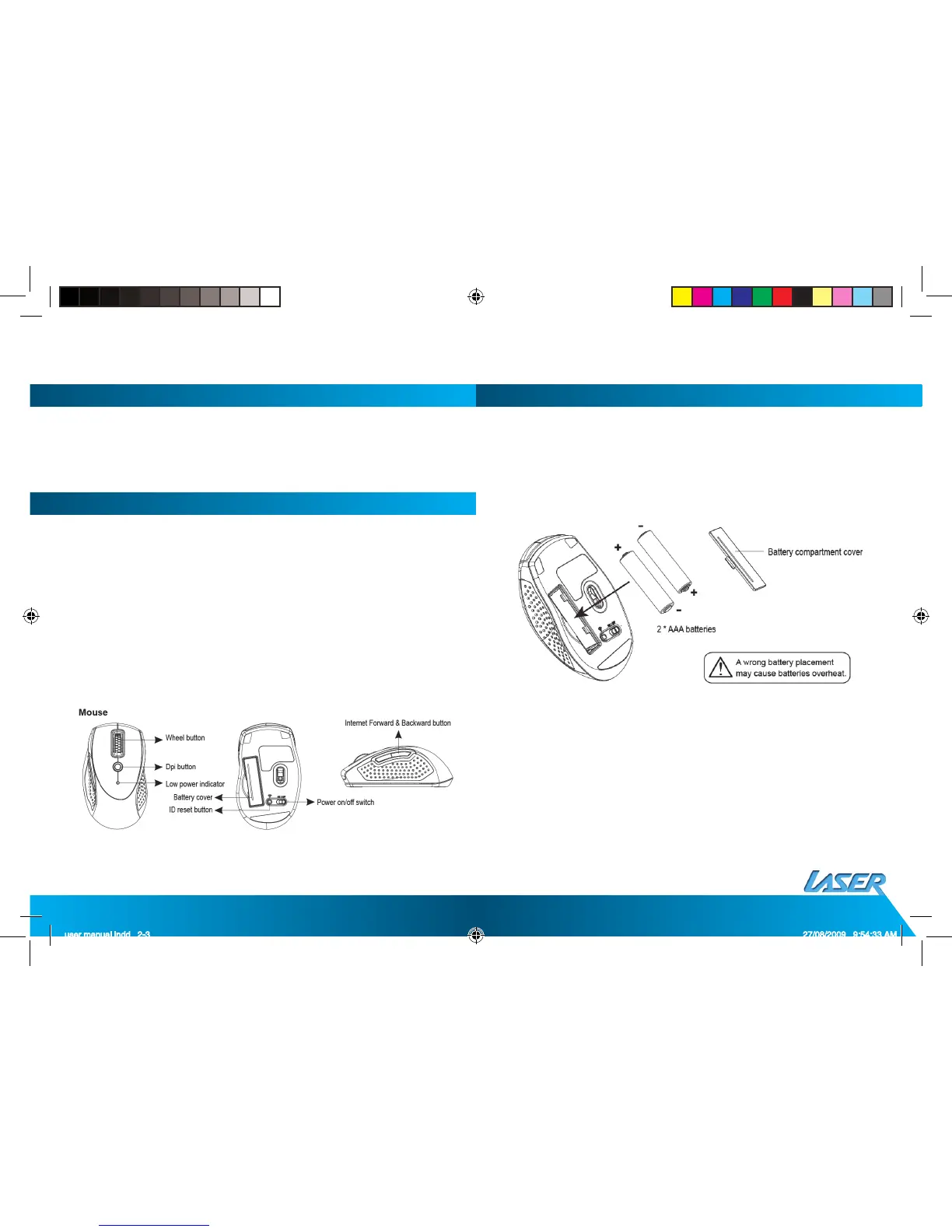
1. INSERT THE BATTERIES
a. Remove the battery compartment cover on the bottom of the mouse.
b. Fit the batteries in as indicated in the battery cabinet diagram.
c. Close the battery compartment cover properly.
d. Make sure the Power on-off swich on the bottom of the mouse is ON.
e. The Low Power LED on the wheel bar will blink for 3 seconds if the mouse
power is on.
Note:
> The unit offers strong power saving management. Once the mouse accesses
the sleeping mode, clicking any button on the mouse will wake it up.
> Power on/off: The Power on/off switch is designed to save the battery power
while not in use for a longer period.
> The red LED on the scroll wheel of the mouse is a low batteries power indicator.
user manual.indd 2-3 27/08/2009 9:54:33 AM
> Mouse will go into hibernation mode after approx. 5 minutes. Click any mouse
button and wait a few seconds to resume normal function.



 To Next Page
 Loading...