LAVA Computer MFG Inc.
a) Open the mobile device Settings.
b) Click "Biometrics and security".*
A7 Lite Enclosure Quick Start Guide - Rev A02
c) In the Biometrics and security menu, click "Install unknown apps".
d) Locate the browser application (if using mobile device) or memory stick (if using PC)you
are using to install LTM.
e) Click on the icon containing the name of the application or memory stick.
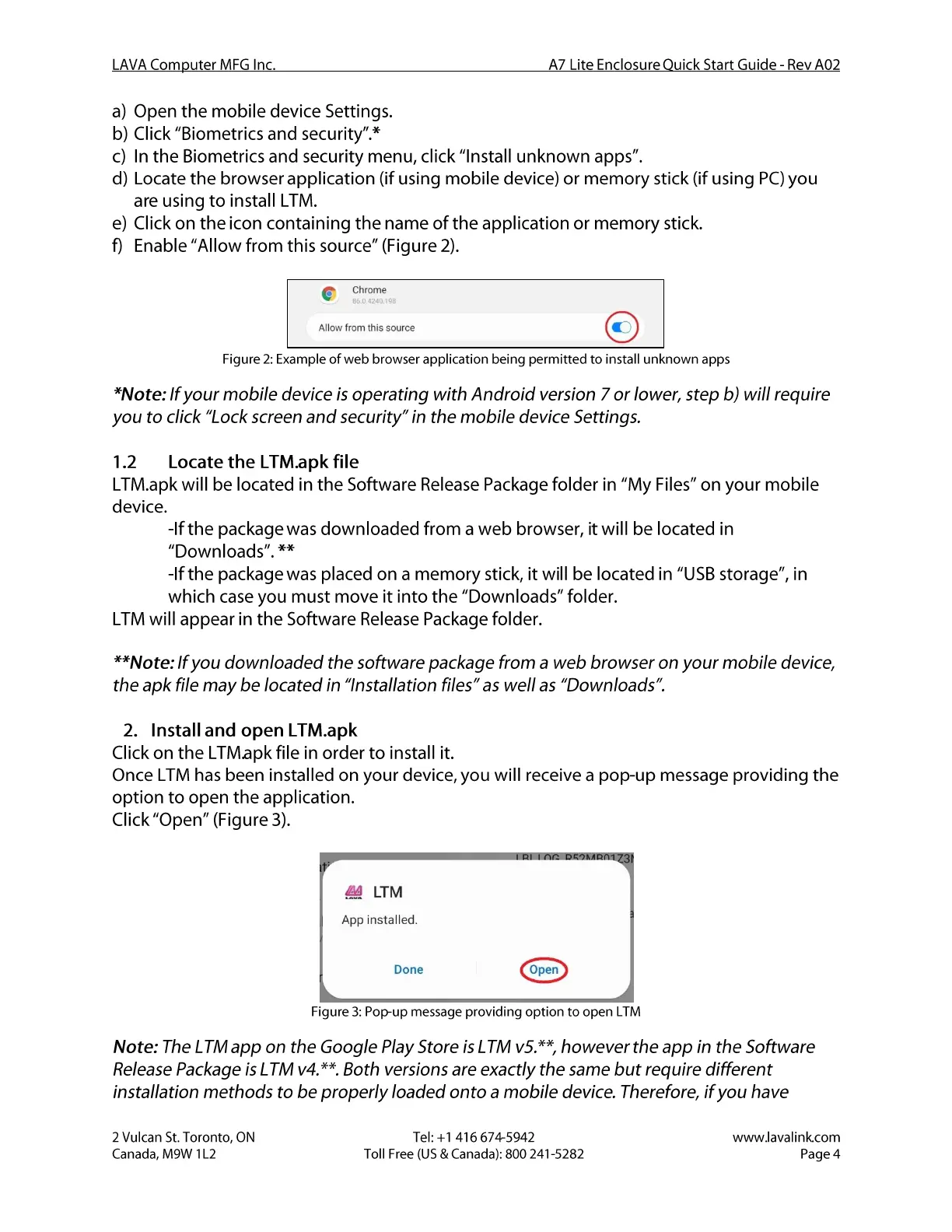
f) Enable "Allow from this source" (Figure 2).
Chrome
Allow from this source
Figure 2: Example of web browser application being permitted to install unknown apps
*Note: If your mobile device is operating with Android version 7 or lower, step b) will require
you to click "Lock screen and security" in the mobile device Settings.
Locate the LTM.apk file
1.2
LTM.apk will be located in the Software Release Package folder in "My Files" on your mobile
device.
-If the package was a web browser, it will be located in
-If the package was placed on a memory stick, it will be located in "USB storage", in
which caseyou must move it into the "Downloads" folder.
LTM will appear in the Software ReleasePackage folder.
**Note: If you downloaded the software package from a web browser on your mobile device,
the apk file may be located in "Installation files" as well as "Downloads".
2. Install and open LTM.apk
Click on the LTM.apk file in order to install it.
Once LTM has been installed on your device, you will receive a pop-up message providing the
option to open the application.
Click "Open" (Figure 3).
LTM
App installed.
Done
Open
Figure 3: Pop-up message providing option to open LTM
Note: The LTM app on the Google Play Store is LTM v5.**, however the app in the Software
Release Package is LTM v4.* *. Both versions are exactly the same but require different
installation methods to be properly loaded onto a mobile device. Therefore, if you have
2 Vulcan St. Toronto, ON
Canada, M9W I L2
Tel: +1 416 674-5942
Toll Free (US & Canada): 800 241-5282
www.lavalink.com
Page 4


 To Next Page
 Loading...