4
Ejecting MMCs
Microsoft
Windows
operating systems do not interact with USB port-
compatible MMC or SD card readers in exactly the same way they in-
teract with other removable media drives, such as floppy disk drives.
The methods for moving, copying or deleting MMC or SD files on a
USB-compatible card reader work just like those for manipulating files
on a hard drive or diskette, with one exception: When copying files to
and from your MMC, Windows may indicate the file transfer
has finished, when in reality the file is still being copied. This is
not a problem when saving files within MapCreate 6.3. MapCreate ac-
curately tells you when a file has been saved to a card. However, when
moving files around outside of MapCreate, you should ignore the usual
Windows file transfer indicators, such as progress bars, because they do
not work correctly with USB card readers.
Removing the MMC while files are being transferred may lock up
your computer. To avoid this, make sure file transfer has stopped and
the card is safe to remove by using the Eject feature.
To Eject MMCs:
1. When transferring files, before you remove the MMC from the card
reader, right-click the reader's drive letter. (This can be found by first
double-clicking the "My Computer" icon on the Windows desktop.)
2. If the file is still copying, you will see the standard Windows hour-
glass symbol, which will accurately indicate the card reader is still ac-
tive. When the file has finished copying, the hourglass will disappear
and you can safely remove the MMC from the reader.
3. If you right-click the reader's drive letter and the pop-up menu ap-
pears, click
EJECT. If no "wait" or warning message appears, the MMC is
ready to remove.
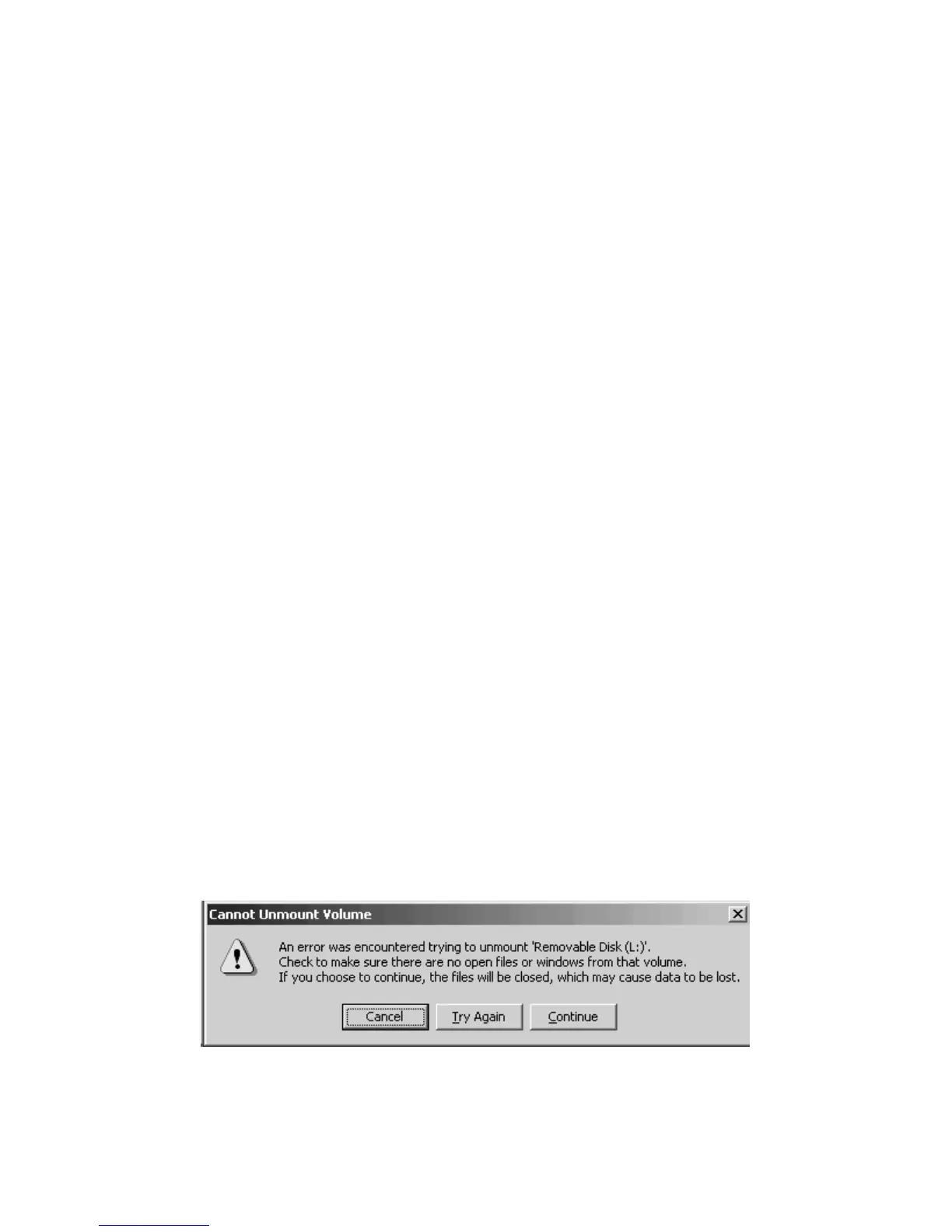
4. If you click
EJECT and a "Cannot Unmount Volume" message appears,
click
CONTINUE. You can now safely remove the MMC from the reader.
Cannot Unmount Volume message. This may appear when removing
MMC cards while using Windows 2000 operating systems.



 To Next Page
 Loading...