9
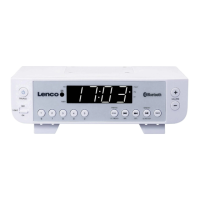
1. Turn the device on and press the “SOURCE” button to switch to FM radio mode.
2. Press the “SKIP/TUNE / ” buttons to tune the radio manually in 50kHz steps.
3. Press and hold the “SKIP/TUNE / ” buttons to scan for available stations.
Saving and playing a station as a Preset
1. Press the “SKIP/TUNE / ” buttons to tune the FM radio to the desired station.
2. Press the “CLK SET/MEM” button. Preset number (P01) will appear on the display.
3. Press the “M+/M-” buttons to adjust the desired preset number (P01-P20).
4. Press the “CLK SET/MEM” button to save the current FM radio station to this selected preset.
5. Repeat steps 1 to 4 to program further radio stations.
6. Press the “M+/M-” buttons to cycle through saved radio stations.
BLUETOOTH FUNCTION
Pairing to a device and playing audio
1. Turn the device on and press the “SOURCE” button to switch to BLUETOOTH mode. The
Bluetooth indicator will light up.
2. Press and hold the “PLAY/PAUSE” button to begin pairing. The indicator on the display will begin
flashing quickly.
3. Start the Bluetooth mode on your Bluetooth device and start the scan. Select “Lenco KCR-150” in your
setting to pair it. If your device requests a password enter the default password “0000”.
4. When the devices are successfully paired the indicator on the display will stop flashing and an
audible chime will sound through the speaker.
5. Use the controls on the connected device to select an audio track, to start the playback, pause
etc.
After initial pairing the unit will stay paired unless you manually disconnect the connection or the devices
are out of range.
AUX-IN FUNCTION
You require a 3.5mm audio cable (not included).
1. Connect a 3.5mm audio cable to the “LINE IN” input on the right side of the unit and the audio
output on an audio device.
2. Turn the device on and press the “SOURCE” button to switch to LINE IN mode.
3. Use the controls on the connected device to start the playback.
TECHNICAL SPECIFICATIONS
: Use only the supplied power adapter
: 2x DC 1.5V UM-3 AA type batteries (not included)


 To Next Page