• Thesystemmaybeupdatedautomaticallywhenusingitforthersttime.
Waitseveralminuteswithoutoperating.
Talking to the Lenovo Smart Clock 2
TheLenovoSmartClock2hastheGoogleAssistantbuiltin.Justsay“HeyGoogle”or“Ok
Google”togetstarted.
Youcansay“HeyGoogle,whatcanyoudo?”tolearnabouttheavailableservicesofyour
GoogleAssistantonyourSmartDisplay.
For example:
Ifyousay“HeyGoogle,what’stheweatherthisweekend?”,theLenovoSmartClock2will
tellyoutheweatherinformation.
AccessyoursettingsintheGoogleHomeappat
anytimetoaddormodifyyourhomeaddress,work
address,setyournickname,andmore.
Setting the Nightlight
Thenightlightfunctionprovidesalightsourceforconvenienceindarkareas.
Method 1: Voice command
DirectlytalktoLenovoSmartClock2.Saysomethinglike:“HeyGoogle,turnonthenight
light.”
Method 2: Manual settings
1. Swipeuponthehomescreen,thentap
.
2. TapNight lighttochooseanyofthefollowingoptions:
• Color:
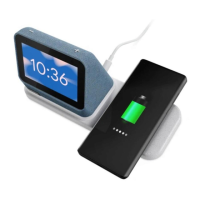
-WithoutWirelessChargingDock:Nightlightreferstothebackgroundcolorofthe
LCDscreen,whosecolorcanbechanged.
-WithWirelessChargingDock:NightlightreferstotheLEDindicator,whosecolor
cannotbechanged.
• Brightness:Choosethebrightnesslevelfrom0to10
• Duration:Choosethetimeyouprefer
3. TapDone.
4. Swipedownonthehomescreen,thentapontoturniton.
• TapTurn o night lighttoclosethenightlightfunction.
• Tap
tosetnightlightsettings.
IftheWirelessChargingDockforLenovoSmartClocksisconnected,youcan’tsetthe
colorofthenightlightonthedock.


 To Next Page