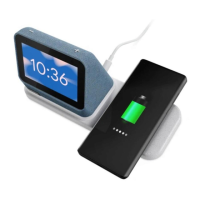
• WorkwithRubber/plastic/TPUcasesupto3mmthickness.Casesmadeof
metal,attachmentssuchaspopsockets,metalrings,magnets,cards,gripswill
interferewithcharging.
• Allchargersgeneratesomeheatwhencharging,andwirelesschargersareno
exception.Lenovochargerswiththeirsafetyprotocolsbuilt-intothecircuitry
willshutdowniftheydetectexcessiveheattoprotectyouandyourdevices.
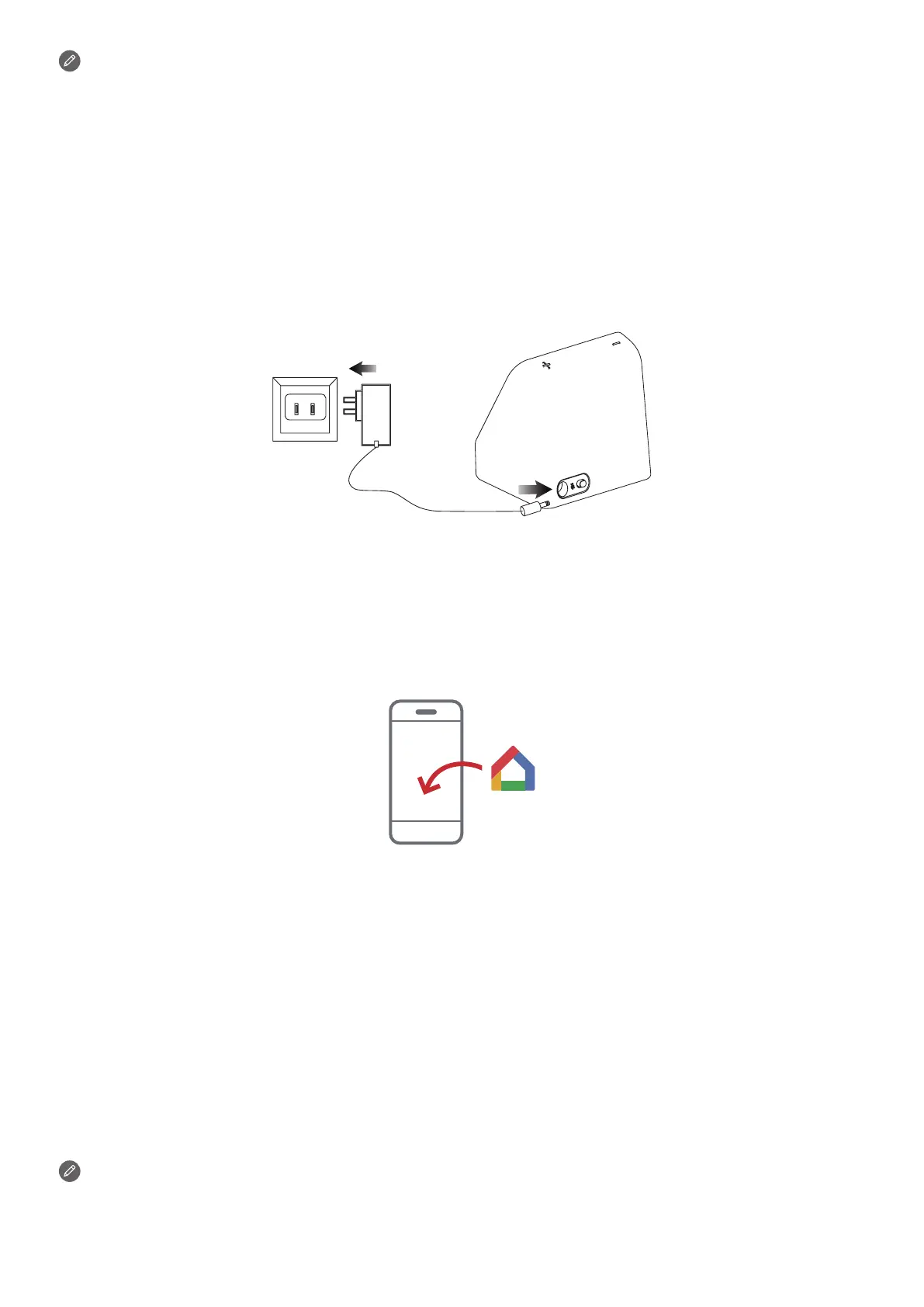
Plugging in the Lenovo Smart Clock 2 to turn it on
Connectthepoweradaptertoyourdevice.
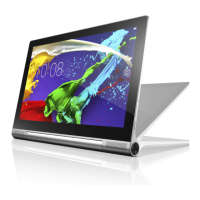
Downloading the Google Home app
DownloadandruntheGoogleHomeapponGooglePlayonaphone/tablet.Orifyouare
aniPhoneuser,youcandownloadtheGoogleHomeappfromtheAppStore.
Followtheon-screeninstructionstosetupyourLenovoSmartClock2.
Connecting the Lenovo Smart Clock 2 to the Internet
You’llneedtoconnectyourdevicetotheInternetbeforeusingit.
1. OpentheGoogleHomeapp.
2. TapGet startedandregisteryourGoogleaccount.
3. AddthenewdeviceinGoogleHome.TheGoogleHomeappwillscanfornearby
devices.
4. Selectthedevicethatyouwanttoconnect.
5. Followtheon-screeninstructionstosetupyourdevice.
• UsethesameWLAN(onlysupport2.4G)networkforyourLenovoSmart
Clock2andphone/tablet.


 To Next Page