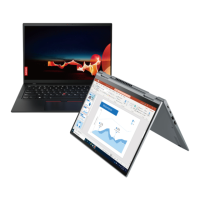
This is a user guide for the Lenovo ThinkPad T14s Gen 1 and X13 Gen 1 laptops. It provides comprehensive information on the device's functions, technical specifications, usage, and maintenance.
Function Description
The ThinkPad T14s Gen 1 and X13 Gen 1 are portable computers designed for various tasks, from business to entertainment. They feature a range of input devices, including a keyboard with special function keys, a TrackPoint pointing device, and a trackpad. Selected models also offer a multi-touch screen for intuitive interaction. The laptops support various connectivity options, including USB-C, Thunderbolt 3 (Intel models), HDMI, Ethernet extension, and an audio connector. Wireless capabilities include Bluetooth, Wi-Fi, and optional wireless WAN with GPS and NFC for selected models. Security features include face authentication, a fingerprint reader, passwords, ThinkShutter for camera privacy, and a security-lock slot.
Important Technical Specifications
Dimensions:
- ThinkPad T14s Gen 1:
- Width: 328.8 mm to 329.15 mm (12.94 inches to 12.95 inches)
- Depth: 225.8 mm to 226.45 mm (8.89 inches to 8.91 inches)
- Thickness: 16.1 mm to 17.2 mm (0.63 inches to 0.68 inches)
- ThinkPad X13 Gen 1:
- Width: 312 mm (12.28 inches)
- Depth: 217.2 mm (8.55 inches)
- Thickness: 16.5 mm to 16.9 mm (0.65 inches to 0.67 inches)
Maximum Heat Output:
- 45 W (154 Btu/hr) or 65 W (222 Btu/hr), depending on the model.
Power Source:
- Sine-wave input at 50 Hz to 60 Hz.
- AC power adapter input rating: 100 V to 240 V ac, 50 Hz to 60 Hz.
Memory:
- DDR4 onboard memory module. Memory speeds may vary depending on configuration.
Storage Device:
- M.2 solid-state drive (SSD) or Hybrid solid-state drive (with Intel Optane™ memory) for selected Intel models.
Display:
- Brightness control.
- Thin Film Transistor (TFT) technology.
- In-Plane Switching (IPS) technology (ThinkPad T14s Gen 1).
- In-Plane Switching (IPS) or Twisted Nematic (TN) technology (ThinkPad X13 Gen 1).
- Display Size:
- ThinkPad T14s Gen 1: 355.6 mm (14 inches)
- ThinkPad X13 Gen 1: 337.82 mm (13.3 inches)
- Display Resolution:
- ThinkPad T14s Gen 1 (Intel models): 1920 x 1080 pixels or 3840 x 2160 pixels
- ThinkPad T14s Gen 1 (AMD models): 1920 x 1080 pixels
- ThinkPad X13 Gen 1: 1366 x 768 pixels or 1920 x 1080 pixels
- Multi-touch technology (selected models).
- PrivacyGuard feature (selected models).
Keyboard:
- Function keys.
- Six-row keyboard or six-row keyboard with backlight.
- Trackpad.
- TrackPoint pointing device.
Connectors and Slots:
- Audio connector.
- Ethernet extension connector Gen 2.
- HDMI connector (HDMI 1.4 for Intel models, HDMI 2.0 for AMD models).
- Nano-SIM-card and microSD-card slot (selected models).
- One Always On USB 3.2 connector Gen 1.
- One USB 3.2 connector Gen 1.
- One USB-C (3.2 Gen 1) connector (Intel models).
- One Thunderbolt 3 connector (USB-C) (Intel models).
- Smart-card slot (selected models).
- Two USB-C (3.2 Gen 2) connectors (AMD models).
USB Transfer Rates:
- 3.2 Gen 1 / 3.1 Gen 1: 5 Gbit/s
- 3.2 Gen 2 / 3.1 Gen 2: 10 Gbit/s
- 3.2 Gen 2 × 2: 20 Gbit/s
Wireless Features:
- Bluetooth.
- Global Positioning System (GPS) satellite receiver (models with wireless WAN).
- Near field communication (NFC) (selected models).
- Wireless LAN.
- Wireless WAN (selected models).
Operating Environment:
- Maximum altitude (without pressurization): 3048 m (10,000 ft).
- Temperature:
- Operating: 5°C to 35°C (41°F to 95°F).
- Storage and transportation in original shipping package: -20°C to 60°C (-4°F to 140°F).
- Storage without package: 5°C to 43°C (41°F to 109°F).
- Battery charging temperature: no lower than 10°C (50°F).
- Relative Humidity:
- Operating: 8% to 95% at wet-bulb temperature 23°C (73°F).
- Storage and transportation: 5% to 95% at wet-bulb temperature 27°C (81°F).
Usage Features
Power Management:
- Power Button: Turns on/off or puts the computer to sleep. Indicator shows system status (blinking for three times: initially connected to power; on: computer is on; off: computer is off or in hibernation; blinking rapidly: entering sleep/hibernation; blinking slowly: in sleep mode).
- Battery Status: Icon in Windows notification area shows status, power plan, and battery settings.
- Charging: Charges via AC power. Supports rapid charge (80% in about one hour when off). Optimal charging temperature: 10°C (50°F) to 35°C (95°F).
- P-to-P 2.0 Charging: Allows one computer to supply power to another via USB-C to USB-C cable, even when AC power is unavailable for one device. Requires Always On USB and Charge in Battery Mode to be enabled in UEFI BIOS.
- Maximize Battery Life: Lower display brightness, turn off wireless features when not in use, deplete battery before recharging, and fully recharge before use.
- Power Button Behaviors: Customizable to turn off, sleep, or hibernate the computer.
- Power Plan: Default plan for ENERGY STAR® compliant computers: display off after 10 minutes, sleep after 10 minutes (when plugged into AC). Customizable via Power Options.
Interaction and Input:
- Windows Account: Supports Windows user accounts and Microsoft accounts for login and synchronization.
- Windows User Interface: Includes Start menu, Documents, Pictures, Settings, Power, Windows Search, Task View, Windows notification area, Battery status icon, Network icon, and Action center.
- Keyboard Shortcuts: Special keys (F1-F12) for functions like Fn Lock, speaker mute/volume, microphone mute, brightness, external display management, wireless on/off, notification center, answering/declining calls, and user-defined functions.
- TrackPoint Pointing Device: Functions as a traditional mouse with a pointing stick, left-click button, right-click button, and middle button for scrolling. Customizable and can be disabled. Pointing stick nonslip cap is replaceable.
- Trackpad: Performs finger touch gestures for pointing, clicking, and scrolling. Supports one-finger tap (left-click), two-finger tap (right-click), two-finger scroll, two-finger zoom in/out, three-finger swipe up (task view), and three-finger swipe down (show desktop). Can be disabled.
- Multi-touch Screen (Selected Models): Supports touch gestures like tap once (open app/item, select, copy, save, delete), tap twice quickly (open app/item), tap and hold (shortcut menu), slide (scroll), drag (move object), two-finger move (zoom in/out), swipe from right edge (action center), swipe from left edge (task view), swipe downwards from top edge (hidden title bar), and swipe from top edge to bottom edge (close app).
- Privacy Protection (Selected Models):
- PrivacyGuard Feature: Darkens screen and reduces side-angle visibility. Enabled/disabled with Fn+D. Privacy level adjustable with dedicated keys.
- Automatic PrivacyGuard for Passwords: Automatically enables PrivacyGuard when password input is required (can be enabled in Lenovo Vantage).
- PrivacyGuard with PrivacyAlert (Glance by Mirametrix®): Detects onlookers and automatically enables PrivacyGuard.
Multimedia:
- Audio: Connect speakers, headphones, or headsets via 3.5-mm (0.14-inch), 4-pole audio connector. Volume adjustable with keyboard shortcuts.
- External Display: Connect to projectors or monitors via USB-C (DisplayPort/VGA), Thunderbolt 3 (DisplayPort/VGA), or HDMI. Supports various resolutions up to 5120 x 2880 pixels / 60 Hz (AMD USB-C). Display modes include Duplicate, Extend, Show only on 1, and Show only on 2. Display settings are customizable.
- Wireless Display: Connect to Miracast®-compatible displays via Windows settings or Action Center.
Data Transfer and Connectivity:
- Bluetooth: Connect to Bluetooth-enabled devices (keyboard, mouse, smartphone, speakers) within 10 meters (33 feet).
- NFC (Selected Intel Models): High-frequency, short-range wireless communication for sharing information with NFC-enabled devices. Turn on via Settings > Network & Internet > Airplane mode.
- MicroSD Card (Selected Models): Supports Secure Digital (SD), SDXC UHS-1, and SDHC UHS-1 cards for file transfer and storage.
- Smart Card (Selected Models): Use for authentication, data storage, and application processing. Supports 85.60 mm x 53.98 mm smart cards.
Advanced Settings:
- UEFI BIOS: First program run on startup, initializes hardware, loads OS. Customizable settings.
- Enter Menu: Press F1 during logo screen.
- Navigation: F1 (Help), F9 (Default Settings), F10 (Save & Exit), F5 (Lower Value), F6 (Higher Value), ↑↓ (Locate Item), Tab (Select Tab), Esc (Exit Submenu), Enter (Enter Tab/Submenu).
- Startup Sequence: Customizable boot order via Startup > Boot menu.
- System Date and Time: Set via Date/Time menu.
- Update UEFI BIOS: Download updates from Lenovo Vantage or pcsupport.lenovo.com.
- Recovery Information:
- Restore System Files: Restore to an earlier point via Control Panel > Recovery > Open System Restore.
- Restore Files from Backup: Restore from backup via Control Panel > File History > Restore personal files.
- Reset Computer: Reinstall OS, keeping or removing files, via Settings > Update & Security > Recovery > Reset this PC.
- Advanced Options: Access advanced recovery solutions via Settings > Update & Security > Recovery > Advanced startup.
- Windows Automatic Recovery: Starts automatically after two failed boot attempts, offering repair and recovery options.
- Recovery USB Device: Create a recovery USB drive (at least 16 GB) as a backup for Windows recovery programs. Use to troubleshoot and fix OS problems.
- Install Windows 10 and Drivers: Instructions for installing Windows 10 and device drivers, including checking compatibility, disabling BitLocker, setting security chip to Active, configuring storage controller mode, and updating drivers.
- Power Loss Protection (PLP) (Selected Models): For NVMe M.2 SSDs, PLP helps save key data during unexpected shutdowns.
Security Features:
- Security Cable Lock: Lock computer to a desk or table using a compatible security cable lock (Kensington MicroSaver or MiniSaver standards).
- Passwords:
- Power-on Password: Required to use the computer on startup.
- Supervisor Password: Protects UEFI BIOS system information. Can override power-on password.
- System Management Password: Protects UEFI BIOS system information, with customizable authority. Can override supervisor and power-on passwords.
- Hard Disk Passwords: Prevents unauthorized access to storage drive data (user hard disk password, master hard disk password).
- Fingerprint Reader (Selected Models): Enroll fingerprints to log in to Windows. Can be associated with power-on and hard disk passwords.
- Face Authentication (Selected Models): Unlock computer by scanning face using Windows Hello-compatible infrared camera.
- Firewalls and Antivirus Programs: Preinstalled firewall for internet security, antivirus program with a free 30-day subscription.
Maintenance Features
General Maintenance Tips:
- Place computer in a well-ventilated, dry area away from direct sunlight.
- Store packing materials safely away from children.
- Keep away from magnets, activated cellular phones, electrical appliances, or speakers (more than 13 cm or 5 inches).
- Avoid extreme temperatures (below 5°C/41°F or above 35°C/95°F).
- Avoid placing objects between the display and keyboard.
- Do not open the display with force.
- Do not turn over the computer when the AC power adapter is plugged in.
- Remove media, turn off attached devices, and disconnect cords before moving.
- Hold the computer by the bottom when picking it up.
- Only authorized Lenovo repair technicians should disassemble and repair.
- Do not modify or tape latches to keep the display open or closed.
- Avoid exposing computer to air from appliances that produce negative ions. Ground computer for safe electrostatic discharge.
Cleaning:
- Computer Cover: Wipe with a lint-free cloth dampened in mild soap and water. Avoid applying liquids directly.
- Keyboard: Wipe keys one by one with a lint-free cloth dampened in mild soap and water. Use a camera blower or cool air from a hair dryer for crumbs/dust.
- Computer Screen: Use a dry, soft, lint-free cloth. For stains, moisten with water or eyeglass cleaner. Ensure screen is dry before closing.
Safety Notices:
- Heat Generation: Base, palm rest, and other parts may become hot during operation/charging. Avoid prolonged contact. Periodically lift hands from palm rest.
- AC Power Adapter Heat: Adapter generates heat when plugged in. Avoid contact with body, do not use to warm body, do not wrap cords around it.
- Liquid Prevention: Keep liquids away from the computer to avoid spills and electrical shock.
- Cable Protection: Route cables to prevent walking on, tripping over, pinching, or interference.
- Moving Computer: Turn off, put to sleep, or hibernate before moving to prevent damage and data loss.
- Gentle Handling: Do not drop, bump, scratch, twist, hit, vibrate, push, or place heavy objects on the computer.
- Carrying: Use a quality carrying case with adequate cushioning. Ensure computer is off, in sleep, or hibernation mode before packing.
Conditions Requiring Immediate Action:
- If you notice an odor, smoke, sparks, popping, cracking, hissing sounds, or strong odors.
- If power cords, plugs, adapters, extension cords, or surge protectors are cracked, broken, or damaged.
- Signs of overheating, smoke, sparks, or fire.
- Damage to a battery (cracks, dents, creases), discharge from battery, or foreign substances on battery.
- Liquid spilled or object fallen onto product.
- Product exposed to water.
- Product dropped or damaged.
- Product not operating normally despite following instructions.
Service and Upgrades:
- Do not attempt self-service unless instructed by Customer Support Center or documentation. Use approved Service Providers.
- Some parts are Customer Replaceable Units (CRUs) or Optional-service CRUs. Instructions for replacement are provided.
- Before Replacing CRUs: Disable Fast Startup and the built-in battery.
- Base Cover Assembly: Remove screws, push forward, and remove. Install new one by pressing sides and tightening screws.
- M.2 Solid-State Drive: Sensitive to handling. Back up data before replacement. Do not apply pressure, touch contact edge/circuit board, or subject to physical shocks. Install by aligning contact edge, inserting at 20-degree angle, pivoting downward, and securing with screw.
- Wireless WAN Card (Selected Models): Disconnect cable connectors, remove screw, and carefully remove card. Install new card by aligning contact edge, inserting at 20-degree angle, pivoting downward, securing with screw, and connecting cables (orange to main, blue to auxiliary).
- Keyboard (ThinkPad X13 Gen 1): Use tool to release TrackPoint buttons, loosen screws, pivot keyboard upward, detach connectors, and remove. Attach connectors, turn over keyboard, insert into bezel, slide to secure latches, tighten screws, and install new TrackPoint buttons.
Electrical Current Safety:
- Electric current from power, telephone, and communication cables is hazardous.
- Do not use during lightning storms.
- Do not connect/disconnect cables or perform maintenance during electrical storms.
- Connect power cords to properly wired and grounded outlets.
- Use one hand only to connect/disconnect signal cables when possible.
- Never turn on equipment with fire, water, or structural damage.
- Disconnect power cords, battery, and all cables before opening device covers.
- Do not use computer with internal parts exposed.
- Connect/disconnect cables in proper sequence: Turn everything OFF, attach cables to devices, attach signal cables, attach power cords, turn devices ON (for connecting); Turn everything OFF, remove power cords, remove signal cables, remove all cables from devices (for disconnecting).
Battery Notice:
- General Battery: Use only Lenovo-supplied batteries. Battery abuse can cause overheat, liquid leakage, or explosion. Do not open, dissemble, crush, puncture, short-circuit, expose to water, or keep near children/fire. Stop use if damaged. Store rechargeable batteries at room temperature, 30-50% charged. Dispose according to local regulations.
- Built-in Rechargeable Battery: Do not remove or replace. Replacement must be done by Lenovo-authorized repair facility. Recharge strictly according to instructions.
- Lithium Coin-Cell Battery: Danger of explosion if incorrectly replaced. Use only same/equivalent type. Contains lithium, can explode if misused. Swallowing can cause severe internal burns/death. Keep away from children. Do not throw in water, heat above 100°C (212°F), repair/disassemble, leave in extreme air pressure/temperature, crush, puncture, cut, or incinerate. Dispose according to local regulations. California Perchlorate Information applies.
Heat and Product Ventilation:
- Ventilation slots, fans, and heat sinks are provided for safety. Do not block or cover.
- Keep cover closed when plugged in.
- Regularly inspect for dust. Remove dust from vents.
- Do not operate inside furniture.
- Airflow temperatures into computer should not exceed 35°C (95°F).
Accessibility and Ergonomic Information:
- Accessibility: Lenovo is committed to providing access for users with hearing, vision, and mobility limitations.
- Keyboard Shortcuts: Windows logo key + U (Ease of Access Center), Right Shift for 8 seconds (Filter Keys), Shift 5 times (Sticky Keys), Num Lock for 5 seconds (Toggle Keys), Left Alt+Left Shift+Num Lock (Mouse Keys), Left Alt+Left Shift+PrtScn (High Contrast).
- Ease of Access Center: Configures computers for physical and cognitive needs. Includes Magnifier, Narrator, On-Screen Keyboard, High Contrast, Personalized keyboard, and Personalized mouse.
- Speech Recognition: Control computer by voice.
- Screen-Reader Technologies: Information on using PDFs with screen readers, JAWS, and NVDA.
- Screen Resolution: Adjust text and image size via Display settings.
- Customizable Item Size: Change item size temporarily with Magnifier or permanently via Display settings.
- Industry-Standard Connectors: Connect assistive devices.
- Documentation in Accessible Formats: Electronic documentation (PDF, HTML) for visually impaired users.
- Ergonomics: Arrange workplace to suit individual needs. Maintain good posture, take breaks. Position display 510-760 mm (20-30 inches) away, avoid glare, keep clean, adjust brightness. Keep head and neck neutral. Use chair with good back support. Provide arm/hand support. Keep forearms, wrists, hands relaxed. Keep thighs parallel to floor, feet flat. Tips for travel and casual settings. Consult vision-care specialist for eye fatigue.

 Need help?

 To Next Page
 General