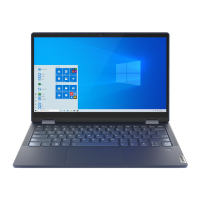
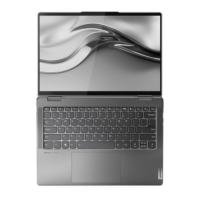
This document is the User Guide for the Lenovo IdeaPad 1 (11", 05) and IdeaPad 1 (14", 05), as well as the IdeaPad Slim 1 (11", 05) and IdeaPad Slim 1 (14", 05) models. It provides essential information on the computer's features, specifications, usage, and maintenance.
General Description and Functionality
The Lenovo IdeaPad 1 and IdeaPad Slim 1 series are personal computers designed for general use, including data transfer, and support various connectivity profiles like Wi-Fi and Bluetooth. These models are available in both 11-inch and 14-inch screen sizes, offering a balance between portability and usability. The guide details the physical layout of the computer, including the front, base, left, right, and bottom components, along with their respective functions.
The front of the computer features wireless antennas for Wi-Fi and Bluetooth, microphones for sound capture, a camera for photos and videos, a camera light indicating active use, and the main screen for display. The base includes the keyboard for character input and program interaction, which also incorporates hotkeys and function keys for quick settings and tasks. A multi-touch enabled touchpad is also present for mouse functions.
The left side of the computer houses the power connector, a charging light (solid white for 91-100% battery, solid amber for 1-90%, off when not connected), two USB 3.2 Gen 1 Type-A connectors for compatible devices, an HDMI™ connector for digital audio/video output, a microSD card slot for data transfer or storage, and a Novo button hole to access the Novo Button menu (for UEFI/BIOS setup, Boot menu, or Windows startup options). A power light indicates the computer's status (on, off/hibernation, or blinking for sleep mode). The right side features a combo audio jack for headphones or headsets, supporting 3.5 mm (0.14 inch), 4-pole plugs. The bottom of the computer includes speakers for audio output.
The guide emphasizes the importance of reading safety information, the Safety and Warranty Guide, and the Setup Guide before using the product. It also notes that instructions are based on Windows 10 and may become outdated due to Microsoft updates.
Important Technical Specifications
Dimensions:
- 11-inch models:
- Width: 288 mm (11.33 inches)
- Depth: 200 mm (7.87 inches)
- Thickness: 17.7 mm (0.69 inches) (thinnest), 17.9 mm (0.70 inches) (thickest)
- 14-inch models:
- Width: 327.1 mm (12.87 inches)
- Depth: 235 mm (9.25 inches)
- Thickness: 17.7 mm (0.69 inches) (thinnest), 17.9 mm (0.70 inches) (thickest)
AC Power Adapter:
- Input: 100 V ac-240 V ac, 50 Hz-60 Hz
- Output: 20 V dc, 2.25 A
- Power: 45 W
Battery Pack:
- Lenovo IdeaPad 1 11IGL05 and 14IGL05:
- Capacity: 32 Wh
- Number of cells: 2
- Lenovo IdeaPad 1 11ADA05 and 14ADA05:
- Capacity: 35 Wh
- Number of cells: 2
- Note: Battery capacity is typical/average; actual capacity may vary but not be lower than rated.
Microprocessor: Information can be viewed by right-clicking the Start button and selecting System.
Memory:
- Type: On-board DDR4 SDRAM
- Number of slots: 0
Secondary Storage Device:
- M.2 solid-state drive (SSD)
- eMMC
- Storage capacity may vary by model; details can be viewed via Device Manager.
Screen:
- Size: 294.6 mm (11.6 inches) or 355.6 mm (14 inches)
- Display resolution:
- 11-inch models: 1366 x 768 pixels (HD model)
- 14-inch models: 1366 x 768 pixels (HD model), 1920 x 1080 pixels (FHD model)
Keyboard: Includes function keys and hotkeys.
Connectors and Slots:
- Combo audio jack
- USB 3.2 Gen 1 Type-A connector × 2
- HDMI connector
- microSD card slot
Security Features:
- UEFI/BIOS passwords (Administrator, User, Master hard disk, User hard disk)
- Trusted platform module (TPM)
Wireless Features:
USB Transfer Rates:
- 3.2 Gen 1: 5 Gbit/s
- 3.2 Gen 2: 10 Gbit/s
- Note: Actual transfer rates may vary due to various factors.
Operating Environment:
- Maximum altitude (without pressurization): 3048 m (10,000 ft)
- Temperature:
- Altitudes up to 2438 m (8000 ft): Operating 5°C to 35°C (41°F to 95°F), Storage 5°C to 43°C (41°F to 109°F)
- Altitudes above 2438 m (8000 ft): Maximum operating temperature 31.3°C (88°F)
- Note: Battery charging temperature must be no lower than 10°C (50°F).
- Relative humidity:
- Operating: 8% to 95% at wet-bulb temperature 23°C (73°F)
- Storage: 5% to 95% at wet-bulb temperature 27°C (81°F)
Usage Features
Getting Started with Windows 10:
- Windows Account: Users can create local or Microsoft accounts. Microsoft accounts offer single sign-on for services like OneDrive and synced settings across devices. Instructions are provided for switching between account types and adding additional user accounts.
- Windows Desktop: The guide illustrates the desktop layout, identifying icons for Account, Documents, Pictures, Settings, Power, Start button, Windows Search, Task View, Windows notification area, Battery status, Network, and Action center, along with their functions.
- Opening Menus and Apps: Instructions for opening the Start menu, Control Panel, and applications are provided.
- Lenovo Vantage and Lenovo PC Manager: These pre-installed software tools allow users to view product information, warranty details, run hardware scans, change settings, and update Windows/drivers/UEFI/BIOS.
- Connecting to Wi-Fi: Steps to connect to available wireless networks and manage known networks are outlined.
- Airplane Mode: Instructions for turning airplane mode on/off to disable all wireless communications.
- Novo Button Menu: This menu, accessible by pressing the Novo button when the computer is off, allows users to open the BIOS/UEFI setup utility, boot device selection menu, or Windows startup options screen.
- Keyboard Hotkeys: A table lists various hotkeys and their functions, including mute/unmute sound, volume control, microphone mute/unmute, refreshing web pages, touchpad enable/disable, airplane mode, camera enable/disable, and screen lock.
- Hotkey Mode: Explains how to switch between using hotkeys directly or in combination with the Fn key, a setting configurable in UEFI/BIOS.
Exploring Your Computer:
- Manage Power:
- Check Battery Status: The battery icon in the Windows notification area displays charge percentage and allows access to power settings.
- Charge Battery: Connect to AC power; full charge takes 2-4 hours. Charging is optimized between 10°C (50°F) and 35°C (95°F). Recharging does not start if the battery is above 95% to maximize life.
- Check Battery Temperature: Can be viewed in Lenovo Vantage or Lenovo PC Manager.
- Set Power Button Behavior: Default is sleep mode, but can be changed in Windows Control Panel.
- Change or Create Power Plan: Users can select pre-defined power plans or create custom ones via Power Options.
- Change Settings in UEFI/BIOS Setup Utility:
- What is UEFI/BIOS: The first program to run on startup, initializing hardware and loading the OS.
- Open UEFI/BIOS Setup Utility: Turn on/restart and press F2 repeatedly (or Fn + F2 if hotkey mode is enabled).
- Change Startup Sequence: Navigate to the Boot menu in UEFI/BIOS to change device boot order. Can also be temporarily changed by pressing F12 (or Fn + F12) on startup.
- Change Hotkey Mode: Configure in UEFI/BIOS under Configuration → Hotkey Mode.
- Enable or Disable Always-On: For compatible connectors, this function can be enabled/disabled in UEFI/BIOS under Configuration → Always On USB.
- Set Passwords: Administrator, User, Master hard disk, and User hard disk passwords can be set for enhanced security. Instructions for setting, changing, and removing these passwords are provided.
- Reset or Restore Windows:
- Windows 10 Recovery Options: Options include restoring to a system restore point, resetting the computer (keeping files or removing everything), or using a recovery drive.
- System Restore: A tool to revert the system to a previous state without affecting personal data. Instructions for creating and restoring from system restore points are included.
- Reset Windows: Steps to reset the computer via Settings → Update & Security → Recovery.
- Create a Recovery Drive: Use a USB drive (Type-A or Type-C with adapter) to create a recovery drive for restoring/resetting Windows if it fails to start.
- Use a Recovery Drive: Instructions for booting from a recovery drive to access troubleshoot options like System Restore or Recover from a drive.
Maintenance Features
Safety Notices:
- Heat Generation: Avoid prolonged contact with hot parts of the computer (base, palm rest) and AC adapter. Do not operate near flammable materials. Ensure ventilation slots are not blocked.
- Liquid Spills: Keep liquids away from the computer to prevent electrical shock.
- Cable Protection: Route cables carefully to prevent damage.
- Moving the Computer: Turn off, put to sleep, or hibernate before moving to prevent damage and data loss.
- Gentle Handling: Avoid dropping, bumping, scratching, or placing heavy objects on the computer.
- Carrying: Use a quality carrying case and ensure the computer is off, in sleep, or hibernation mode.
- Immediate Action Conditions: Stop using the product and contact support if you notice odors, smoke, sparks, popping sounds, physical damage (cracks, dents, discharge from battery), liquid spills, or if the product does not operate normally.
- Service and Upgrades: Do not attempt self-service unless instructed. Use approved Service Providers. Follow instructions for installing options or replacing Customer Replaceable Units (CRUs). Disconnect power before opening covers.
- Power Cords and Adapters: Use only manufacturer-supplied, safety-approved cords. Do not wrap cords, keep them away from liquids, ensure secure connections, and do not use damaged cords or adapters. Do not cover adapters when plugged in.
- Extension Cords: Ensure extension cords and related devices are rated for the product's electrical requirements and not overloaded.
- Plugs and Outlets: Do not use damaged outlets, bend plugs, or share outlets with high-power appliances. Use grounded outlets for three-pronged plugs. Ensure outlets provide correct voltage/current and are easily accessible.
- Power Supply: Do not remove covers on power supplies or parts with hazardous voltage labels. Contact a service technician for problems.
- External Devices: Do not connect/disconnect USB or 1394 cables while the computer is on, wait at least five seconds after shutdown for other devices.
- General Battery Notice: Use only Lenovo-approved batteries. Battery abuse can cause overheating or explosion. Do not open, crush, short-circuit, expose to liquids/fire, or allow children access. Stop use if damaged. Store at 30-50% charge, recharge annually. Dispose according to local regulations.
- Built-in Rechargeable Battery: Do not attempt to remove/replace. Replacement must be done by a Lenovo-authorized technician. Recharge according to instructions.
- Lithium Coin-Cell Battery: Danger of explosion if incorrectly replaced. Do not attempt to replace if not a CRU; replacement by authorized technician. Keep away from children. Do not throw in water, heat above 100°C, disassemble, leave in extreme temperatures, crush, or incinerate. Dispose according to local ordinances.
- Glass Parts Notice: LCD is glass; rough handling can cause breakage. Do not touch broken glass; seek medical care if fluid contact occurs. Dispose of mercury-containing LCDs according to local laws.
- Static Electricity Prevention: Take precautions when handling components to avoid static damage. Limit movement, handle parts by edges, prevent others from touching, and ground yourself before installation.
- Liquid Crystal Display (LCD) Notice: LCDs are made of glass and can break. If broken, do not touch the internal fluid; wash affected areas with water for 15 minutes and seek medical care if symptoms persist.
- Using Headphones or Earphones: Excessive sound pressure can cause hearing loss. Adjust equalizer to appropriate levels. Ensure headphones comply with EN 50332-2 specifications (max 150 mV output voltage, 75 mV characteristic voltage).
- Choking Hazard Notice: Product contains small parts; keep away from children under three years.
- Plastic Bag Notice: Plastic bags are dangerous; keep away from babies and children.
Help and Support:
- Frequently Asked Questions: Covers topics like opening Control Panel, turning off the computer, partitioning storage drives, troubleshooting unresponsive computers, liquid spills, and obtaining drivers/UEFI/BIOS updates.
- Self-Help Resources: Directs users to Lenovo Vantage, Lenovo PC Manager, and the Lenovo Support Web site (https://support.lenovo.com) for drivers, software, diagnostic solutions, warranty info, product details, and knowledge base articles. Also refers to Windows help information and Microsoft support.
- Call Lenovo: Provides instructions for contacting Lenovo Customer Support Center during the warranty period, including recording product information and problem details. Lists services available (problem determination, hardware repair, engineering change management) and services not covered (non-Lenovo parts, software problems, UEFI/BIOS configuration, driver changes, network OS/program installation).
- Purchase Additional Services: Information on purchasing additional services from Lenovo (https://www.lenovo.com/services) during and after the warranty period.
Compliance Information:
- Radio Frequency Compliance: States that models comply with radio frequency and safety standards. Refers to the Regulatory Notice document.
- European Union Compliance (Radio Equipment Directive 2014/53/EU): Product conforms to essential norms. Links to EU declaration of conformity.
- FCC ID and IC ID Location: Describes where to find FCC ID and IC ID labels on the computer's bottom cover.
- Federal Communications Commission (FCC) Supplier's Declaration of Conformity: States compliance with Part 15 of FCC Rules for Class B digital devices. Provides contact information for Lenovo (United States) Incorporated.
- Industry Canada Compliance Statement: CAN ICES-3(B)/NMB-3(B) compliance.
- European Union Conformity (EMC Directive 2014/30/EU): Product conforms to protection requirements for electromagnetic compatibility.
- German Class B Compliance Statement: Product complies with EU-Richtlinie for electromagnetic compatibility.
- Japan VCCI Class B Compliance Statement: Device is Class B, intended for residential use.
- Japan Compliance Statement for Power Mains (rated current ≤ 20 A per phase): JIS C 61000-3-2 compliance for harmonic current emissions.
- Japan Notice for AC Power Cord: AC power cord is for this specific product only.
- Export Classification Notice: Product is subject to United States Export Administration Regulations (EAR) with ECCN 5A992.c.
- Lenovo Product Service Information for Taiwan: Provides contact information for Lenovo Taiwan.
- Taiwan Precautionary Vision Statement: Warning about excessive use and vision.
- Brazil Audio Notice: Warning about hearing damage from sounds over 85 decibels for long periods.
- ENERGY STAR: Product is ENERGY STAR certified, promoting energy efficiency.
- Environmental Information by Countries and Regions: Information on recycling and RoHS.
- Recycling and Environmental Information: Lenovo encourages responsible recycling of IT equipment. Links to recycling and e-declaration websites.
- Important WEEE Information: Explains the WEEE marking and regulations for waste electrical and electronic equipment in EU countries and India.
- WEEE Information for Hungary: Lenovo bears costs for fulfilling WEEE obligations in Hungary.
- Japan Recycling Statements: Details on collecting and recycling disused Lenovo computers, monitors, lithium batteries, and battery packs in Japan.
- Recycling Information for Brazil: Declarações de Reciclagem no Brasil.
- Recycling Information for Mainland China: 《废弃电器电子产品回收处理管理条例》提示性说明 (Waste Electrical and Electronic Products Recycling and Disposal Management Regulations).
- Battery Recycling Information for Taiwan: 廢電池請回收 (Please recycle waste batteries).
- Battery Recycling Information for the United States and Canada: RBRC Li-ion seal.
- Restriction of Hazardous Substances (RoHS) Directive by Countries and Regions: Latest environmental information available online. European Union RoHS (2011/65/EU) and Turkish RoHS compliance.
- Mainland China RoHS: Table detailing hazardous substances in components and their compliance status according to SJ/T 11364. Includes "Environmental Protection Use Period" (EPuP) symbol.
Notices and Trademarks
The document concludes with legal notices regarding product availability, intellectual property rights, disclaimers of warranty, and the right to modify information. It clarifies that Lenovo is not responsible for third-party websites and lists trademarks such as LENOVO, Thunderbolt, Microsoft, Windows, OneDrive, Outlook, Skype, Office 365, Direct3D, Cortana, DisplayPort, Wi-Fi, Miracast, and USB-C.

 Need help?

 To Next Page
 General