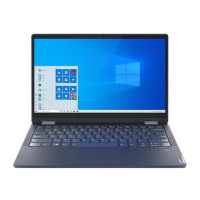
This document describes the Lenovo 14w, a computer designed for various uses, from business and entertainment to educational settings. It provides comprehensive information on its features, specifications, usage, and maintenance.
General Description and Usage
The Lenovo 14w is a versatile computer that can be used for a wide range of tasks. It runs on the Windows 10 operating system, offering a familiar and intuitive user interface. Users can create Windows or Microsoft accounts to personalize their experience, sync settings across devices, and access various Microsoft services like OneDrive, Skype, and Outlook.com. The computer supports wireless connectivity, allowing users to connect to available networks and Bluetooth-enabled devices such as keyboards, mice, smartphones, and speakers. Data transfer is facilitated through USB 3.0 and USB-C connectors, as well as a microSD card slot.
The computer is equipped with a multi-touch screen on selected models, enabling navigation through simple touch gestures like tapping, sliding, dragging, and pinching to zoom. For traditional input, it features a six-row keyboard with function keys and a touchpad that supports finger touch and traditional mouse functions. Hotkeys are integrated into the keyboard for quick access to Windows functions and settings, such as muting/unmuting sound, adjusting volume, enabling/disabling microphones, refreshing windows, enabling/disabling the touchpad, turning on/off airplane mode, enabling/disabling the camera, locking/unlocking user accounts, managing external displays, and adjusting display brightness. The hotkey mode can be configured in the UEFI/BIOS setup utility.
For multimedia, the Lenovo 14w includes built-in speakers and microphones, and a camera for taking photos, recording videos, and video conferencing. An audio connector allows for connecting headphones or headsets. The computer can be connected to external displays like projectors, monitors, or HDTVs via USB-C or HDMI connectors, supporting various resolutions and display modes (PC screen only, Duplicate, Extend, Second screen only). Wireless display connectivity is also supported for Miracast®-enabled devices.
Power management features include checking battery status, charging the battery, and monitoring battery temperature. Users can customize power button behaviors to turn off, sleep, or hibernate the computer. The Lenovo Vantage application, preinstalled on the computer, offers a one-stop solution for system updates, hardware settings configuration (battery, camera, screen, keyboard, microphones, speakers, touchpad), health and support information (hardware scan, warranty status, user guide access, tips), and Wi-Fi security.
Security is a key aspect, with options to set administrator, user, and hard disk passwords in the UEFI/BIOS setup utility. The computer also supports power-on passwords for enhanced security. Firewalls and antivirus programs are preinstalled to protect against Internet security threats and unauthorized access.
Technical Specifications
- Dimensions: Length: 328 mm (12.91 inches), Width: 225 mm (8.861 inches), Thickness: 17.7 mm (0.70 inches).
- Power Source: Sine-wave input at 50 Hz to 60 Hz; AC power adapter input rating: 100 V to 240 V AC.
- Battery Pack: 3 cells, 57 Wh. The battery capacity is typical/average and may vary. Charging time is approximately three hours, depending on usage and environment. Recommended charging temperature range is 10°C (50°F) to 35°C (95°F). The computer will not start recharging if battery power is above 95% to maximize battery life.
- Microprocessor: Information can be viewed by right-clicking the Start button and selecting System.
- Memory: Type: Double data rate (DDR) 4, on-board memory. Capacity: 4 GB or 8 GB.
- Storage Device: On-board eMMC: 64 GB or 128 GB; M.2 PCIe SSD: 128 GB or 256 GB. Note that reported capacity by the operating system is typically smaller than nominal capacity.
- Display: Size: 355.6 mm (14 inches). Resolution: 1920 x 1080 pixels. Selected models feature multi-touch technology. The screen can rotate up to 180 degrees.
- Keyboard: Function keys, six-row keyboard.
- Connectors and Slots: Power connector, two USB 3.0 connectors, audio connector, HDMI connector, microSD card slot, security-lock slot, USB-C™ connector/Power connector (supports charging, data transfer at USB 3.0 speed up to 5 Gbps, external display output up to 1900 x 1200 pixels at 60 Hz for VGA or 3840 x 2160 pixels at 30 Hz for DP).
- Wireless Features: Bluetooth, Wireless LAN.
- Others: Camera, Microphones, Speakers.
- USB Transfer Rate: USB 3.1 Gen 1: 5 Gbit/s; USB 3.1 Gen 2: 10 Gbit/s; USB 3.2: 20 Gbit/s. Actual transfer rates may vary.
- Security Features: Password protection (administrator, user, hard disk, power-on), security-lock slot, Trusted Platform Module (TPM).
- Operating Environment: Maximum altitude (without pressurization): 3048 m (10,000 ft). Temperature: 5°C to 35°C (41°F to 95°F) up to 2438 m; maximum 31.3°C (88°F) above 2438 m. Relative humidity: 8% to 95% at wet-bulb temperature 23°C (73°F) (operating); 5% to 95% at wet-bulb temperature 27°C (81°F) (storage).
Maintenance Features
Regular maintenance is crucial for the longevity and reliable operation of the Lenovo 14w.
- Cleaning:
- Computer Cover: Wipe with a lint-free cloth dampened in mild soap and water. Avoid applying liquids directly.
- Keyboard: Wipe keys individually with a lint-free cloth dampened in mild soap and water. Avoid spraying cleaner directly. Use a camera blower or cool air from a hair dryer to remove crumbs/dust.
- Computer Screen: Gently wipe with a dry, soft, lint-free cloth. For persistent stains, moisten a soft, lint-free cloth with water or eyeglass cleaner, but do not apply liquids directly. Ensure the screen is dry before closing.
- General Care:
- Place the computer in a well-ventilated, dry area away from direct sunlight.
- Keep away from magnets, activated cellular phones, electrical appliances, or speakers (more than 13 cm or 5 inches).
- Avoid extreme temperatures (below 5°C/41°F or above 35°C/95°F).
- Do not place objects between the display and keyboard.
- Do not force the display open beyond its design angle to prevent hinge damage.
- Do not turn the computer over when the AC power adapter is plugged in.
- Remove media, turn off attached devices, and disconnect cords/cables before moving the computer.
- Hold the computer by the bottom when picking it up; do not hold by the display.
- Only authorized Lenovo repair technicians should disassemble and repair the computer.
- Do not modify or tape latches to keep the display open or closed.
- Avoid direct exposure to air from appliances producing negative ions. Ground the computer to facilitate safe electrostatic discharge.
- Heat Management:
- Avoid prolonged direct contact with hot parts (base, palm rest) during operation or charging.
- Take breaks from keyboard use by lifting hands from the palm rest.
- Do not operate or charge near flammable materials or in explosive environments.
- Never block, cover, or disable ventilation slots, fans, or heat sinks.
- Do not place the AC power adapter in contact with your body while in use.
- Keep the cover closed when plugged in.
- Regularly inspect for dust accumulation and remove dust from vents.
- Do not operate inside furniture.
- Airflow temperatures into the computer should not exceed 35°C (95°F).
- Liquid Spills:
- Immediately unplug the AC power adapter and turn off the computer.
- Do not turn the computer over to drain liquid.
- Wait until the liquid is completely dry before turning on the computer.
- Cable Protection:
- Route cables to prevent them from being walked on, tripped over, pinched, or interfered with.
- Ensure all power cord connectors are securely plugged into receptacles.
- Do not use damaged power adapters or cords.
- Do not cover the power adapter with clothing or objects when plugged in.
- Battery Care:
- Only use Lenovo-approved batteries.
- Do not open, disassemble, crush, puncture, short-circuit, or expose the battery to water, other liquids, or fire.
- Keep batteries away from children.
- Stop using damaged batteries.
- Store rechargeable batteries at room temperature, charged to 30-50% capacity. Recharge once per year.
- Dispose of batteries according to local ordinances and regulations.
- For built-in batteries, replacement must be done by a Lenovo-authorized repair facility.
- Static Electricity Prevention:
- Limit movement to reduce static buildup.
- Handle components carefully by the edges; avoid touching exposed circuitry.
- Prevent others from touching components.
- Before installing static-sensitive parts, touch a metal expansion-slot cover or unpainted metal surface on the computer for at least two seconds.
- Install static-sensitive parts without setting them down if possible; otherwise, place them on static-protective packaging on a smooth, level surface.
- Do not place parts on the computer cover or other metal surfaces.
- UEFI/BIOS Updates: Update UEFI/BIOS through Lenovo Vantage or by downloading from the Lenovo Support Web site.
- System Recovery: Use Windows 10 recovery options to reset the computer or use advanced options for troubleshooting. Create a recovery USB drive as a backup.
Accessibility and Ergonomics
Lenovo is committed to accessibility. The computer offers various features to assist users with hearing, vision, and mobility limitations.
- Keyboard Shortcuts: Windows logo key + U (Ease of Access Center), Right Shift for eight seconds (Filter Keys), Shift five times (Sticky Keys), Left Alt + Left Shift + PrtSc (High Contrast).
- Ease of Access Center: Provides tools like Magnifier (enlarges screen), Narrator (screen reader), and On-Screen Keyboard (virtual keyboard).
- Screen-Reader Technologies: Information provided for using PDFs with screen readers, JAWS, and NVDA.
- Screen Resolution and Item Size: Users can adjust screen resolution and item size for better readability.
- Ergonomics:
- General Posture: Make minor adjustments to working posture and take frequent short breaks.
- Display: Position the display for a comfortable viewing distance (510 mm to 760 mm or 20 to 30 inches). Avoid glare, keep the screen clean, and adjust brightness.
- Head Position: Maintain a comfortable and neutral (vertical/upright) head and neck position.
- Chair: Use a chair with good back support and seat height adjustment.
- Arm and Hand Position: Use armrests or working surface to support arms. Keep forearms, wrists, and hands in a relaxed, neutral position. Type with a soft touch.
- Leg Position: Keep thighs parallel to the floor and feet flat on the floor or on a footrest.
- Travel: Adapt ergonomic practices as much as possible when traveling, focusing on proper sitting and adequate lighting.
- Vision: Visual display screens are designed for clear, crisp images. Consult a vision-care specialist for eye fatigue or discomfort.

 Need help?

 To Next Page
 General