Need help?
Do you have a question about the Lenovo A7700 and is the answer not in the manual?
Information and download for the Lenovo Companion app for device support.
Lists technical specifications for wireless communication only.
Describes the functions of the phone's three main screen buttons.
Instructions on entering edit mode and modifying the home screen layout.
How to manually lock the screen and unlock the device.
Explains the Notification panel and Quick Settings panel.
Transfer files between phone and computer.
Transfer photos and videos between phone and computer.
Use MIDI applications with computer software.
Charge the phone only without data transfer.
Access virtual CD-ROM with useful software.
Enable debug mode for managing mobile via computer.
Instructions for dialing numbers, call logs, and contacts.
How to answer or reject incoming calls.
Available on-screen options while on a call.
Managing missed, outgoing, and incoming call entries.
Steps to add new contact information to the phone.
Methods to find existing contacts.
How to modify existing contact details.
Procedure to remove contacts from the phone.
Instructions for moving contacts between sources.
How to compose and send text or multimedia messages.
Finding specific messages within the app.
Steps to remove individual messages or threads.
Using the camera to take photos and record videos.
Instructions for capturing the phone's screen.
Accessing and navigating through albums and media.
Methods to share media files with others.
Steps to remove media files from the device.
Turning WLAN on/off and connecting to hotspots.
Managing mobile data and selecting SIM cards.
Configuring the phone to share its internet connection.
Navigating and interacting with web pages in the Chrome browser.
Saving web pages for quick access.
Deleting browsing data from the Chrome app.
Configuring the phone's date, time, and time zone.
Changing the device's display language.
Choosing the default keyboard or input method.
Configuring security options for screen lock.
Allowing installation of apps from unknown sources.
Customizing notification and call sounds.
Resetting the phone to its original factory settings.
Handling, repairing, and charging precautions for the device.
Details on charging methods and conditions.
Safety advice regarding phone use while driving or cycling.
Warning about small parts and potential hazards for children.
Precautions for using the phone in potentially explosive areas.
Information on potential interference with other electronic devices.
Guidance on using the phone near pacemakers and medical devices.
Cleaning instructions and operating temperature guidelines.
Advice on data security and avoiding software damage.
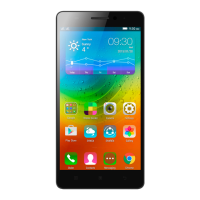
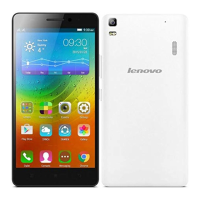
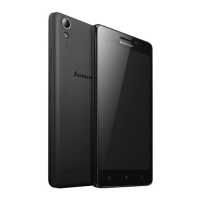
The Lenovo A7700 is a smartphone designed for everyday use, offering a range of features for communication, entertainment, and productivity. It operates on a user-friendly interface, making it accessible for a wide range of users.
The Lenovo A7700 serves as a comprehensive mobile communication device. Its primary functions include making and receiving calls, sending and receiving text and multimedia messages, and managing contacts. The device also provides internet access through WLAN or mobile data, allowing users to browse the web, access online services, and download applications. For multimedia, it features a camera for taking photos and recording videos, and a gallery to view and manage these media files. The phone also includes essential utilities like a clock, calendar, and file manager, enhancing its versatility for daily tasks.
The home screen is the central hub, pre-configured with useful apps and widgets for quick access. Users can customize their home screens by moving apps and widgets, creating app folders, and changing wallpapers. The device features three main screen buttons: the Multitask button, Home button, and Back button, which facilitate easy navigation and app management. The Multitask button allows users to view running apps, lock them, or close them, while the Home button returns to the home screen, and the Back button navigates to the previous page or exits the current app.
Making calls is straightforward, whether by manually dialing a number, selecting from the call log, or choosing a contact. The phone supports answering, rejecting, and silencing incoming calls. During a call, various options are available, such as adding another call, putting the current call on hold, muting the microphone, recording the call, using the dialpad, or switching to speakerphone. The call log keeps a record of missed, outgoing, and incoming calls, with options to manage entries. Contact management includes creating, editing, searching, and deleting contacts, as well as importing and exporting contact lists.
The Messaging app enables users to send text messages and multimedia messages. Users can add recipients by typing their names or numbers, and the system suggests matching contacts. Multimedia messages can include pictures or video clips. The app also supports searching for messages and deleting individual messages or entire message threads.
The Camera app allows users to capture photos and record videos with various modes. Features like Gesture capture and HDR (High Dynamic Range) enhance the photo-taking experience. Users can switch between flash modes and front/rear cameras, and configure other camera settings. Screenshots can be taken by simultaneously pressing the On/Off and volume down buttons, and are stored in the phone's internal storage, accessible via the Gallery or File Manager. The Gallery app organizes photos and videos by album, location, or time. Users can view media in full-screen mode, zoom in/out, and swipe to navigate between items. Sharing photos and videos is integrated, allowing users to send them via various channels like Gmail or Bluetooth. Multiple items can be selected for bulk sharing or deletion.
The Lenovo A7700 supports WLAN and mobile data connections for internet access. Users can easily turn WLAN and data connections on or off through the Quick Settings panel or the Settings menu. The device can detect available WLAN hotspots, and users can manually add networks if needed. For mobile data, the phone supports dual SIM slots, allowing users to select which SIM card to use for data connection. The device also functions as a WLAN hotspot, enabling users to share their internet connection with other devices via WLAN, Bluetooth, or USB.
The Chrome app is pre-installed for web browsing. Users can enter website addresses or search keywords to navigate the internet. Features like refreshing pages, going back/forward in browsing history, and saving images from web pages are available. Bookmarking frequently visited pages is also supported for quick access.
The Settings menu provides extensive customization and control over the device. Users can adjust the date and time, choosing between network-provided, GPS-provided, or manual settings, and configure the time zone and 24-hour format. Language and input methods can be selected to suit user preferences. Screen lock options are available to enhance device security. For app installation, users can enable or disable installation from unknown sources. Ringtones for calls, messages, and notifications can be customized, and volume levels for different sound types can be adjusted. The device also offers a factory reset option to restore it to its original settings.
The device emphasizes important safety information to prevent personal injury and property damage. Users are advised to handle the Lenovo Phone with care, avoiding drops, bending, or puncturing, and refraining from inserting foreign objects or placing heavy objects on it, as sensitive internal components could be damaged. Keeping the phone and its adapter dry is crucial, as immersion in water or exposure to other liquids can cause damage.
The Lenovo Phone is a sealed unit with no end-user serviceable parts, meaning all internal repairs must be performed by a Lenovo-authorized repair facility or technician. Attempting to open or modify the device will void the warranty. The glass screen, while durable, can break or crack if subjected to hard impacts. In such cases, users are advised not to touch broken glass and to contact Lenovo technical support for repair or replacement.
The device supports multiple charging methods: using an AC adapter or connecting to a computer via USB. While both methods charge the battery, charging via USB might be slower due to power consumption. Users are reminded that charging devices can become warm during normal use and should ensure adequate ventilation. It is recommended to unplug the charging device if it has been exposed to moisture, shows signs of physical damage, or when cleaning. Only Lenovo-approved AC adapters and batteries should be used to ensure performance and safety. The adapter should be easily accessible when installed.
Users are cautioned about using the phone in potentially explosive atmospheres, such as fueling areas or environments with chemicals or particles, and should obey all signs and instructions. The device is designed to comply with regulations governing radio frequency emissions, but users should be aware that these emissions can affect other electronic equipment. Therefore, turning off the phone or using Airplane Mode is advised in restricted areas like healthcare facilities or aircraft.
The Lenovo Phone emits electromagnetic fields, which may interfere with medical devices like pacemakers. Users with pacemakers should maintain at least 15 cm (6 inches) of separation between the phone and their device. If interference is suspected, users should stop using the phone and consult their physician.
For cleaning, users should immediately clean the phone if it comes into contact with substances like dirt, ink, makeup, or lotions. The recommended cleaning procedure involves disconnecting all cables, turning off the phone, and using a soft, lint-free cloth. Moisture should be avoided in openings, and cleaning products or compressed air should not be used. The phone should be operated within a temperature range of -10°C (14°F) to 35°C (95°F) to prevent damage. Users should also be aware of heat generated during use and avoid extended contact with hot sections of the phone to prevent discomfort or skin burns.
To maintain software functionality, users should not delete unknown files or change the names of files or directories not created by them. Awareness of network security is important, as accessing network resources can expose the phone to computer viruses, hackers, spyware, and other malicious activities. Users are responsible for ensuring adequate protection through firewalls, antivirus, and anti-spyware software, keeping them up to date. Electrical appliances that generate strong magnetic fields, such as electric fans, radios, high-powered speakers, air conditioners, and microwave ovens, should be kept away from the phone to prevent damage to the screen and data.
 General
| Display Size | 5.5 inches |
|---|---|
| Resolution | 720 x 1280 pixels |
| Processor | MediaTek MT6735P |
| CPU | Quad-core 1.0 GHz Cortex-A53 |
| RAM | 2 GB |
| Internal Storage | 16 GB |
| Expandable Storage | microSD, up to 32 GB |
| Rear Camera | 8 MP |
| Front Camera | 2 MP |
| Operating System | Android 6.0 (Marshmallow) |
| SIM | Dual SIM (Micro-SIM, dual stand-by) |
| Network | GSM / HSPA / LTE |


 To Next Page