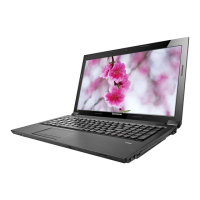
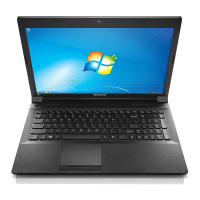
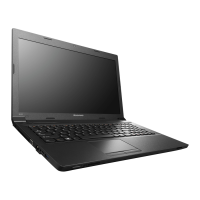
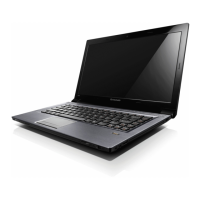
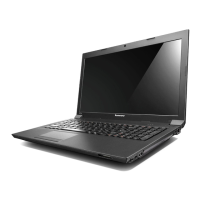
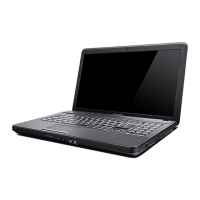
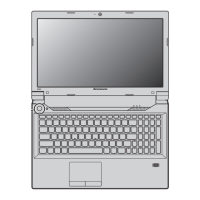
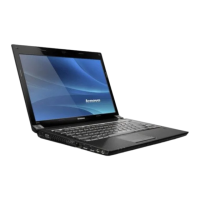
The Lenovo IdeaPad S145 Series is a line of portable computers designed for general use, offering a balance of performance and power efficiency. This user guide provides comprehensive information on its features, specifications, usage, and maintenance.
Function Description:
The Lenovo IdeaPad S145 Series serves as a personal computer for various tasks, including business, entertainment, and communication. It runs on the Windows 10 operating system and supports a range of applications. Key functions include:
- Computing: Performing general computing tasks, running software, and managing files.
- Multimedia: Playing audio and video, taking photos, and recording videos using the built-in camera.
- Connectivity: Connecting to networks (Wi-Fi, wired), Bluetooth-enabled devices, external displays (TVs, monitors, projectors), and USB devices.
- Security: Offering password protection for the UEFI/BIOS setup utility, user accounts, and hard disk data.
- Power Management: Managing battery life, setting power plans, and configuring power button behaviors.
- System Recovery: Providing tools for restoring system files, recovering from backups, and resetting the computer.
Important Technical Specifications:
The IdeaPad S145 Series comes in various models with slightly different specifications. Here's a general overview:
- Dimensions:
- 14-inch models: 327.1 mm (12.87 inches) width, 241 mm (9.48 inches) depth, approximately 19.9 mm (0.78 inches) thickness.
- 15-inch models: 362.2 mm (14.25 inches) width, 251.5 mm (9.90 inches) depth, approximately 19.9 mm (0.78 inches) thickness.
- Power Source:
- Sine-wave input at 50 Hz to 60 Hz.
- AC power adapter input rating: 100 V to 240 V ac, 50 Hz to 60 Hz.
- Battery Pack: 30 Wh/35 Wh, 2 cells.
- Microprocessor: Information can be viewed by right-clicking the Start button and selecting "System."
- Memory:
- BS145-15IWL, S145-14API, S145-14IKB, S145-14IML, S145-14IWL, S145-15API, S145-15IKB, S145-15IML, and S145-15IWL models: Double data rate 4 (DDR4) small outline dual in-line memory module (SODIMM) and Double data rate 4 (DDR4) on board.
- BS145-15IGM, S145-14AST, S145-14IGM, S145-15AST, and S145-15IGM models: Double data rate 4 (DDR4) small outline dual in-line memory module (SODIMM).
- Storage Device:
- 2.5-inch form factor, 7-mm (0.28-inch) height hard disk drive.
- M.2 PCIe/SATA solid state drive.
- 2.5-inch SATA solid state drive.
- M.2 Intel® Optane™ memory (supported on specific models).
- Display:
- Sizes: 14-inch (355.6 mm) and 15-inch (396.2 mm).
- Resolutions: 1920 x 1080 pixels FHD and 1366 x 768 pixels HD.
- Keyboard: Function keys, six-row keyboard, numeric keypad (15-inch model only).
- Connectors and Slots: AC power connector, audio connector, USB 2.0 connector, USB 3.1 connector Gen 1, HDMI connector, SD card slot.
- Wireless Features: Bluetooth, Wireless LAN.
- Other Features: Camera, microphone, stereo speakers, Novo button.
- USB Transfer Rates:
- 3.1 Gen 1: 5 Gbit/s
- 3.1 Gen 2: 10 Gbit/s
- 3.2: 20 Gbit/s
- Supported External Display Resolution (HDMI): Up to 1920 x 1080 pixels FHD.
- Operating Environment:
- Maximum altitude (without pressurization): 3048 m (10 000 ft).
- Temperature (up to 2438 m): Operating 5°C to 35°C (41°F to 95°F), Storage 5°C to 43°C (41°F to 109°F).
- Maximum temperature (above 2438 m, unpressurized): 31.3°C (88°F).
- Relative humidity: Operating 8% to 95% at wet-bulb 23°C (73°F), Storage 5% to 95% at wet-bulb 27°C (81°F).
Usage Features:
- Windows 10 Integration: Seamless experience with Windows 10, including user accounts (Windows and Microsoft), Start menu, Settings, Windows Search, Task View, and Action Center.
- Lenovo Vantage: A preinstalled one-stop solution for system updates, hardware settings configuration (battery, camera, display, keyboard, microphone, speakers, touchpad), health and support (diagnostics, warranty status, user guide, tips), and Wi-Fi security.
- Hotkeys: Dedicated keys or Fn key combinations for quick access to functions like mute/unmute sound, volume control, microphone enable/disable, refresh page, touchpad enable/disable, airplane mode, camera enable/disable, LCD lock/unlock, external display control, and display brightness adjustment. Hotkey mode can be configured in UEFI/BIOS.
- Multimedia Control: Built-in speakers and audio connector for headphones/headsets. Camera for photos and videos with an indicator light.
- External Display Support: Connect to TVs, monitors, or projectors via HDMI for presentations or extended workspace. Supports wired and wireless (Miracast®) displays. Display modes include PC screen only, Duplicate, Extend, and Second screen only.
- Network Connectivity: Connect to Wi-Fi networks easily through the Windows notification area.
- Bluetooth Connectivity: Connect various Bluetooth devices (keyboard, mouse, smartphone, speakers) for data transfer, remote control, and communication.
- Airplane Mode: Quickly enable/disable all wireless features.
- UEFI/BIOS Setup Utility: Access to configure advanced settings such as startup sequence, system date and time, and hotkey mode.
- System Recovery Options:
- Restore system files to an earlier point.
- Restore files from a backup using File History.
- Reset the computer, with options to keep or remove personal files.
- Advanced startup options for troubleshooting, system image recovery, command prompt, UEFI firmware settings, and returning to a previous Windows build.
- Windows automatic recovery initiates after two consecutive failed boot attempts.
- Create and use a recovery USB device for system repair and recovery.
- Security Features: Set administrator, user, master hard disk, and user hard disk passwords in the UEFI/BIOS setup utility. Enable power-on password for enhanced security. Preinstalled firewall and antivirus programs (with a free 30-day subscription) for protection against Internet threats.
Maintenance Features:
- Regular Cleaning:
- Computer Cover: Wipe with a lint-free cloth dampened in mild soap and water. Avoid direct liquid application.
- Keyboard: Wipe keys individually with a lint-free cloth dampened in mild soap and water. Avoid spraying cleaner directly. Use a camera blower or cool air from a hair dryer for crumbs/dust.
- Computer Screen: Gently wipe with a dry, soft lint-free cloth. For stains, moisten a soft, lint-free cloth with water or eyeglass cleaner, but do not apply liquids directly. Ensure the screen is dry before closing.
- Power Management: Maximize battery life by lowering display brightness, turning off wireless features when not in use, fully depleting and recharging the battery.
- Heat Management: Ventilation slots and internal fan ensure proper cooling. Avoid blocking vents. Do not operate the computer or charge the battery near flammable materials. Avoid extended body contact with hot parts of the computer and AC adapter.
- Cable Protection: Route cables to prevent walking on, tripping over, pinching, or interference with operation.
- Data Protection: Turn off, put in sleep mode, or hibernate the computer before moving it to prevent damage and data loss.
- Safety Precautions:
- Handle gently; avoid dropping, bumping, scratching, twisting, hitting, vibrating, pushing, or placing heavy objects on the computer.
- Use a quality carrying case for transport.
- Do not carry the computer in a carrying case while it is turned on.
- Keep liquids away from the computer to prevent spills and electrical shock.
- Use only manufacturer-supplied power cords and adapters.
- Ensure power cords are not wrapped, stressed, or damaged.
- Connect power cords securely and completely.
- Do not use damaged power adapters or cords.
- Do not cover the power adapter when plugged in.
- Ensure extension cords and surge protectors are rated for the product's electrical requirements.
- Use properly wired and grounded electrical outlets.
- Do not overload electrical outlets.
- Carefully connect and disconnect equipment from electrical outlets.
- During electrical storms, do not perform replacements or connect/disconnect telephone cables.
- Do not attempt to service the product yourself unless instructed by Customer Support Center or documentation.
- Before opening covers, ensure power is off and unplugged.
- Avoid contact with hot internal components.
- Reinstall all protective covers after replacing CRUs.
- Be cautious of sharp edges when replacing CRUs.
- Battery Care:
- Use only Lenovo-approved batteries.
- Do not open, disassemble, crush, puncture, short-circuit, or expose the battery to water/liquids.
- Keep batteries away from children and fire.
- Stop using damaged batteries.
- Store rechargeable batteries at room temperature, charged to 30-50% capacity, and recharge annually.
- Dispose of batteries according to local ordinances and regulations.
- For built-in batteries, replacement must be done by a Lenovo-authorized repair facility or technician.
- For lithium coin-cell batteries, use the same type or equivalent. Do not swallow. Keep away from children. Do not throw into water, heat above 100°C, repair, disassemble, or crush.
- Dust Accumulation: Regularly inspect and remove dust from vents and perforations.
- Environmental Considerations: Information on recycling, RoHS compliance, and WEEE directives is provided to encourage responsible disposal of IT equipment and batteries.

 Need help?

 To Next Page
 General