Need help?
Do you have a question about the Lenovo CD-24501F and is the answer not in the manual?
Identifies key physical parts of the Lenovo Smart Clock, including sensors, buttons, and ports.
Instructions for connecting the power adapter to the device.
Steps to download and set up the Google Home app.
How to activate the Google Assistant using voice commands.
Swipe down from the top edge to access quick settings.
Swipe left to access additional functions and information.
Swipe right from the left edge to navigate to the home screen.
Guidelines for safe use by children, including electrical precautions and device inspection.
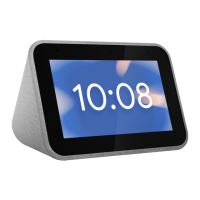
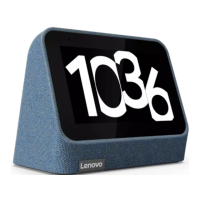
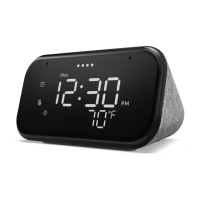
The Lenovo Smart Clock (model CD-24501F) is a smart device designed to integrate seamlessly into your daily life, offering a blend of utility and convenience through its touch screen and Google Assistant capabilities. This device serves as a digital clock, an information hub, and a control center for your smart home, all within a compact and aesthetically pleasing form factor.
At its core, the Lenovo Smart Clock functions as a sophisticated alarm clock, providing customizable clock faces and various alarm options to help you start your day. Beyond basic timekeeping, it leverages the power of Google Assistant, allowing for voice-activated commands and queries. Users can simply say "Ok Google" to interact with the device, asking for weather updates, news briefings, traffic information, or to control other smart home devices. This voice control feature makes it an intuitive and hands-free addition to any room, particularly useful in bedrooms or kitchens where hands might be occupied.
The device features a touch screen that enhances its usability. Swiping down from the top of the screen reveals quick settings, providing easy access to frequently used adjustments. Swiping left allows users to access more functions and view important information, expanding the device's utility beyond simple time display. To return to the main home screen, a swipe right from the left edge of the screen is all that's needed. For personalization, users can press and hold on the screen to set their preferred clock face, allowing for a tailored visual experience. The touch screen, combined with voice commands, offers a flexible and user-friendly interface for interacting with the Smart Clock.
For audio output, the Lenovo Smart Clock includes a speaker area, ensuring clear sound for alarms, Google Assistant responses, and any media playback. It also features a light/proximity sensor, which likely contributes to automatic screen brightness adjustments or other ambient sensing functionalities, enhancing the user experience by adapting to its environment.
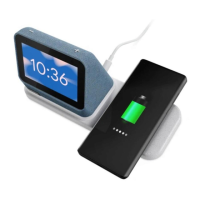
Connectivity is a key aspect of the Smart Clock's design. It includes a USB connector, which is a practical addition for charging other devices like a phone. This feature transforms the clock into a convenient bedside charging station, reducing the need for multiple power outlets. The device connects to your home network via Wi-Fi, and for optimal performance, it's recommended to use the same Wi-Fi network as your phone or tablet during setup. This ensures smooth communication and integration with the Google Home app.
Setting up the Lenovo Smart Clock is straightforward. Users simply plug in the power adapter to connect the device to power. The next step involves downloading and running the Google Home app from the Google Play Store on a phone or tablet. The app then guides users through on-screen instructions to complete the setup process, linking the Smart Clock to their Google account and Wi-Fi network.
Maintenance and troubleshooting features are also considered. In case of issues, a factory reset can be performed by pressing and holding both the volume up and volume down buttons simultaneously for a few seconds. This allows users to restore the device to its original settings if needed. The device also includes physical volume buttons for manual audio adjustment and a microphone mute switch. Sliding the microphone mute switch to the left disables the microphone, providing privacy when desired.
The Lenovo Smart Clock is designed with safety in mind. It operates within a temperature range of 0~40°C (32~104°F), and users are advised to keep it within this range to prevent damage. The device is not intended as a toy and is not recommended for children under 13 years of age. Parents or adult supervisors are cautioned to observe precautions when handling and using electrical products to reduce the risk of electric shock. Regular inspection of the device, including the AC power adapter and any small parts, for damage is recommended to ensure proper functioning and safety, especially if children 13 or older are permitted to use it.
Support for the Lenovo Smart Clock is readily available. Online technical support can be accessed through the Lenovo smart support website, which provides answers to frequently asked questions, software updates, and contact information. For telephone technical support, users can contact the Customer Support Center, providing their model and serial number, any error messages, and a description of the problem for efficient assistance. The device is covered by a Lenovo Limited Warranty, with specific warranty periods and types of service varying by country or region. This includes options like Customer Replaceable Unit (CRU) Service, On-site Service, Courier or Depot Service, Customer Carry-In Service, Mail-in Service, Customer Two-Way Mail-in Service, and Product Exchange Service.
Environmental responsibility is also addressed. Lenovo encourages owners to responsibly recycle their IT equipment when it is no longer needed, offering programs and services to assist with recycling. The device is marked with the WEEE symbol, indicating that it should not be disposed of as unsorted municipal waste but rather treated separately through available collection frameworks for recycling. Furthermore, Lenovo products sold in the European Union comply with the Restriction of Hazardous Substances Directive (RoHS), ensuring that the device meets requirements regarding the use of certain hazardous substances.
In summary, the Lenovo Smart Clock is a versatile and user-friendly device that combines the functionalities of a smart alarm clock, a Google Assistant-powered hub, and a charging station. Its intuitive touch screen, voice control capabilities, and thoughtful design features make it a practical and convenient addition to any modern home.
 General
| Display Type | LED |
|---|---|
| Microphone | No |
| Alarm | Yes |
| Model | CD-24501F |
| Time Format | 12/24-hour |

 To Next Page