EasyManua.ls Logo

Lenovo L27e-40 - User Manual

Lenovo L27e-40
34 pages
Print Icon
To Next Page IconTo Next Page
Loading...
Lenovo
L27e-40
User Guide

Questions and Answers

  • H
    hannah48Jul 28, 2025
    What to do if my Lenovo L27e-40 Monitor power indicator shows amber but no image?
    • J
      Jacob AllenJul 28, 2025
      Ensure the video cable is securely connected to both the system and the Lenovo monitor. Also, the issue might arise if the brightness and contrast settings are too low. Adjust these settings via the On-Screen Display (OSD) menu.
  • R
    Robert BurtonAug 1, 2025
    What to do if Lenovo L27e-40 screen is blank and the power indicator is amber?
    • D
      Donna HuntAug 1, 2025
      If your Lenovo monitor screen is blank but the power indicator shows amber, try pressing any key on the keyboard or moving the mouse to resume operation. Also, check the power options settings on your computer.
  • J
    Joseph DouglasAug 6, 2025
    How to fix poor image quality on Lenovo L27e-40?
    • C
      Carol ColeAug 6, 2025
      Poor image quality on your Lenovo monitor can often be resolved by ensuring the video signal cable is securely connected to both the display and the system. You can also try selecting a different color setting in the OSD menu or performing an automatic image setup.
  • M
    Michele TaylorAug 9, 2025
    How to fix Lenovo L27e-40 Monitor when it says "Out of Range"?
    • J
      John ChaseAug 10, 2025
      If you see an "Out of Range" message on your Lenovo monitor and the power indicator flashes white, it means the display mode set by your system is not supported by the monitor. Try reconnecting an old display and adjusting the display mode. If you're using Windows, restart in safe mode and select a supported display mode. If these steps don't work, no answer.
  • M
    Mary JeffersonAug 14, 2025
    How to resolve blurred lines on Lenovo L27e-40 Monitor?
    • E
      erinbrownAug 14, 2025
      Blurred lines or images, or horizontal/vertical lines on your Lenovo monitor can often be fixed by adjusting your system's resolution to 1920x1080 @100 Hz. You can also perform the automatic image setting, and if that doesn't work, try the manual image setting. Additionally, adjusting the Dots Per Inch (DPI) setting on your system can further improve the image quality.
  • C
    christiannixonAug 18, 2025
    Why Lenovo L27e-40 power indicator does not light up?
    • T
      Tammy ArellanoAug 18, 2025
      If your Lenovo monitor's power indicator doesn't light up and no images are displayed, ensure the power cord is well connected and that the outlet has power. Also, make sure the display's power switch is turned on. If the problem persists, try changing the power cord or using a different power outlet.
  • S
    smithjimmyAug 22, 2025
    Why do pixels change color on my Lenovo L27e-40 Monitor?
    • S
      Susan SandovalAug 22, 2025
      The appearance of one or more pixels changing color is a normal characteristic of LCD technology and not a defect. However, if more than five pixels are missing, no answer.

Summary

Safety Matters

General Safety Principles

Provides essential safety guidelines for using the device.

Chapter 1. New Member Guide

Set Up the Display

Guides users through the process of setting up the display.

Chapter 2. Adjusting and Using the Display

Adjusting Display Image

Explains how to adjust various image settings using direct controls and OSD.

On-Screen Display (OSD) Control

Details how to navigate and use the On-Screen Display menu for settings.

Chapter 3. Reference Information

Display Specifications

Lists the detailed technical specifications of the display model.

Troubleshooting

Offers solutions for common problems encountered with the display.

Manually Install Display Driver

Step-by-step guide for manually installing the display driver in Windows.

Lenovo L27e-40 Specifications

General IconGeneral
Panel typeVA
Color depth8 bit
Color gamut72 %
Pixel pitch0.311 x 0.311 mm
Screen shapeFlat
Pixel density82 ppi
Backlight typeW-LED
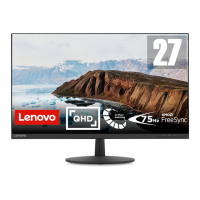
Display diagonal27 \
Anti-glare screenYes
Display technologyLED
Native aspect ratio16:9
Viewable size, vertical336.3 mm
Contrast ratio (dynamic)3000000:1
Contrast ratio (typical)3000:1
Display number of colors16.7 million colors
Viewable size, horizontal597.9 mm
Display brightness (typical)300 cd/m²
HDMI version1.4
Headphone connectivity3.5 mm
Cable lock slot typeKensington
Panel mounting interface100 x 100 mm
Power consumption (max)36 W
Power consumption (standby)0.5 W
Power consumption (typical)20.5 W
Cables includedAC, HDMI
HDMI cable length1.8 m
Color nameCloud Grey
Product colorGray
Country of originChina
Market positioningHome
Package typeBox
Package depth720 mm
Package width452 mm
Package height125 mm
Package weight6200 g
Warranty period3 year(s)
Sustainability certificatesRoHS
Commodity Classification Automated Tracking System (CCATS)8528521000
Weight and Dimensions IconWeight and Dimensions
Bezel width (side)1.8 mm
Depth (with stand)181.5 mm
Width (with stand)613.3 mm
Height (with stand)474.8 mm
Weight (with stand)4400 g
Bezel width (bottom)21 mm
Depth (without stand)43.5 mm
Height (without stand)368.5 mm
Weight (without stand)3500 g

Related product manuals