EasyManua.ls Logo

Lenovo LT1423pwC - User Manual

Lenovo LT1423pwC
38 pages
Print Icon
To Next Page IconTo Next Page
Loading...
LT1423pwC
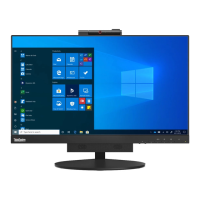
Wide Touch Monitor
User's Guide

Questions and Answers

  • W
    Whitney RamosJul 31, 2025
    Why is my Lenovo Touchscreen power indicator not lit and there is no image?
    • N
      nyoungJul 31, 2025
      If the power indicator isn't lit and there's no image on your Lenovo Touchscreen, the USB cable might be loose or disconnected from the monitor or system. Ensure the USB cable is connected properly to resolve this issue.
  • K
    Kayla MedinaAug 10, 2025
    How to fix Lenovo LT1423pwC when the LED indicator is green but the screen has no display?
    • T
      Tiffany AllenAug 11, 2025
      If the LED indicator on your Lenovo Touchscreen is green but the screen remains blank, the driver might not be installed correctly. Uninstall the driver, restart your PC, and then reinstall the driver.
  • P
    Patrick MitchellAug 21, 2025
    Why is the picture not in the middle on my Lenovo LT1423pwC?
    • B
      Brianna BradyAug 21, 2025
      If the picture is not in the middle on your Lenovo Touchscreen, it might be because the desktop background lacks a clear boundary when the monitor is doing auto adjust. Ensure the desktop has a clear boundary, or open and maximize a file, then press the left button or select the Automatic item in the OSD. The monitor will then adjust again.

Summary

Safety Information

General Safety guidelines

Provides general safety guidelines for using the monitor.

Safety and Maintenance Guidelines

Important Safety Information

Key safety warnings and precautions for monitor operation and connectivity.

Safety Precautions

Essential safety measures to follow when using the monitor and connecting power.

Getting Started

Using the Multi-touch screen

Instructions on how to use the monitor's multi-touch capabilities.

Using the Monitor Stylus Pen

Guide on how to use the included stylus pen for input and control.

Setting up your monitor

Steps for connecting and setting up the monitor.

Connecting and turning on your monitor

Procedure for connecting the monitor and powering it on.

Adjusting and Using Your Monitor

Using the On-Screen Display (OSD) controls

Detailed guide on using the OSD menu for image adjustments.

Troubleshooting

Touch;Stylus Function Issues

Steps to resolve problems with the touch and stylus functions.

General Troubleshooting

Common problems and their suggested solutions.

Working with the USB Monitor

Driver Installation

Instructions for installing the necessary monitor driver software.

Installing the Lenovo USB Monitor USB Graphics Software

Step-by-step guide for installing the Lenovo USB Monitor graphics software.

Windows 7 - Controlling the Display

Using Windows Display Properties to manage monitor setup in Windows 7.

Windows and Windows 8 - Controlling the Display

Managing display configurations for the USB monitor in Windows 8.

Error Messages

List of common error messages and their explanations.

Lenovo LT1423pwC Specifications

General IconGeneral
BrandLenovo
ModelLT1423pwC
CategoryTouchscreen
LanguageEnglish

Related product manuals