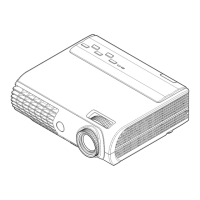
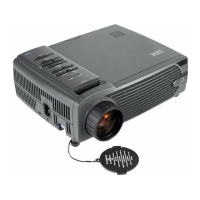
The Lenovo Pocket Projector P0510 is a portable projector designed to display audio and video content from mobile smart devices, allowing users to share content anytime, anywhere. It is compatible with a wide range of devices, including Android phones and tablets (Android 4.3 or later), Apple devices (iOS 7.0 or later, OS X Yosemite v10.10 or Macs from 2012 or later), and Windows 8.1+ PCs.
Important Technical Specifications:
- Product Dimensions: 120x110x29.5 mm
- Weight: 288g
- WLAN Protocol: IEEE 802.11 a/b/g/n 2.4GHz/5GHz dual-band WiFi
- Optical Engine Rotation Angle: 0 ~ 90°
- Operating Temperature: -10 ~ 35 °C
- Effective Projecting Distance: 0.2 ~ 5 m
- Image Display Size: 37" @ 1m, 75” @ 2m, 111" @ 3m
- Maximum Brightness of Optical Engine: 50 lumens
- Optical Engine Physical Display Resolution: 854x480
- Aspect Ratio: 16:9
- Power Input: 5.2V 2A
- Built-in Battery Capacity: 5200mAh
- Battery Life: Up to 180 minutes
- Supported Wireless Screen Mirroring Protocols: Miracast, DLNA
- Micro SD Card Support: Up to 32GB
- Image Formats Supported (Micro SD): PNG/JPG
- Video Formats Supported (Micro SD): MP4/AVI/TS/MPEG/MOV/FLV/3GP/MPG/VOB/MTK/MKV
Usage Features:
Getting Started:
The projector needs to be charged before first use, preferably with the included 5.2V 2A charger. To turn on, long press the Power On/Off button (5); the Lenovo logo will appear, followed by the standby screen after 6 seconds. The Focus Ring (1) is used to adjust sharpness. To turn off, press and hold the Power On/Off button (5) for three seconds.
Light Status Indicator:
- Solid green: Turned on with enough power or charging complete.
- Flashing red: Low power.
- Solid red: Charging.
Using with an Android Phone or Tablet (Miracast Protocol):
- Select the "Screen-mirroring" icon on the standby screen.
- Open the phone/tablet's WLAN options.
- Go to Settings → Display → Select "Cast screen” or “Wireless display” (or similar option).
- Turn on wireless display and connect to "Lenovo-P0510-xxxxxx".
This feature requires the Android device to support Miracast. If Miracast is not supported, online videos can still be streamed via DLNA/AirPlay by connecting the P0510 to WiFi.
Projecting Online Video More Freely (via WiFi):
- In the Standby screen, select the "WiFi" icon and press OK.
- Connect your phone/tablet to the "Lenovo-P0510-xxxxxx" WiFi hotspot.
- Open a browser on your phone/tablet and type
http://192.168.49.1 to access the P0510 settings page.
- Click the "Scan WiFi" icon to scan for desired WiFi hotspots, enter the password, and connect.
- The P0510 and smart device must be connected to the same WiFi hotspot.
Once connected to the Internet, third-party video apps supporting DLNA or AirPlay can be used to play online videos.
To project, ensure the smart device and P0510 are on the same WiFi hotspot. Open a DLNA-supported video app, find a movie, go to full screen, and select the P0510 device name (Lenovo-P0510-xxxxxx) from the player control interface to push the video to the projector.
Using with iPhone/Mac Devices:
- Select the "Apple device" icon on the P0510 standby screen and press OK.
- Connect your Apple device's WLAN to "Lenovo-P0510-xxxxxx" WiFi hotspot.
- Open the video or picture file to project.
- For iOS: Bring up the main screen control panel, click the monitor icon, find "Lenovo-P0510-xxxxxx", and click Finish.
- For Mac: Click the desktop display icon in the top status bar and find "Lenovo-P0510-xxxxxx".
For smoother projection of homemade videos, connecting the P0510 to a 5GHz WiFi hotspot (if your router supports it) and then connecting the Apple device directly to that 5GHz hotspot is recommended.
Using with Devices Running Windows 8.1 or Later (Miracast):
- Select the "Windows device" icon on the standby screen and press OK.
- Open WLAN options on the Windows device.
- Swipe from right to left on the Windows 8.1 screen → Pop up the control bar → Click "Devices" → "Projection devices" → "Add a wireless display devices" → "Add a device" → Select "Lenovo-P0510-xxxxxx".
This function requires the Windows device to support Miracast.
Using a Micro SD Card to Play Videos and Pictures:
- Copy desired pictures and videos onto a Micro SD card.
- Insert the Micro SD card into the Micro SD card slot (7).
Supported image formats include PNG/JPG, and video formats include MP4/AVI/TS/MPEG/MOV/FLV/3GP/MPG/VOB/MTK/MKV.
Setup Options:
Select the "Settings" icon on the standby screen to access options:
- Language settings: Choose your preferred UI language. The P0510 will reboot after selection.
- Keystone correction: Automatic keystone correction is enabled by default. Manual correction can be performed via Settings → K Stone Calibration → Manual.
- Energy-saving mode: When enabled, brightness is reduced to 30 lumens when power is low to extend battery life. Otherwise, it operates at 50 lumens. It is off by default.
- About the device: Displays firmware version information.
Other Operations:
- Set Password: Access P0510 settings (via A2.1 steps), click the "Change password" icon, and set a password. This is recommended to prevent unauthorized access to your WiFi hotspot.
- Upgrading Firmware: Access P0510 settings (via A2.1 steps), click the "Update firmware" icon. The process takes at least five minutes and requires the projector to be charging or have at least 40% power.
- Factory Reset: Press and hold the Home button (9) for 3 seconds. This resets the password and previously connected WiFi hotspot information, returning the device to factory settings. The default password is blank.
Maintenance Features / Safety Instructions:
- Charging: Use the standard 5.2V 2A charger. Using other chargers may cause problems; if so, press the Power reset button (2) before turning on.
- Connectivity: Ensure the P0510 and smart device are connected to the same WiFi hotspot for screen mirroring. If a WiFi hotspot is hidden, the P0510 will not find it.
- Troubleshooting: If the P0510 cannot connect to some WiFi hotspots due to special encryption, consult your network provider. If a Windows device has Miracast connection problems, upgrade graphics and network card drivers or contact the device manufacturer.
- Physical Care:
- Do not let children look directly at the light source through the lens.
- The P0510 contains optical components; avoid dropping or knocking the product.
- Avoid using in wet or humid conditions.
- Do not attempt to disassemble for repair.
Lenovo encourages responsible recycling of IT equipment. The P0510 is marked with a crossed-out wheeled bin symbol, indicating it should not be disposed of as unsorted municipal waste. It complies with European Directive 2011/65/EU (RoHS recast) and 2006/66/EC (battery recycling). Country-specific recycling information is available on the Lenovo website.

 Need help?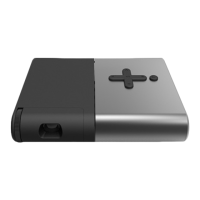

 To Next Page

 General