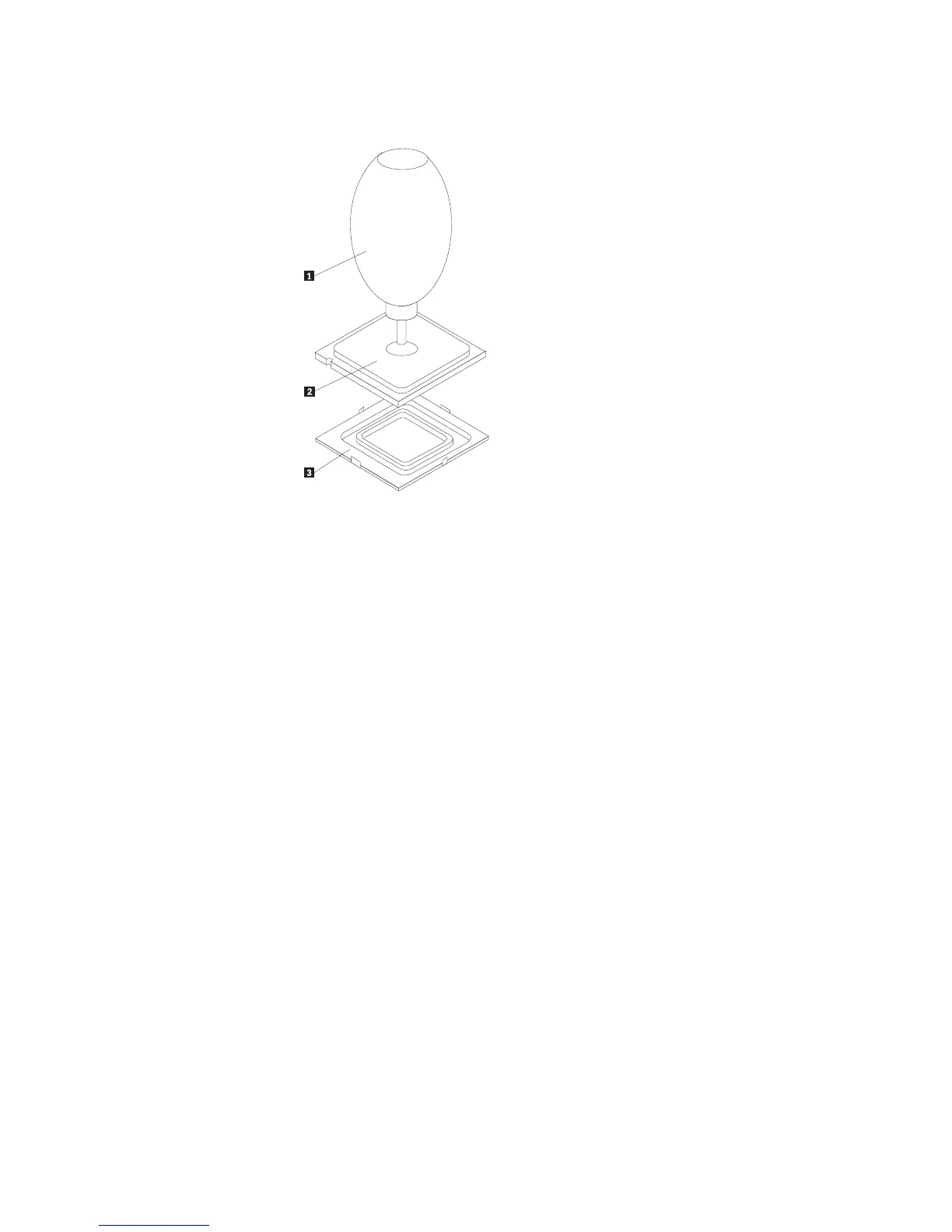
16. Using the vacuum pen 1 to pick up the microprocessor, lower the
microprocessor straight down into the socket.
17. Lower the microprocessor retainer.
18. Lock the retainer with the small handle to secure the microprocessor in the
socket.
19. Install a new retention bracket for the heat sink by aligning the posts on the
bracket with the holes in the system board and pushing the posts through the
holes until the retention bracket is secure.
20. Install the heat sink and fan assembly on the system board.
21. Connect the heat sink and fan assembly cable to the system board. See the
system board illustration for your machine type at “Identifying parts on the
system board” on page 123.
22. Install the new system board into the chassis and align the screw holes with
those in the chassis. Insert and tighten the screws that secure the system
board.
23. Connect all cables to the system board.
24. Reinstall the hard disk drive. See “Replacing the hard disk drive” on page
150.
25. Reinstall the drive bay assembly and connect the power and signal cables to
the drives.
26. Reinstall any PCI adapter cards that were removed. See “Replacing a PCI
adapter” on page 129.
27. Reinstall the fan duct on the heat sink fan.
28. Go to “Completing the FRU replacement” on page 154.
Machine types 8466, 8467, 8468, 8714, and 8715
1. Remove the cover. See “Removing the cover” on page 121.
2. Lift the fan duct off the heat sink fan.
3. Remove any adapter cards installed in the PCI connectors. See “Replacing a
PCI adapter” on page 129.
4. Remove the drive bay assembly. See “Removing and replacing the drive bay
assembly” on page 127.
Chapter 9. Replacing FRUs (Desktop computers) 137














 To Next Page