EasyManua.ls Logo

Lenovo ThinkCentre M70z - User Manual

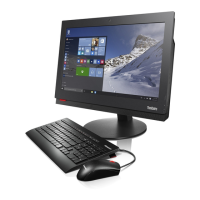
Lenovo ThinkCentre M70z
50 pages
Print Icon
To Next Page IconTo Next Page
Loading...
ThinkCentre
UserGuide
MachineTypes:7570,7577,7578,7580,7583,7584,7589,7594,
7595,7597,7598

Table of Contents

Other manuals for Lenovo ThinkCentre M70z

Questions and Answers

  • K
    khuynhJul 26, 2025
    What to do if my Lenovo Desktop computer does not start when I press the power switch?
    • M
      Mary BrockJul 26, 2025
      First, ensure the power cord is correctly connected to both the rear of the computer and a working electrical outlet. Then, check if the power indicator on the front of the Lenovo Desktop is lit. Finally, confirm that the computer voltage matches the voltage available at the electrical outlet in your country or region.
  • L
    Laura MaddenAug 3, 2025
    What to do if my USB or PS/2 keyboard does not work on Lenovo ThinkCentre M70z Desktop?
    • M
      Mr. Ronald RobertsonAug 3, 2025
      First, verify that the computer is turned on. Next, ensure the keyboard is correctly connected to the appropriate keyboard connector (either the PS/2 keyboard connector or one of the USB connectors) on your Lenovo Desktop. Also, check that no keys are stuck.
  • J
    Jason SchaeferAug 10, 2025
    What to do if my USB or PS/2 mouse does not work on Lenovo ThinkCentre M70z?
    • L
      Lindsay GlennAug 10, 2025
      Verify that the Lenovo Desktop is turned on. Ensure the mouse is correctly connected to the appropriate mouse connector (either the PS/2 mouse connector or one of the USB connectors) on the computer. Also, ensure the mouse is clean.
  • T
    Todd SantiagoAug 17, 2025
    What to do if my wireless keyboard or mouse does not work on Lenovo Desktop?
    • R
      Rita WagnerAug 17, 2025
      Check the following: * Ensure the computer is turned on. * Verify the battery or batteries installed in the wireless keyboard or mouse are in good condition. * Confirm the wireless configurations are all set correctly. If your wireless mouse has a dongle, make sure the dongle is correctly connected to one of the USB connectors on the computer. For the wireless keyboard, ensure no keys are stuck and that the wireless mouse is clean.

Summary

Chapter 1. Product overview

Chapter 2. Installing or replacing hardware

Installing or replacing hardware

Offers instructions on how to install or replace hardware components within the computer.

Chapter 3. Recovery information

Creating and using recovery media

Guides on creating and using recovery media to restore the hard disk drive to factory default settings.

Using the Rescue and Recovery workspace

Details how to use the Rescue and Recovery workspace for recovery operations even if the OS won't start.

Chapter 4. Using the Setup Utility program

Using passwords

Details how to set administrator, power-on, or hard disk passwords for security.

Chapter 5. Updating system programs

Updating the BIOS from a disc

Step-by-step guide for flashing the BIOS using a bootable disc.

Updating the BIOS from your operating system

Instructions for updating the BIOS directly from within the operating system.

Chapter 6. Troubleshooting and diagnostic programs

Lenovo ThinkCentre M70z Specifications

General IconGeneral
ProcessorIntel Core i3/i5/i7
RAMUp to 16 GB DDR3
Form FactorAll-in-One
Display20-inch LED (1600 x 900)
GraphicsIntel HD Graphics
Operating SystemWindows 7
PortsUSB 2.0
Optical DriveDVD-RW
ConnectivityEthernet, Wi-Fi

Related product manuals