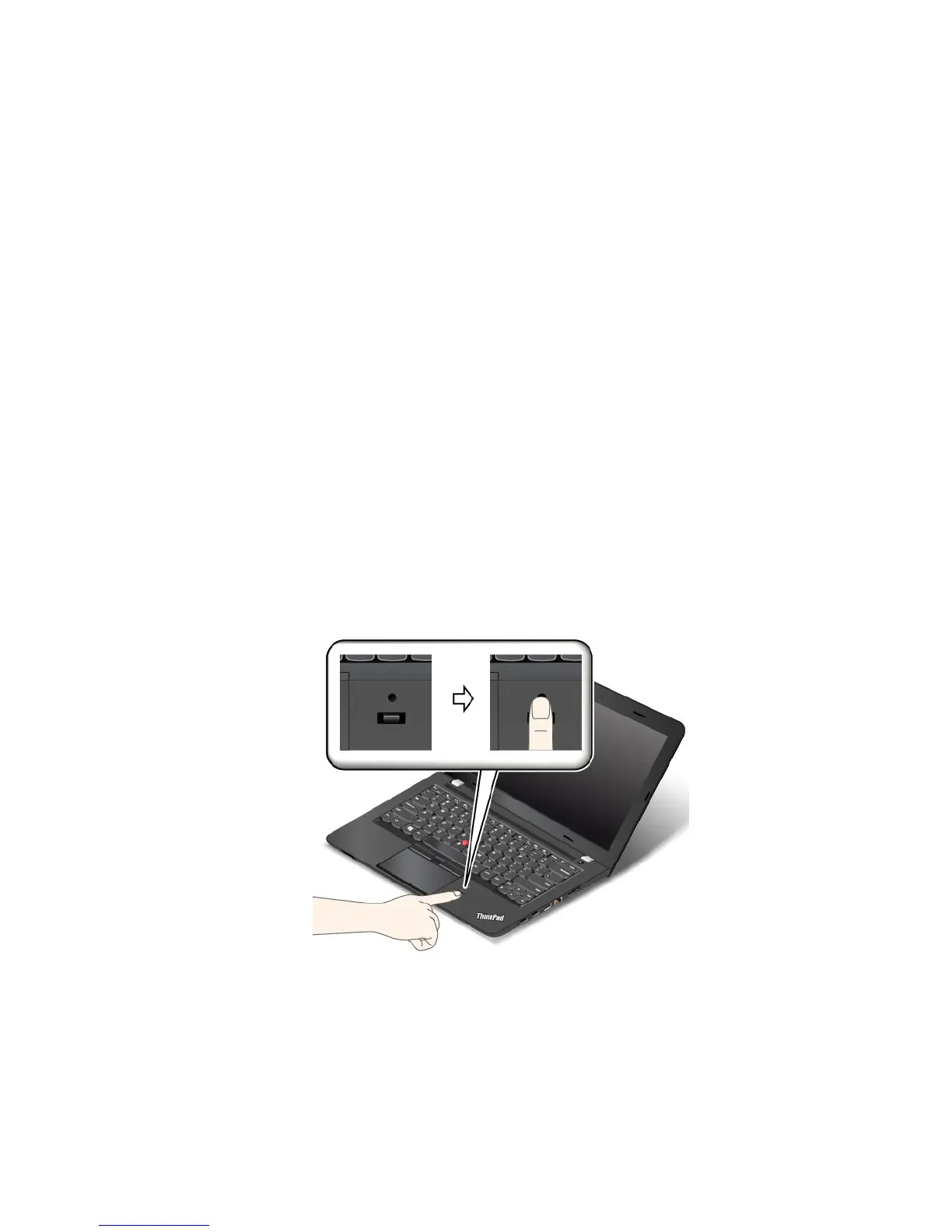
Enrollingyourfingerprint
Toenrollyourfingerprints,dothefollowing:
•ForWindows7andWindows8.1
1.StarttheLenovoFingerprintManagerprogram.ForinstructionsonhowtostarttheLenovo
FingerprintManagerprogram,see“Lenovoprograms”onpage11.
2.EntertheWindowspasswordasrequired.
3.Clicktheiconforthefingerthatyouwanttoenroll,andconstantlyswipeyourcorrespondingfinger
acrossthefingerprintreaderuntiltheenrollmentcompletes.Formoreinformation,see“Swipingyour
fingeroverthefingerprintreader”onpage55.
4.ClickFinish.Yourfingerprintisenrolledsuccessfully.
Formoreinformationonhowtousethefingerprintreader,refertothehelpsystemoftheLenovo
FingerprintManagerprogram.
•ForWindows10
1.EnsurethatyouhavesetaWindowspasswordfirst.
2.OpentheStartmenu,andthenclickSettings.IfSettingsisnotdisplayed,clickAllappstodisplay
allprograms,andthenclickSettings➙Accounts➙Sign-inoptions.
3.Followtheinstructionsonthescreentofinishtheenrollment.
Note:Itisrecommendedthatyouenrollmorethanonefingerprintincaseofanyinjuriestoyourfingers.
Swipingyourfingeroverthefingerprintreader
Toswipeyourfingeroverthereader,dothefollowing:
1.Placethetopjointofyourfingeronthesensor.
Chapter5.Security55










 To Next Page