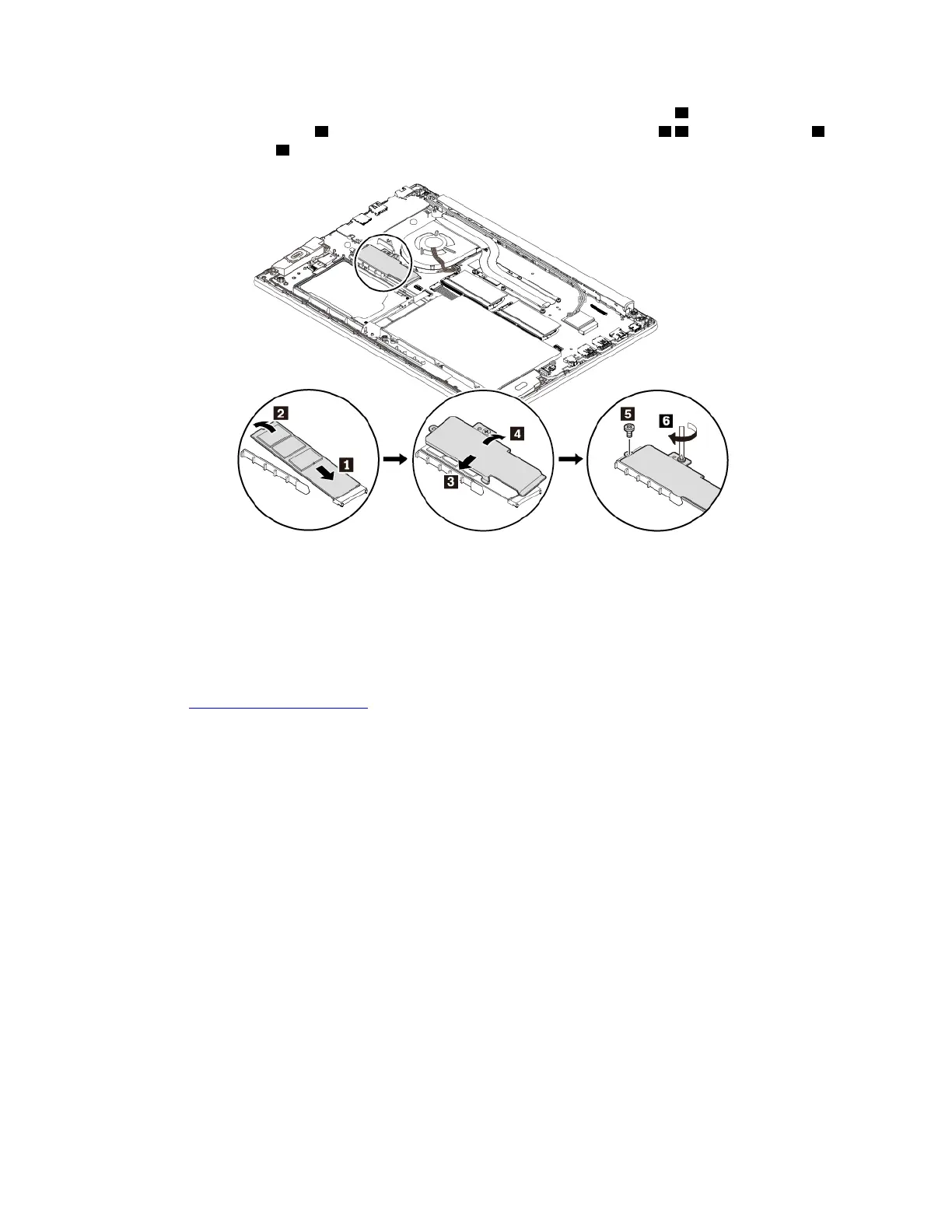
7. Insert the new M.2 solid-state drive into the slot at an angle of about 20 degrees 1 and pivot the M.2
solid-state drive downward
2 . Then, reinstall the bracket into place as shown 3 4 . Install the screw 5
and tighten the screw 6 .
8. Reinstall the base cover assembly.
9. Turn the computer over. Connect the ac power adapter and all cables to the computer.
10. If you install a new Intel Optane memory, enable the Intel Optane memory by doing the following:
a. Restart your computer. When the logo screen is displayed, immediately press F1 to enter the UEFI
BIOS menu.
b. Select Config ➙ Storage ➙ Controller mode. Ensure that RST mode is selected.
c. Go to
https://support.lenovo.com. Download and install the Intel Rapid Storage Technology (iRST)
Console with Device Driver on your computer.
d. Run the iRST Console with Device Driver.
e. Click Intel Optane Memory and then follow the instructions on the screen to enable it.
Replacing the short M.2 solid-state drive
To replace the short M.2 solid-state drive, do the following:
1. If you are going to replace an Intel Optane memory, disable the Intel Optane memory by doing the
following:
a. Restart the computer. When the logo screen is displayed, press F1.
Note: If a supervisor password has been set, enter the correct password when prompted. You also
can press Enter to skip the password prompt and enter the BIOS menu. However, you cannot
change the system configurations that are protected by the supervisor password.
b. Select Config ➙ Storage ➙ Intel (R) Rapid Storage Technology ➙ Intel Optane ➙ Disable.
c. Select to preserve user data and select Yes to confirm your operation.
d. Select Disable and wait for the process to complete.
Note: It might take a couple of minutes or even hours to complete the disabling process. Do not
restart the computer until the process is completed.
96
E580 User Guide














 To Next Page