• Fn+P: This key combination has the same function as the Pause key on a conventional external keyboard.
• Fn+S: This key combination has the same function as the SysRq key on a conventional external keyboard.
• Fn+4: Press Fn+4 to put the computer into sleep mode. To wake up the computer, press Fn key or the
power button.
• Fn+Left arrow key: This key combination has the same function as the Home key on a conventional
external keyboard.
• Fn+Right arrow key: This key combination has the same function as the End key on a conventional
external keyboard.
Using the ThinkPad pointing device
This section provides information about using the ThinkPad pointing device.
ThinkPad pointing device overview
The ThinkPad pointing device enables you to perform all the functions of a traditional mouse, such as
pointing, clicking, and scrolling. With the ThinkPad pointing device, you also can perform various touch
gestures, such as rotating and zooming in or out.
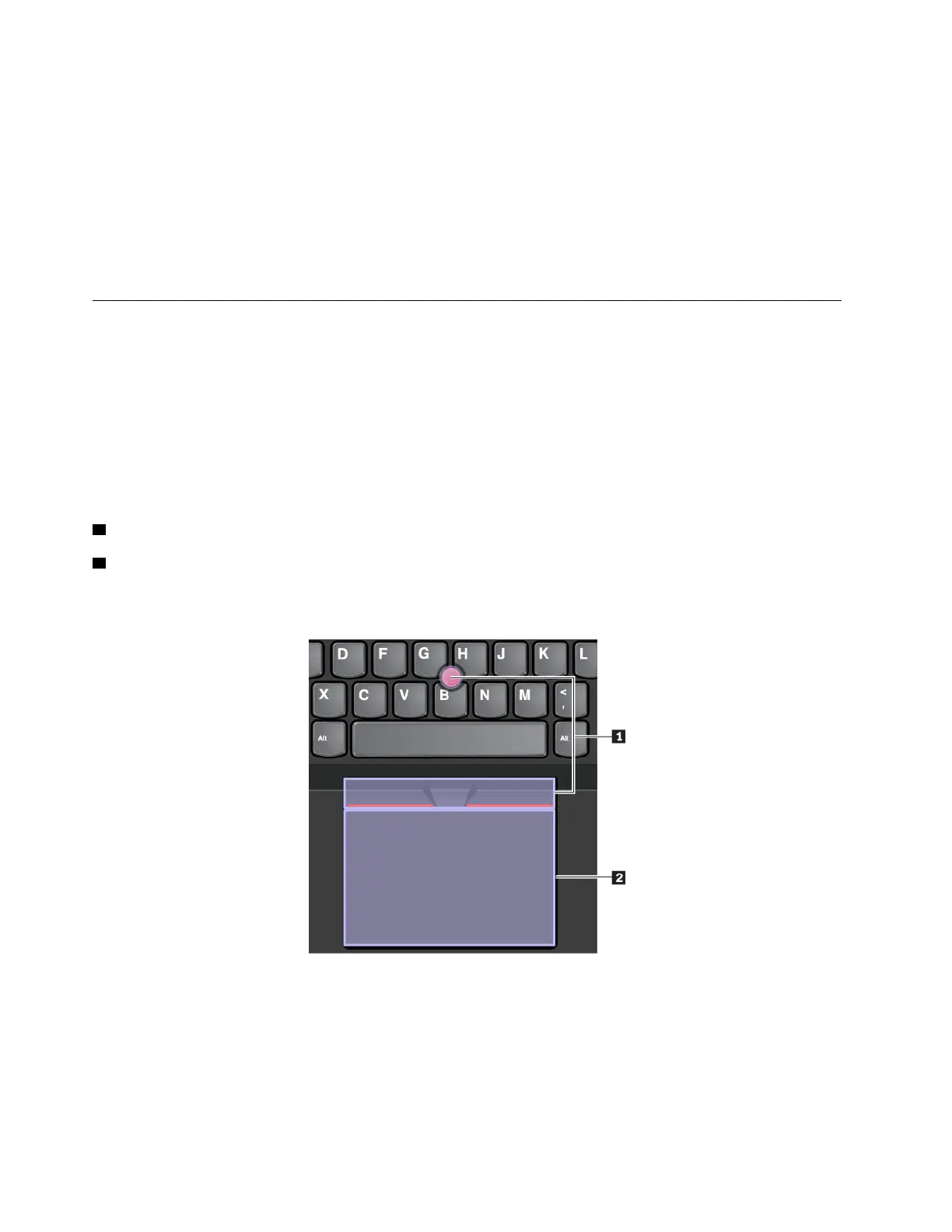
The ThinkPad pointing device consists of the following devices:
1 TrackPoint pointing device
2 Trackpad
Note: Depending on the model, your TrackPoint pointing device and the trackpad might look different from
the illustration in this topic.
By default, both the TrackPoint pointing device and the trackpad are active with the touch gestures enabled.
To change the settings, see “Customizing the ThinkPad pointing device” on page 19.
Using the TrackPoint pointing device
The TrackPoint pointing device enables you to perform all the functions of a traditional mouse, such as
pointing, clicking, and scrolling.
16
E580 User Guide













 To Next Page