
 To Next Page

А
алексApr 2, 2026
я могу снять с экрана матовое покрытие ?

я могу снять с экрана матовое покрытие ?
Crucial initial guidance for safe and proper use of the computer.
Key tips to ensure optimal use and avoid discomfort or injury.
Outlines symptoms that necessitate stopping use and contacting support.
Safety precautions against heat generated by the adapter and preventing liquid spills.
Advice on protecting cables from damage and safely moving the computer.
Identifies and describes the computer's hardware components and ports.
Explains the meaning of various status lights on the computer for power, activity, and battery.
Details essential product data like machine type, FCC ID, and OS labels.
Lists the key hardware and software components and capabilities of the computer.
Provides detailed technical specifications including size, heat output, and power source.
Specifies conditions like altitude, temperature, and humidity for safe computer operation.
Introduces pre-installed Lenovo software designed to enhance user experience and security.
Guides users on how to register their Lenovo computer for service and benefits.
Offers tips and answers to common queries for optimizing ThinkPad notebook usage.
Explains how to use touch gestures on the multi-touch screen for navigation and interaction.
Describes the function and usage of special keys like Fn and function keys for enhanced control.
Details how to use the TrackPoint pointing stick and trackpad for navigation and interaction.
Covers managing AC power and battery to balance performance and energy saving.
Explains how to connect using Wi-Fi, Bluetooth, and NFC technologies for data transfer.
Provides instructions on connecting and configuring external monitors.
Offers travel tips for using the computer safely and efficiently on the go.
Suggests accessories and upgrades to expand computer capabilities and functionality.
Introduces the use of ThinkPad Basic, Pro, and Ultra docking stations.
Provides step-by-step instructions for connecting the computer to a docking station.
Guides users on how to safely disconnect the computer from a docking station.
Offers guidelines for connecting and configuring multiple external monitors.
Details features and shortcuts to make the computer usable for individuals with disabilities.
Provides advice on posture, workspace setup, and work habits for comfort and performance.
Offers basic tips and procedures for keeping the computer clean and in good working order.
Explains how to set and use power-on, supervisor, and hard disk passwords for protection.
Provides instructions on managing passwords within the ThinkPad Setup program.
Discusses methods like TPM and BitLocker for securing data on the storage drive.
Details how to enroll and use fingerprints for secure login and authentication.
Offers methods to securely erase sensitive data before disposing of the computer.
Guides users through the process of installing Windows 10 on their computer.
Explains how to install or update device drivers for optimal hardware performance.
Details how to access and configure BIOS settings for system behavior.
Instructs on modifying the order of devices from which the computer boots.
Provides information on updating the system's BIOS for improved functionality and security.
Offers proactive advice to avoid common computer issues and maintain performance.
Explains how to use pre-installed diagnostic tools to identify hardware issues.
Provides solutions for common problems like computer unresponsiveness, spills, and error messages.
Guides on how to reset the PC, keeping or removing files, and reinstalling Windows.
Explains how to access advanced startup settings for firmware, OS, or external device booting.
Details steps for repairing the OS when Windows 10 fails to start correctly.
Instructions for making and utilizing a USB drive for system recovery and troubleshooting.
Identifies parts that can be upgraded or replaced by the customer or service technicians.
Provides precautions to avoid damage to components from static discharge during handling.
Steps to disable the internal battery before performing hardware replacements.
Detailed instructions for removing and installing the computer's main battery.
Guides on how to replace or add memory modules to increase system capacity.
Information to gather and steps to take before seeking Lenovo support.
Outlines the various sources and methods for obtaining Lenovo support.
Directs users to the official Lenovo website for technical information and downloads.
Information on how to contact Lenovo support via telephone for assistance.
Information on how to access the Lenovo Limited Warranty terms for Ubuntu systems.
Guides on how to use the Ubuntu operating system's built-in help resources.
How to obtain support for the Ubuntu OS and associated hardware components.
Details compliance certifications and machine types for ThinkPad T580 and P52s.
Information on wireless interoperability, standards, and usage environments.
Shows the locations of the integrated wireless antennas for optimal reception.
States compliance with radio frequency and safety standards in various regions.
Information on how to obtain Total Cost of Ownership certification details.
Encourages responsible recycling of IT equipment and provides links for Lenovo's services.
Explains WEEE marking and regulations for proper disposal of electronics.
Details regulations and procedures for recycling batteries within the EU.
Confirms compliance with EU Directive 2011/65/EU on hazardous substances.
Provides information on RoHS compliance for products sold in China.
Explains the ENERGY STAR program and Lenovo's commitment to energy efficiency.
Highlights preset power-saving features like display turn-off and sleep mode.
Discusses Lenovo's patents, licensing, and usage of third-party materials.
States Lenovo's warranty disclaimers and limitations of liability.
Warns against using products in life-support applications where failure could cause harm.
Lists trademarks owned by Lenovo, including ThinkPad and TrackPoint.
Identifies trademarks belonging to Intel, Microsoft, Canonical, and HDMI Licensing.
 General
| LED backlight | Yes |
|---|---|
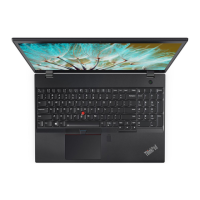
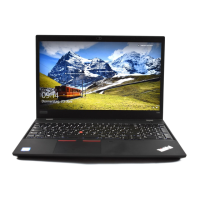
| Display surface | Matt |
| Display diagonal | 15.6 \ |
| Display brightness | 250 cd/m² |
| Native aspect ratio | 16:9 |
| Contrast ratio (typical) | 700:1 |
| Form factor | Clamshell |
| Product type | Laptop |
| Product color | Black |
| Market positioning | Business |
| Memory slots | 2x SO-DIMM |
| Internal memory | 8 GB |
| Memory form factor | SO-DIMM |
| Internal memory type | DDR4-SDRAM |
| Maximum internal memory | 32 GB |
| Motherboard chipset | Intel SoC |
| SSD capacity | 256 GB |
| Storage media | SSD |
| Compatible memory cards | MMC, SD, SDHC, SDXC |
| Number of SSDs installed | 1 |
| Audio chip | Realtek ALC3287 |
| Audio system | Dolby Audio Premium |
| Speaker power | 2 W |
| Number of built-in speakers | 2 |
| Battery capacity | - Wh |
| Front camera HD type | HD |
| Front camera signal format | 720p |
| Password protection type | HDD, Power on, Supervisor |
| Antenna type | 2x2 |
| Wi-Fi standards | 802.11a, 802.11b, 802.11g, Wi-Fi 4 (802.11n), Wi-Fi 5 (802.11ac) |
| Bluetooth version | 4.1 |
| Top Wi-Fi standard | Wi-Fi 5 (802.11ac) |
| WLAN controller model | Intel Dual Band Wireless-AC 8260 |
| Ethernet LAN data rates | 10, 100, 1000 Mbit/s |
| HDMI version | 1.4b |
| USB 2.0 ports quantity | 0 |
| Certification | MIL-STD-810G |
| Pointing device | ThinkPad UltraNav |
| Operating system architecture | 64-bit |
| Sustainability certificates | RoHS, ENERGY STAR |
| Bus type | OPI |
| Stepping | Y0 |
| Tjunction | 100 °C |
| Processor cache | 8 MB |
| Processor cores | 4 |
| Processor model | i7-8550U |
| System bus rate | 4 GT/s |
| Processor family | Intel® Core™ i7 |
| Processor socket | BGA 1356 |
| Processor threads | 8 |
| Processor codename | Kaby Lake R |
| Configurable TDP-up | 25 W |
| Processor frequency | 1.8 GHz |
| Configurable TDP-down | 10 W |
| Processor lithography | 14 nm |
| Processor manufacturer | Intel |
| PCI Express slots version | 3.0 |
| Processor boost frequency | 4 GHz |
| PCI Express configurations | 1x2+2x1, 1x4, 2x2, 4x1 |
| Thermal Design Power (TDP) | 15 W |
| Configurable TDP-up frequency | 2 GHz |
| Configurable TDP-down frequency | 0.8 GHz |
| Maximum number of PCI Express lanes | 12 |
| On-board graphics card ID | 0x5917 |
| Discrete graphics card model | Not available |
| On-board graphics card model | Intel® UHD Graphics 620 |
| On-board graphics card OpenGL version | 4.4 |
| On-board graphics card base frequency | 300 MHz |
| On-board graphics card DirectX version | 12.0 |
| On-board graphics card dynamic frequency (max) | 1150 MHz |
| Processor ARK ID | 122589 |
| Intel TSX-NI version | 0.00 |
| Processor package size | 42 X 24 mm |
| Supported instruction sets | AVX 2.0, SSE4.1, SSE4.2 |
| Intel Identity Protection Technology version | 1.00 |
 Weight and Dimensions
| Depth | 252.8 mm |
|---|---|
| Width | 365.8 mm |
| Weight | 1950 g |
| Height (rear) | 20.2 mm |
| Height (front) | 19.95 mm |