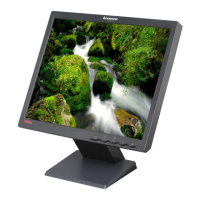
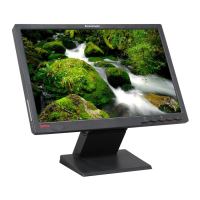
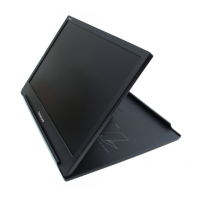
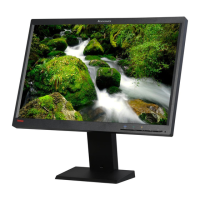
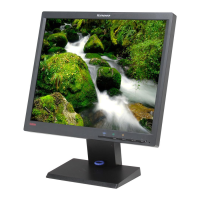
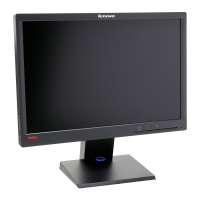
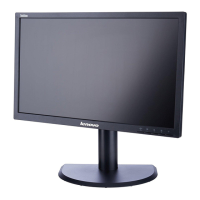
The Lenovo LI2215s is a flat panel monitor designed for comfortable viewing and efficient use. This user guide provides detailed information on its setup, adjustment, and maintenance.
Function Description
The Lenovo LI2215s functions as a display unit for computers, offering various adjustments for optimal viewing. It supports both analog (D-SUB) input and incorporates power management features to conserve energy. The monitor is designed for ease of use with direct access controls and an On-Screen Display (OSD) menu for image adjustments. It also supports VESA mounting for flexible placement options.
Important Technical Specifications
The monitor has the following key specifications:
- Dimensions:
- Height: 399.03 mm (15.71 in.)
- Depth: 190.00 mm (7.48 in.)
- Width: 509.20 mm (20.05 in.)
- Stand: Tilt range of -5° to +22°.
- VESA Mount: Supported, with a 100 mm x 100 mm distance for mounting brackets, requiring M4 x 10 mm screws. Minimum weight/load for UL Listed Wall Mount Bracket: 8 kg.
- Image:
- Viewable image size: 546.1 mm (21.5 in.)
- Maximum height: 268.11 mm (10.56 in.)
- Maximum width: 476.64 mm (18.77 in.)
- Pixel pitch: 0.2768mm(H)x0.2768 mm (V).
- Power Input:
- Supply voltage: 100-240 VAC, 60/50 Hz
- Max supply current: 1.5 A
- Power Consumption (monitor and power supply combined):
- Max Consumption (Without USB hub): 25W
- Typical Consumption: 18 W
- Standby/Suspend: ≤0.5 W
- Off: ≤0.5W
- Video Input (Analog):
- Input signal: Analog Direct Drive, 75 ohm 0.7 V
- Horizontal addressability: 1920 pixels (max)
- Vertical addressability: 1080 lines (max)
- Clock frequency: 205 MHz
- Communications: VESA DDC CI.
- Altitude Test: Operation up to 16404.2 ft.
- Supported Display Modes (VESA Standard modes between noted ranges):
- Horizontal frequency: VGA: 30 kHz - 83 kHz
- Vertical frequency: 50 Hz - 75 Hz
- Native Resolution: 1920 x 1080 at 60 Hz
- Temperature:
- Operating: 0° to 40°C (32°F to 104°F)
- Storage: -20° to 60°C (-4°F to 140°F)
- Shipping: -20° to 60°C (-4°F to 140°F)
- Humidity:
- Operating: 8% to 80%
- Storage: 10% to 90%
- Shipping: 10% to 90%
Usage Features
The monitor offers several features to enhance user experience:
- Adjustable Positions: The monitor can be tilted from -5° to +22° to accommodate preferred head and neck posture and optimize screen content appearance.
- User Controls: Front-mounted controls allow for easy adjustment of display settings.
- Direct Access Controls: These controls are accessible even when the OSD is not displayed. They include:
- DDC-CI: Press and hold for 10 seconds to enable or disable the DDC-CI function.
- Exit: Exits and returns to the previous level.
- Auto Adjustment: Optimizes image (size, position, phase, and clock) for analog (VGA) sources. This function requires the monitor to be warmed up for at least 15 minutes.
- Novo Vision: A hot key for "fantasy mode" with options like Text mode, Web pic mode, Video mode, and Split-screen Display.
- Low Blue Light: Press and hold for 3 seconds to enable/disable Low Blue Light, which helps reduce eye strain.
- Enter: Enters the next level on the main menu/sub-menu status or the previous level on the adjustment bar.
- On-Screen Display (OSD) Controls: A comprehensive menu system for detailed adjustments, including:
- Brightness/Contrast: Adjusts overall brightness and the difference between light and dark areas.
- Low Blue Light: Enables or disables the low blue light feature.
- Image Position: Moves the image horizontally or vertically.
- Image Setup: Includes Automatic optimization and Manual settings for Clock, Phase, and Save.
- Image Properties (Color): Adjusts intensity of red, green, and blue. Offers preset modes (Neutral, sRGB, Reddish, Bluish) and a Custom mode for individual color saturation adjustments.
- Scaling: Options for Original Aspect Ratio (Same Aspect Ratio with input signal) and Full (Expand image to full screen).
- Information: Displays resolution, refresh rate, and product details (read-only).
- Options (Menu Language): Lists supported languages for the OSD.
- Menu Position: Adjusts the OSD menu's location on the screen, with Default, Horizontal, Vertical, and Save options.
- Factory Default: Resets the monitor to original factory settings (Cancel or Reset).
- Accessibility: Controls button and menu settings for accessibility preferences, including Button repeat rate (Off, Default, Slow) and Menu time out.
- Exit: Exits the main menu.
- Cable Lock Slot: Located at the rear of the monitor for security.
- Power Management: The monitor enters standby/suspend or off states when the computer is inactive, indicated by a steady amber or off power indicator, respectively. This helps in energy conservation.
- Monitor Driver Installation: Detailed instructions are provided for manually installing the monitor driver on Windows 10, 8.1, 8, and 7, ensuring optimal display settings and refresh rates.
Maintenance Features
Proper maintenance ensures the longevity and performance of the monitor:
- Cleaning:
- Turn off the computer and monitor, then unplug the monitor from the power outlet before cleaning.
- Wipe the screen with a dry, soft, clean cloth. For additional cleaning, use an antistatic screen cleaner.
- Dust the monitor housing with a damp cloth. For additional cleaning, use a clean cloth dampened with isopropyl alcohol.
- Do not use: Benzene, thinner, ammonia, volatile substances, liquid or aerosol cleaners, or water directly on the screen or cabinet. These chemicals can damage the monitor.
- Avoid: Touching the screen with sharp or abrasive items, as this can cause permanent damage.
- Avoid: Cleaners with anti-static solutions or similar additives, as they may harm the screen coating.
- Handling:
- If the monitor weighs more than 18 kg (39.68 lb), it is recommended to move or lift it with two people.
- When removing the monitor base, lay the monitor face down on a soft area to prevent scratches or damage.
- General Maintenance:
- Do not open the monitor cabinet or attempt self-service. Contact an authorized Lenovo dealer if the monitor is not operating properly or is damaged.
- Adjust only the controls described in the operating instructions.
- Turn off the monitor when not in use. Using a screen saver and turning off the monitor when idle can significantly extend its life.
- Keep the monitor in a well-ventilated area, away from excessive light, heat, or moisture.
- Ensure ventilation slots and openings are not blocked or covered. Do not push objects into cabinet slots.
- Unplug the monitor from the power outlet before cleaning.
- Ergonomic Practices:
- Arrange the work area to suit individual needs, keeping frequently used items within easy reach.
- Position the monitor for comfortable viewing, considering viewing distance (510mm to 760mm recommended), monitor height (top of screen at or slightly below eye-height), and tilt.
- Position the monitor to avoid glare or reflections.
- Use adequate lighting and adjust monitor brightness, contrast, and image controls to personal visual preferences.
- Take short, periodic breaks from computing to stretch and move, as computing is a static activity.
- Recycling Information: Lenovo encourages responsible recycling of IT equipment. Information on recycling programs is available on the Lenovo website. Components containing heavy metals should be disposed of according to local regulations.



 To Next Page
 General