EasyManua.ls Logo

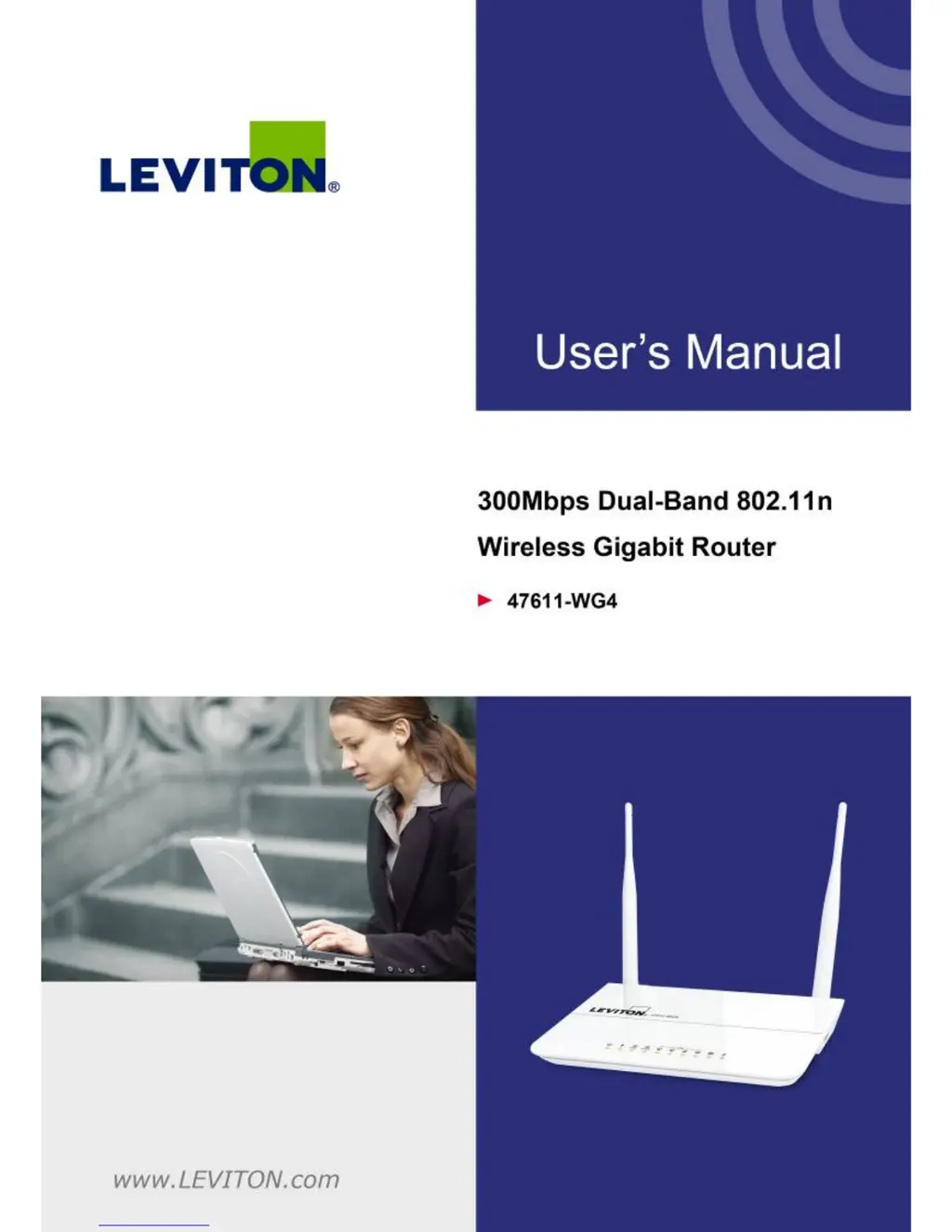
Leviton 47611-WG4 - User Manual

Leviton 47611-WG4
136 pages
Print Icon
To Next Page IconTo Next Page
Loading...
I

Table of Contents

Other manuals for Leviton 47611-WG4

Questions and Answers

  • M
    Michele HunterAug 5, 2025
    Why is file download speed so slow on my Leviton 47611-WG4 Network Router?
    • B
      bondcarmenAug 5, 2025
      If file downloads are slow or frequently interrupted with your Leviton Network Router, consider the following: * If you are using the QoS function, try disabling it. * Check what computers are doing on your local network. If someone is transferring big files, other users might experience slow internet speeds. * Try resetting the router. Sometimes the internet may just be slow, so being patient is important. If this issue is new, contact your internet service provider to check for network problems.
  • R
    rodriguezdonaldAug 16, 2025
    What to do if my wireless device can't find my Leviton Network Router?
    • W
      William Powell DDSAug 16, 2025
      If your wireless device can't find your Leviton Network Router, check these things: * Make sure 'Broadcast ESSID' is enabled. * Ensure both antennas are properly secured. * Try moving closer to the router. If ESSID broadcast is disabled, remember that you need to manually enter the ESSID on your wireless client.
  • M
    morrisgregoryAug 20, 2025
    What to do if I can't log in to my Leviton 47611-WG4 Network Router web interface because of a wrong password?
    • B
      Brittany GarzaAug 20, 2025
      If you can't log into the web management interface of your Leviton Network Router because the password is wrong: * Ensure you're connecting to the correct IP address of the router. * Remember that the password is case-sensitive, so check if 'Caps Lock' is on. * If you've forgotten the password, perform a hard reset on the router.
  • U
    ubaldwinAug 26, 2025
    Why is my Leviton Network Router getting so hot?
    • N
      Nicholas NelsonAug 26, 2025
      It's normal for the Leviton Network Router to get warm during operation. If you can keep your hand on the router's case, it's not a malfunction. However, if you smell something burning or see smoke coming from the router or A/C power adapter, disconnect the router and adapter from the power source immediately (if safe to do so) and contact your dealer for assistance.
  • B
    bballOct 31, 2025
    Why can't I connect to the Internet using my Leviton Network Router?
    • B
      Benjamin HarperOct 31, 2025
      If you're having trouble connecting to the internet with your Leviton Network Router, here are some things to try: * First, check the internet connection status in the router's 'Status' -> 'Internet Connection' menu. * If you previously connected a computer directly to the internet, try doing that again to see if the computer can connect when directly attached to the device provided by your internet service provider. * Double-check your PPPoE / L2TP / PPTP user ID and password. * Also, try resetting both the router and the device provided by your internet service provider. * If you can't connect to some websites but other internet services work, check the URL/Keyword filter. If nothing helps, try using the IP address instead of the hostname. Sometimes, the internet may just be s...
  • B
    barbaramorrisNov 10, 2025
    How to fix a Leviton 47611-WG4 that is not responding via web browser?
    • J
      Jennifer GonzalezNov 10, 2025
      If your Leviton Network Router isn't responding when you try to access it through a web browser, try these steps: 1. Check the power cord and Ethernet cable connections to ensure they are correctly and firmly inserted. 2. If all the LEDs on the router are off, verify the power adapter is working correctly. 3. Ensure you are using the same IP address section as the router. 4. If you are using MAC or IP address filters, try connecting with another computer. If that doesn't work, reset the router to the factory default settings by pressing the reset button for over 10 seconds. 5. Set your computer to obtain an IP address automatically (DHCP) to see if it gets an IP address. If you recently performed a firmware upgrade and this issue occurred, contact Leviton Tech Support for further ass...

Summary

Hardware Setup

Hardware Description

Overview of the router's physical components, ports, and dimensions.

Installation Guide

System requirements and step-by-step instructions for installing the router.

Initial Configuration

Manual Network Setup (TCP;IP)

Guide to configuring TCP/IP settings, obtaining IP automatically or manually.

Web UI Setup

Instructions for accessing and performing initial setup via the router's web interface.

Router Configuration

Device Information

View and understand router status, interface settings, and system information.

Connecting to Wireless Network

Appendices

Troubleshooting Guide

Solutions for common router problems and connectivity issues.

Technical Specifications

Lists detailed technical specifications of the router hardware and features.

Leviton 47611-WG4 Specifications

General IconGeneral
BrandLeviton
Model47611-WG4
CategoryNetwork Router
LanguageEnglish

Related product manuals