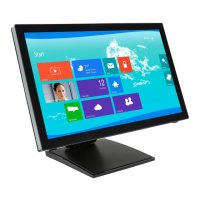
The Planar PCT2435 is a 23.8-inch (60.4 cm) widescreen TFT color LCD monitor designed for touch interaction, offering a crisp and clear display for Windows operating systems. It features an LED-backlit display, making it energy-efficient, and boasts an ergonomic and space-saving compact case design. The monitor is equipped with USB 3.0 connectivity, enhancing its versatility.
Function Description
The PCT2435 functions as a touch LED LCD monitor, providing both visual display and interactive touch capabilities. It is designed to be compatible with Microsoft® Windows® 7, 8, and 10 HID (Human Interface Device) when using the USB touch screen interface, meaning no additional software drivers are required for basic touch functionality. The monitor supports a recommended resolution of 1920x1080 at 60Hz, delivering high-definition visuals.
The monitor's core function is to display video input from a computer or other video sources via VGA, HDMI, and USB connections. Its touch screen allows for direct interaction with the displayed content, making it suitable for applications requiring intuitive user input. The monitor also incorporates VESA DDC2B capabilities, allowing it to communicate its identity and display capabilities to the host system, ensuring proper configuration.
Usage Features
The PCT2435 offers several features to enhance user experience and flexibility:
- Adjustable Height and Viewing Angle: The monitor's height can be adjusted from 4.96 inches (126.19 mm) to 14 inches (355.11 mm), allowing users to set it to their preferred ergonomic position. The viewing angle is also adjustable from -5° to 90°, providing flexibility for various use cases, such as collaborative work or presentation. Users should hold the stand when adjusting the angle to prevent the monitor from toppling.
- Front Panel Controls: The monitor includes front panel buttons for easy access to various settings. These include a Power Button to switch the monitor on/off, a MENU/ENTER button to activate the On-Screen Display (OSD) menu and confirm selections, ECO/(-) buttons for ECO control and navigation, and Volume/Blue Light Reducer/(+) buttons for volume control, navigation, and activating the Blue Light Reducer function. A Source/Auto Adjust/Exit button allows toggling between input sources, auto-configuration (for VGA input), and exiting the OSD menu.
- OSD Menu for Picture Adjustment: The OSD menu provides comprehensive options for adjusting picture quality. Users can control Luminance settings such as Contrast, Brightness, and Eco Mode (Standard, Text, Internet, Game, Movie, Sports presets). Image Setup options include Clock and Phase adjustments to reduce noise, H. Position and V. Position for picture placement, Image Ratio, Overdrive Adjustment, Color Range (for HDMI), and USB Power on/off.
- Color Temperature Settings: The monitor allows users to select different color temperatures (Warm, Normal, Cool) or customize RGB levels through the "User" setting. An sRGB option is available to recall sRGB Color Temperature from EEPROM.
- Blue Light Reducer: A dedicated Blue Light Reducer function helps reduce eye strain by offering various reduction levels (15% for video, 30% for web browsing, 50% for reading, and 70% for low ambient lighting environments). This can be activated via a hotkey (press and hold the + key for 3 seconds when OSD is off).
- OSD Setup: Users can adjust the horizontal and vertical position of the OSD menu, set the OSD timeout, and select the display language (English is the default).
- Input Select and DDC/CI: The monitor allows users to manually select the input source and enable or disable DDC/CI (Display Data Channel/Command Interface) for enhanced communication with the computer.
- Plug & Play DDC2B: This feature ensures that the monitor can automatically communicate its capabilities to the host system, simplifying setup.
- Power Saving Mode: The monitor complies with Green monitor standards (VESA and NUTEK) and will automatically switch to an OFF mode when no video input signal is present for a time-out period, conserving energy.
- Wall Mounting (Optional): The monitor is VESA compatible (100 mm x 100 mm distance) for wall mounting, providing flexibility in installation. Instructions are provided for converting from a desk-mounted to a wall-mounted display, including removing the base and attaching a mounting bracket. The wall mount bracket should support a minimum weight/load of 26.5lb (12kg).
Maintenance Features
The PCT2435 includes guidelines for proper care and troubleshooting to ensure longevity and optimal performance:
- Cleaning: The monitor should be cleaned periodically with a soft cloth. Stubborn stains can be removed with a cloth lightly dampened with a mild detergent solution. Strong solvents, thinner, benzene, or abrasive cleaners should be avoided as they can damage the cabinet. The monitor should always be unplugged before cleaning.
- Troubleshooting (FAQ): The manual provides a comprehensive FAQ section to address common issues such as the power LED not being on, no Plug & Play functionality, fuzzy pictures, picture disturbances, no video/picture despite the power LED being on, missing primary colors, off-centered or improperly sized images, color defects, poor brightness/contrast, and horizontal/vertical disturbances. Solutions include checking power connections, signal cables, video card seating, adjusting display settings (contrast, brightness, clock, focus, RGB color), and restarting the computer.
- Calibration/Reset Instructions: For the touch screen, calibration is a simple process accessible through Tablet PC Settings in the Control Panel (for Windows 7, 8, 10). Users can click the "Calibrate" button to perform calibration or the "Reset" button to revert to factory calibration settings, or to reset existing calibration data.
- Error Messages: The manual explains common error messages like "NO SIGNAL" (indicating issues with the signal cable connection or damage) and "INPUT NOT SUPPORT" (suggesting an unsuitable display mode set on the computer, requiring adjustment to a supported mode).
- General Precautions: Users are advised not to use the monitor near water, on unstable surfaces, or block ventilation openings. It should be operated only from the specified power source, and a grounded plug should be used. Unplugging during lightning storms or prolonged disuse is recommended. Overloading power strips and spilling liquids on the monitor should be avoided.
- Servicing: Users are explicitly warned not to attempt servicing the monitor themselves due to dangerous voltages. All servicing should be referred to qualified personnel.
- Packaging: Users are encouraged to save the original shipping carton and packing materials for potential future shipping needs, ensuring maximum protection.
- Operating Hours: The product should not be operated for more than 16 hours per day.
- Disposal: The manual includes a symbol indicating that the product should not be disposed of with household waste but rather handed over to a designated collection point for recycling electrical and electronic equipment, promoting environmental responsibility.

 Need help?
 General

 To Next Page