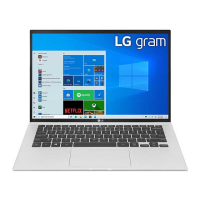
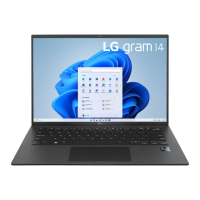
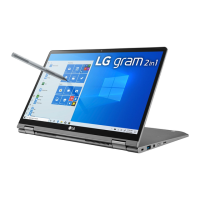
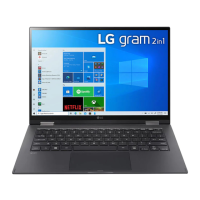
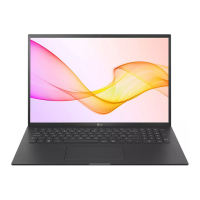
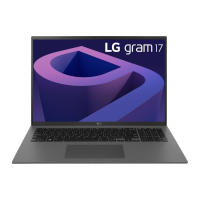
This document is an owner's manual for an LG Notebook, specifically the 14Z90Q Series. It provides essential information for the safe and convenient use of the product, covering setup, operation, and troubleshooting.
Function Description
The LG Notebook is a portable computing device designed for various tasks. It features a main body with a display, keyboard, and touchpad for user interaction. Connectivity options include an HDMI port for external displays, USB-C™ ports for data transfer, power, and connecting accessories like a LAN adapter, a headphone port for audio, and standard USB ports. It also includes a microSD card slot for expandable storage and a security keyhole for physical security. Built-in speakers provide audio output, and a built-in microphone allows for audio input. The notebook is powered by an AC adapter, which also charges the internal battery.
Usage Features
- Initial Setup: Before first use, users are advised to check all included components, which typically include the PC main body, owner's manual, AC adapter, power cable, and an optional LAN adapter.
- Powering On/Off: The notebook is turned on using the power button. For proper shutdown, users should wait for the system to fully load before initiating the shutdown process via the Start menu.
- Connectivity:
- LAN Adapter: The optional LAN adapter connects to a USB-C™ port, allowing for a wired internet connection using a CAT5 or higher network cable.
- USB-C™ Port: This versatile port supports USB 4.0 Gen 3x2 and Thunderbolt™ technologies. It can be used for data transfer, connecting a LAN adapter, and as a power port. It also offers Quick Charging and Always-On Charging for devices supporting USB PD (Power Delivery).
- Headphone Port: A 4-pole ear microphone port supports US type 4-pole standards for audio input and output. When an ear microphone or Bluetooth headset is connected, audio input and output are directed to the connected device, bypassing the PC's internal microphone and speakers.
- USB Ports: Standard USB 3.2 Gen 2x1 ports are available for connecting various USB devices.
- Battery Management: The notebook has a built-in battery pack that should be fully charged before initial use. The AC adapter lamp indicates the charging status: on when charging is complete, blinking when charging, and off when not connected. If the system doesn't turn on due to a low battery, connecting the AC adapter and charging for a sufficient period is necessary.
- Hot Keys: The notebook supports hot keys for convenient access to Windows functions. Details on these can be found in the LG Easy Guide.
- Display Modes: The device includes a Reader Mode, which adjusts the LCD screen's brightness and color to resemble printed paper, reducing eye strain. Users can toggle this mode on or off. The Night light function also adjusts display color temperature.
- Touchpad: The touchpad serves as a pointing device. Its functionality can be managed through the LG Smart Assistant, allowing users to enable/disable it or set it to auto-disable when an external mouse is connected.
- Wireless Network: The notebook supports wireless LAN connectivity. Users can manage wireless network settings and airplane mode using function keys (Fn + F6).
- Software and Drivers: LG Software, including UWP apps, can be installed from the Microsoft Store. Drivers can be reinstalled using the LG Update & Recovery tool.
- Troubleshooting: The manual provides solutions for common issues such as non-functioning Windows features, screen display problems, power-on failures, system freezes, touchpad malfunctions, incorrect display language, and wireless network connection issues.
Maintenance Features
- Cleaning: When cleaning the product, it is crucial to use a cleaning agent specifically designed for PCs. Using thinners, benzene, alcohol, or similar agents can damage or deform the product.
- Battery Care:
- Charging: Only use the provided AC adapter and power cable for charging to prevent battery damage and fire risks.
- Storage: Avoid storing or using the product in high humidity or temperatures above 60 °C (e.g., inside a car or sauna) to prevent explosions or fire. Keep the battery away from heat sources.
- Lifespan Optimization: For extended periods of non-use, keep the battery level at approximately 50% to prolong its lifespan. Regularly using the battery before recharging it, rather than keeping it constantly fully charged, can also help. The LG Smart Assistant's "Extend Battery Life" function can limit charging to 80% of maximum capacity for better longevity.
- Leakage/Odor: If battery leakage or a bad odor is detected, contact a local service center immediately.
- Physical Protection: Prevent the battery from contacting metallic objects like car ignition keys or paper clips, as this can cause damage, overheating, or fire.
- AC Adapter Cable: Do not excessively bend the AC adapter cable to prevent internal wire breakage, which could lead to electric shock or fire.
- Ventilation: Avoid using the product on soft surfaces like carpets, blankets, or beds, and do not place the adapter under a blanket, as this can lead to overheating, malfunction, fire, or burns. Do not leave the powered-on product in poorly ventilated spaces (e.g., bags) for extended periods to prevent overheating and fire.
- Battery Replacement: The internal battery pack is not user-removable or replaceable. Attempting to remove it may void the warranty. For battery removal or replacement, contact a designated service center, which may incur a fee.
- Data Backup: Any malfunction of the built-in solid-state drive (SSD) can result in data loss. Users are strongly advised to back up all critical data to an external storage device (e.g., USB HDD, memory card).
- System Reset: In cases of system malfunction or freezing, a system reset can be performed by removing the adapter and holding the power button for approximately 6 seconds. Note that this may result in unsaved data loss and potential damage to the hard disk or system errors if performed while the PC is in use.

 Need help?
 General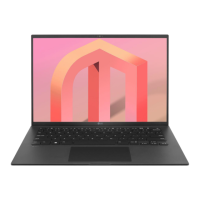

 To Next Page