EasyManua.ls Logo

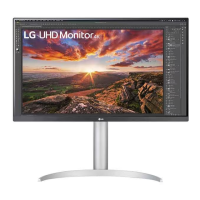
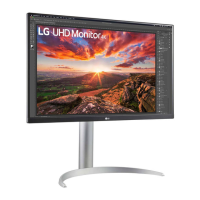
LG 27UP850N-W - User Manual

LG 27UP850N-W
36 pages
Print Icon
To Next Page IconTo Next Page
Loading...
* LG LED Monitor applies LCD screen with LED backlights.
Please read this manual carefully before operating your set and
retain it for future reference.
27UP850
27BP85U
27UP80B
27UP850N
27BP85UN
OWNER’S MANUAL
LED LCD MONITOR
(LED Monitor*)
www.lg.com
Copyright © 2020 LG Electronics Inc. All Rights Reserved.
Questo manuale d’istruzione è fornito da trovaprezzi.it. Scopri tutte le offerte per LG 27UP850N-W o
cerca il tuo prodotto tra le migliori offerte di Monitor

Questions and Answers

  • A
    Anne MclaughlinJul 29, 2025
    How to fix LG 27UP850N-W when nothing is displayed on the screen?
    • T
      Tammy MunozJul 29, 2025
      If nothing is displayed on your LG Monitor screen, here are a few things to check: * Ensure the power cord is correctly plugged into the power outlet. * Verify the power cable connection and press the power button. * Confirm that the connected input is enabled in the monitor settings (Settings > Input). * Check the signal cable between your PC and the monitor to ensure it's properly connected. * Make sure the signals from your PC's graphics card are within the monitor's horizontal or vertical frequency range. Refer to the Product Specification section to set the appropriate frequency.
  • Y
    yvonneblakeAug 3, 2025
    What to do if there is no sound from the headphone port of my LG Monitor?
    • A
      acarterAug 3, 2025
      If there's no sound from the headphone port on your LG Monitor: * Ensure the headphone port connections are properly made. * Try increasing the volume using the joystick. * Set the audio output of your PC to the monitor you are using. Note that the settings may differ depending on your operating system.
  • M
    michaelburtonAug 8, 2025
    Why is my LG 27UP850N-W Monitor screen display unstable and shaky?
    • A
      Amanda JohnsonAug 8, 2025
      If your LG Monitor's screen display is unstable or images leave shadow trails: * If the resolution is HDMI 1080i 60/50 Hz (interlaced), the screen may flicker. Change the resolution to 1080p or the recommended resolution. * Blurred text, a dimmed screen, a truncated display area, or misalignment can occur if the graphics card isn't set to the recommended resolution. Setting methods vary by computer and OS, and some resolutions depend on the graphics card's performance. If issues persist, consider contacting the computer or graphics card manufacturer.
  • R
    Richard CantrellAug 12, 2025
    Why does image sticking occur even when my LG Monitor is turned off?
    • H
      Hannah HaynesAug 12, 2025
      If image sticking occurs on your LG Monitor even when it's turned off, it could be due to displaying a still image for a prolonged time, which may damage the screen and cause image retention. To extend the monitor's lifespan, use a screensaver.
  • X
    xsandersAug 17, 2025
    What to do if I see an "Unrecognized monitor, Plug and Play (VESA DDC) monitor found" message on my LG 27UP850N-W Monitor?
    • B
      brianturnerAug 17, 2025
      If you see an "Unrecognized monitor, Plug and Play (VESA DDC) monitor found" message with your LG Monitor: * Install the display driver from the LG website: http://www.lg.com. * Check if your graphics card supports the Plug and Play function.
  • B
    Bonnie CuevasAug 23, 2025
    Why are some functions not available when I press the Menu button on my LG 27UP850N-W Monitor?
    • J
      Jimmy KimAug 23, 2025
      If some functions are unavailable when you press the Menu button on your LG Monitor, the OSD might be locked. To resolve this, disable OSD Lock in the General settings.

Summary

OPEN SOURCE SOFTWARE NOTICE INFORMATION

Supported Drivers and Software

Information on downloading drivers and software.

Product and Button Description

Joystick Button Operation

How to use the monitor's joystick button for control.

Monitor Moving and Lifting

Instructions for safely moving and lifting the monitor.

Installing on a Table

Adjusting the Stand Height

Steps to adjust the monitor's stand height.

Adjusting the Angle

Pivot Feature

Information on the monitor's pivot rotation feature.

Using the Kensington Lock

Installing the Wall Mount Plate

Installing on the Wall

Instructions for mounting the monitor to a wall.

USING THE MONITOR

PC Connectivity Options

Guide for connecting the monitor to a computer via HDMI, DP, USB-C.

Connecting AV Devices

HDMI Connection for AV Devices

Connecting AV devices via HDMI.

Connecting Peripherals

USB and Headphones Connection

Connecting USB devices and headphones to the monitor.

USER SETTINGS

Activating the Main Menu

Steps to access and navigate the monitor's main menu.

Main Menu Features

Menu Settings Navigation

How to navigate through the monitor's settings menus.

Quick Settings

Input Settings

Input List and Aspect Ratio

Selecting input source and adjusting screen aspect ratio.

Picture Settings

Picture Mode Options

Options for adjusting picture modes like Vivid, Cinema, sRGB.

Picture Adjustments

Brightness, Contrast, Sharpness

Adjusting basic image parameters.

Advanced Picture Controls

SUPER RESOLUTION+, Black Level, Variable Backlight.

Picture Adjust - DFC

Game Adjustments

Response Time and FreeSync

Adjusting response time and configuring FreeSync.

Black Stabilizer Feature

Enhancing visibility in dark game scenes.

Color Adjustments

Gamma and Color Temperature

Adjusting gamma and color temperature settings.

RGB and Six-Color Customization

Customizing colors using RGB and six-color adjustments.

Picture Reset Function

Resetting picture settings to default.

Sound Settings

Volume and Waves MaxxAudio

Adjusting volume and enabling audio enhancement features.

General Settings

Language and Energy Saving

Setting language and configuring energy saving options.

Sleep Mode and Power LED

Managing sleep mode and power LED indicators.

Standby and DisplayPort Version

Configuring auto-off timers and DisplayPort versions.

Advanced Display Features

HDMI ULTRA HD Deep Color

Enabling enhanced color depth for HDMI.

Buzzer and OSD Lock

Configuring buzzer sounds and locking OSD menus.

OSD and Reset Options

OSD Size and Information Display

Adjusting OSD size and viewing display information.

Reset to Initial Settings

Restoring the monitor to default factory settings.

TROUBLESHOOTING

Screen Display Issues

Solutions for no signal, image instability, and shadow trails.

Image Quality Problems

Addressing image sticking, spots, and feature availability.

Connectivity and Sound Troubleshooting

Unrecognized Monitor and Driver Issues

Resolving unrecognized monitor messages and driver problems.

Headphone Port and Sound Output

Troubleshooting sound issues and headphone port connections.

PRODUCT SPECIFICATION

Specifications for 27 UP850 Series

Detailed technical specifications for the monitor models.

PRODUCT SPECIFICATION - 27 UP80 B

Factory Support Mode (Preset Mode, PC)

HDMI Timing

HDMI Timing (Video)

Beep Guide

Suppliers Declaration of Conformity

LG 27UP850N-W Specifications

General IconGeneral
Screen Size27 inches
Resolution3840 x 2160 (4K UHD)
Panel TypeIPS
Aspect Ratio16:9
Brightness400 cd/m²
Refresh Rate60Hz
Response Time5ms (GtG)
HDRHDR10
VESA Mount100 x 100 mm
Viewing Angle178°/178°
Color GamutDCI-P3 95%
Ports1x HDMI, 1x DisplayPort, 1x USB-C, 2x USB-A
SpeakersYes, 5W x 2
Contrast Ratio1000:1
USB-C Power Delivery96W
Weight13.4 lbs (with stand), 9.7 lbs (without stand)

Related product manuals